Address Polyspace Results by Annotating Simulink Blocks
R2026bWhen analyzing generated code with Polyspace®, reported issues can originate from modeling choices in the Simulink® model. You can justify Polyspace results by annotating the relevant Simulink blocks with the justification. Polyspace supports justifying results from these checks and coding rules by annotating blocks in your model:
Code Prover run-time error checks. See Run-Time Checks (Polyspace Code Prover).
Bug Finder defects. See Defects.
MISRA C™:2004, MISRA AC AGC, and MISRA C:2012 coding rules. See MISRA C:2012 Directives and Rules.
MISRA C:2012 coding rules. See MISRA C:2012 Directives and Rules.
MISRA C:2023 coding rules. See MISRA C:2023 Directives and Rules.
MISRA C++:2008 coding rules. See MISRA C++:2008 Rules.
MISRA C++:2023 coding rules. See MISRA C++:2023 Rules and Directives.
CERT® C and C++ rules. See CERT C Rules and Recommendations and CERT C++ Rules.
Common weakness enumerations. See Common Weakness Enumeration (CWE).
AUTOSAR C++14 rules. See AUTOSAR C++14 Rules.
ISO-17961 rules. See ISO/IEC TS 17961 Rules.
Custom naming convention rules. See Custom Coding Rules.
Software complexity guidelines. See Guidelines.
After you add a Polyspace annotation to a block, the generated code corresponding to the block is prepopulated with your justifications. If you annotate a Subsystem block or a block that leads to a function call, code generated from the block does not show your justifications in the analysis results.
If you use Lookup tables, improperly stubbed Lookup tables can cause false positive Polyspace results. For more accurate analysis of code generated from models that use Lookup tables, enable the configuration parameter Stub lookup tables. Avoid using annotations for justifying results originating from Lookup tables.
Code generated by Embedded Coder® can have some known deviations from MISRA C:2012. See Deviations Rationale for MISRA C Compliance (Embedded Coder). Justify these known issues by annotating blocks.
Note
Annotations in Simulink blocks or in generated code do not take the history of the analysis into account. If you update your model, the Polyspace results can change while the annotations do not, rendering the annotations outdated. Update your annotations when you update your model or generated code.
Annotate Blocks Using Polyspace Platform User Interface
If you use Embedded Coder to generate code, you can annotate Simulink blocks directly by using the Polyspace Platform user interface. Locate the result that you want to justify in the Results List, and then enter review information by adding Severity, Status, and optional notes in the Result Details pane.
After annotating the result, in the Results Details pane, click Annotate Block button.
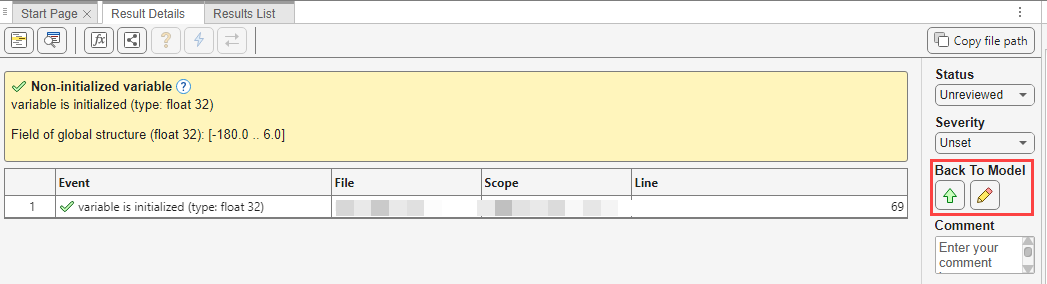
The annotations you entered in the Results Details pane are copied to the corresponding block.

When annotating this way, you can enter an annotation for each result individually. If a Simulink block corresponds to multiple Polyspace results, subsequent annotations on a block are appended to previous annotations. These annotations cannot be directly observed in the Simulink Editor. When you analyze the generated code in a later Polyspace run, these annotations are displayed as review information in the Result details pane of the Polyspace Platform user interface.
Alternatively, in the source code, right-click the variable showing the issue (or another variable in the same expression containing the flagged variable) and from the context menu, select Add Pre-Justification To Clipboard > Copy annotation for finding. The review information is copied to the clipboard. You can then paste the annotation in the generated code.
The Annotate Block button is available for code elements that can be traced to a Simulink block. For more information, see Trace Simulink Model Elements in Generated Code (Embedded Coder).
Annotate Blocks in Simulink Editor
To annotate a block in the Simulink Editor, select the block and on the Polyspace tab, select Add Annotation. In the Polyspace Annotation dialog box:
Select the type of Polyspace result that you want to annotate from the Annotation type.
If you want to annotate only one result, select Only one. Then, from the Select drop down, select the result you want to annotate. Specify the Status, Severity, and Comment in the corresponding boxes.
If you want to annotate multiple results of the same type, enter a comma-separated list of result short names or acronyms in the text box. To find result short names or acronyms, see:
The text Polyspace annotation appears next to the block. If the block has any pre-existing Simulink annotations, they are preserved. To view all annotations associated with the block, select the block and click the Display Annotations button. A read-only dialog box opens that displays the family, check, status, severity, and comment for each annotation associated with the block.
In the Polyspace Annotation dialog box, you can annotate one type of Polyspace result at a time. To annotate multiple types of results, open the Polyspace Annotation dialog box multiple times. Each time, add an annotation corresponding to one type of Polyspace result. Subsequent annotations are appended to previous annotations. These annotations cannot be seen in the Simulink Editor. When you analyze the generated code by using Polyspace, these annotations are displayed as review information in the Result details pane of the Polyspace Platform user interface.
Sometimes operations in the generated code cause orange checks in Code Prover. For example, if an operation can overflow, the generated code protects against the overflow by following the operation with a saturation. Polyspace still flags the possible overflow as an orange check. To justify these checks through code comments, select the configuration parameter Operator annotations (Embedded Coder).
Limitations
Polyspace annotations associated with a Simulink block may no longer be applicable when you use the block in a different context. For this reason, these limitations apply to Polyspace annotations on Simulink blocks:
Polyspace does not allow annotations in blocks inside libraries and nonatomic subsystems because these blocks are reused in many different contexts. For instance, you cannot annotate a block inside a library block and justify results on all instances of the library block.
Simulink does not retain Polyspace annotations in blocks that are copied to a different model or in a different location in the same model.

