Resolve Issues in parfor-loops Using MATLAB Copilot
R2026bparfor-loops follow specific rules that control how MATLAB® classifies variables and executes loop iterations in parallel. These rules
restrict how MATLAB read, writes, and indexes variables across iterations, and restrict
certain language features and programming patterns. When you run code that violates
these rules, MATLAB generates an error.
If you enable continuous code checking with Code Analyzer, MATLAB displays warnings and error messages about your
parfor-loop in the MATLAB Editor and Live Editor before you run your code. To learn more about how
Code Analyzer automatically checks code files for errors, see Check Code for Errors and Warnings Using the Code Analyzer.
MATLAB Copilot provides generative AI-powered capabilities specifically for the
MATLAB desktop environment. When the Code Analyzer reports
parfor warnings or errors, you can use a Copilot action to
explain the underlying parfor rule that the code violates and to
suggest changes to your code. The Copilot responses use domain-specific material from
MathWorks® documentation, information from Code Analyzer, and additional context from
the parfor-loop. To use MATLAB Copilot, you must have a MATLAB Copilot license. To learn more about setting up MATLAB Copilot, see Set Up MATLAB Copilot.
Fix parfor-Loop Errors with MATLAB Copilot
If you have a parfor-loop with Code Analyzer warnings and
errors that you do not understand, try using Copilot to get a more detailed
explanation of the issue.
For example, write a script that runs a parfor-loop with a
variable classification error. Copy this code into the MATLAB Editor and save the
file.
parfor idx = 1:10
    x(1) = 7;
    x(2) = 8;
    out(idx) = sum(x);
end
In the Editor, the Code Analyzer message indicator bar shows that the file contains an error. The code fragment that causes the error is underlined in red, and the indicator bar shows an error marker at the line of the code fragment.
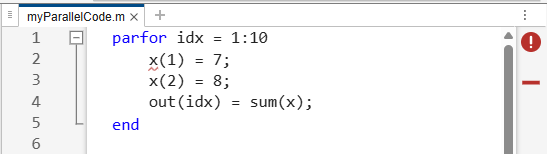
To view the error message for the code fragment, you can use one of these methods:
Click the marker in the indicator bar.
Point at the underlined code fragment.
Click the underlined code fragment and press Ctrl+M.
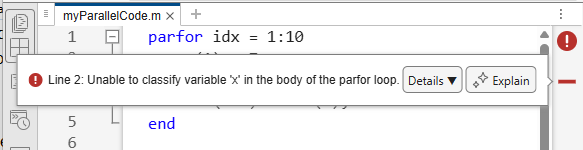
The Code Analyzer message on line 2 says that MATLAB cannot classify the x variable. It also includes an
Explain button with a symbol, which indicates that you can interact
with Copilot. To ask Copilot to explain the variable classification error, click Explain.
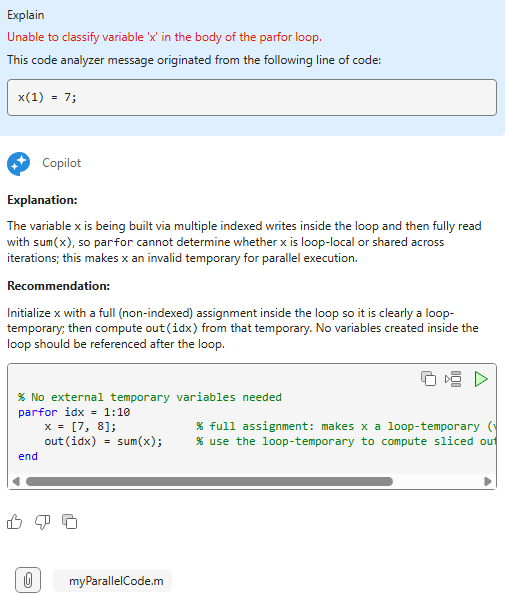
Copilot explains the error in the Copilot Chat panel. Typically, the response explains the error, suggests how you can resolve the error, and provides generated code. The exact response depends on the kind of error that you encounter.
Note
Copilot responses can contain errors and inaccuracies. Validate any generated code and text before using it.
Review the response from Copilot. Here, the response explains that MATLAB is unable to classify the x variable because
x is assigned to indexed elements in the
parfor-loop. The response recommends restructuring the code
to make x a temporary variable within each iteration.
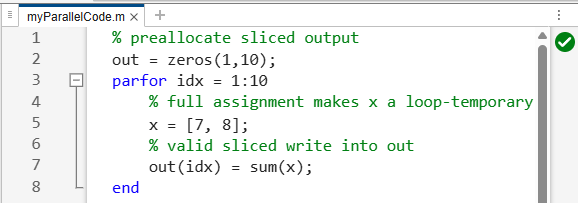
If Copilot generates code as part of the explanation, you can insert it into your code file or run it in the Command Window. You can also copy the generated code to the clipboard.
Review and validate the generated code before running it on a remote cluster or with many workers. For example:
Confirm that the code has no Code Analyzer warnings or errors.
Test the code using serial execution to verify that it produces the expected output.
Test the code on a local parallel pool to verify that it runs as expected on the workers.
If you need additional help to understand the error, you can ask follow-up questions in the Copilot Chat panel. For example, you can ask Copilot to explain the code it just generated. Alternatively, to get a line-by-line explanation of the generated code, select the code, right-click, and select Copilot > Explain Code.
Provide Feedback
MathWorks uses your feedback to improve MathWorks products and services.
There are three buttons at the end of every Copilot response:
— Send positive feedback that the answer is helpful.
— Send negative feedback that the answer is unhelpful. This button opens a dialog box where you can provide more details. You can choose to send your chat history as part of your feedback.
— Copy the entire response to the clipboard.

