Save and Reuse Variant Configurations Using Variant Configurations Object
R2026bThis example shows how to use Simulink® Variant Manager™ to save and reuse variant configurations for a Simulink model using a variant configurations object.
Learn how to use Simulink Variant Manager to:
Export a variant configurations object to the base workspace or data dictionary used by the model.
Export the variant configurations object to a file for reuse.
Import the variant configurations object from a file.
Reload the variant configurations object from the base workspace or data dictionary used by the model.
Disassociate the variant configurations object from the model
Overview of Variant Configurations
A variant configuration allows you to define a named set of variant control variables and their values, which can be used to activate a specific variation of a Simulink model. A variant configurations object (instance of the Simulink.VariantConfigurations class) stores the collection of all variant configurations and constraints defined for a model. For more information, see Variant Configurations.
Open Simulink Variant Manager
1. Open the model for which you want to create a variant configurations object. Consider the model slexVariantSubsystems.
open_system('slexVariantSubsystems');
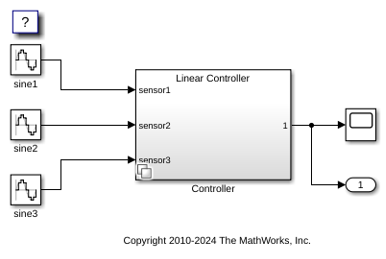
2. On the Modeling tab, in the Design section, click Variant Manager. The Simulink Variant Manager window opens and shows the Manage tab.
Define New Variant Configuration
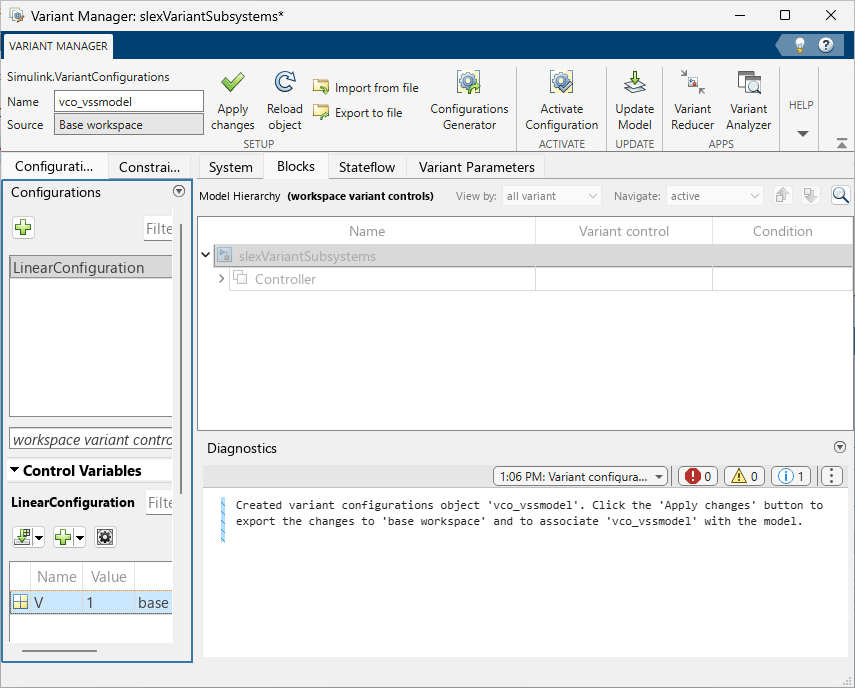
1. In Simulink Variant Manager, in the Configurations tab, click the Add variant configuration button. A new row is added. In the box, enter the name LinearConfiguration.
2. In the Configurations tab, scroll down to see the Control Variables section.
3. To import the control variables used by the model hierarchy to the variant configuration, click the Import control variables across model hierarchy button in the Control Variables section.
4. To import variant control variables of type Simulink.VariantControl from the base workspace or a data dictionary linked to the model even if the variant control is not yet used by the model, click the down arrow on the Import control variables across model hierarchy button and select Import control variables from model data source.
5. Click the Add control variable button in the control variables table to add new control variables to this configuration.
6. In the Name text box in the toolstrip, type a name for the Simulink.VariantConfigurations object, for example, vco_vssmodel.
Export Variant Configurations Object
To export the variant configurations object to the base workspace or data dictionary used by the model, click Apply changes in the Simulink Variant Manager toolstrip. This step also associates the object with the model.
Save the model to save the changes.
You can retrieve the variant configurations object associated with a model using the model parameter
VariantConfigurations, for example:
get_param('slexVariantSubsystems','VariantConfigurations')
ans =
'vco_vssmodel'
Save Variant Configurations Object to File for Reuse
When you export the variant configurations object to the base workspace, it is available only for the current MATLAB® session. To store the variant configurations for reuse, save it in a MAT file or MATLAB script.
1. Click Export to file in the toolstrip.
2. In the Save to file dialog box, enter the name and type of the file to store the object. Click Save.
If the variant configurations object is defined in the base workspace, this step allows you to save the object and reuse it later by importing it into Simulink Variant Manager. However, if the object is defined in a data dictionary, you need not export the object to a MAT file or MATLAB script. Instead, you must save changes to the data dictionary.
Load Variant Configurations Object from File
You can import a variant configurations object that is stored in a MAT file or MATLAB script into Simulink Variant Manager.
1. Click Import from file in the Simulink Variant Manager toolstrip.
2. In the Import from file dialog box, select the file and click Open.
Reload Variant Configurations Object
To reload the variant configuration object from the base workspace or data dictionary used by the model, click Reload object in the Variant Manager toolstrip. This allows you to revert the changes that are not yet exported to these storage locations.
When you export the variant control variables in a variant configuration or when you activate a variant configuration, the control variables are pushed to the data sources where the variables are stored. Reloading the variant configuration object from Simulink Variant Manager does not revert these changes.
Disassociate Variant Configurations Object from Model
To disassociate the variant configurations object from the model, clear the Name text box and click Apply changes.
Save the model to save the changes.

