Run Parallel Simulations Using parsim on Model in Project
R2026bThis example uses parsim to run multiple simulations in parallel for a Monte Carlo study.
This example shows how to:
Run a parallel parameter sweep on a project-based model using
parsim, without manually transferring dependencies to workersUse fast restart and a post-processing function to reduce recompilation and output data
Monitor and debug parallel simulations using Simulation Manager and worker diaries
Visualize results live using the parallel pool
ValueStoreand iterate with refined sweeps
Parallel execution leverages the multiple cores of your host machine to speed up multiple simulations. These simulations can also be run in parallel on compute clusters using MATLAB® Parallel Server™. If you do not have Parallel Computing Toolbox™ or MATLAB Parallel Server, the simulations in this example run serially.
Model Overview
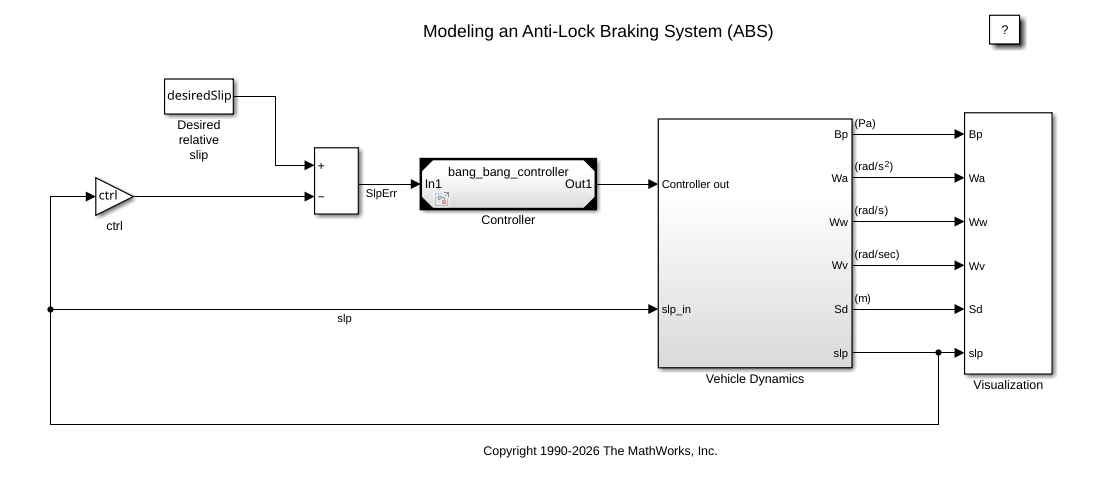
The model sldemo_absbrake simulates a single wheel under hard braking conditions using a simple anti-lock braking system (ABS). You can replicate the wheel to create a multi-wheel vehicle model. For more information about the model, see Model an Anti-Lock Braking System.
This model uses multiple referenced models in accelerator mode and a project startup file to load required variables into the base workspace. The model and the dependent files including cache files are part of a project sldemo_absbrake.prj.
This Monte Carlo study examines the effect of varying the desired relative slip between the road and the wheel on vehicle dynamics.
mdl = "sldemo_absbrake";
prj = openProject("RunParsimOnModelInProjectExample/sldemo_absbrake.prj");
open_system(mdl)
Configure Multiple Simulations Using SimulationInput Array
To define the parameter sweep, store the sweep values in slipsweep in the base workspace.
slipsweep = 0.16:0.001:0.24;
Store the number of simulations in numSims.
numSims = numel(slipsweep);
Use a for loop to:
Create a
SimulationInputobject array,simin, with one element representing one simulation.Set the desired slip sweep value on each
SimulationInputobject.
clear simin;
simin(1:numSims) = Simulink.SimulationInput(mdl);
for idx = 1:numSims
    simin(idx) = setVariable(simin(idx),"desiredSlip",slipsweep(idx));
end
Reduce Output Data with a Post-Processing Function
The model logs several signals during simulation, including actual slip and distance traveled. For this Monte Carlo study, you need only the mean slip and stopping distance. Add a post-processing function myPostSimFcn to the SimulationInput objects to extract these metrics and write them to a ValueStore object for live plot updates. This function runs on workers after each simulation.
The function extracts three metrics from each simulation: mean slip, desired slip, and stopping distance. It also writes slip data to the current ValueStore object so the live plot updates during the run. If a simulation error occurs, the function returns the output unchanged.
simin = simin.setPostSimFcn(@(simOut,simIn) myPostSimFcn(simOut,simIn));

function out = myPostSimFcn(simOut,simIn)
    if ~isempty(simOut.ErrorMessage)
        out = simOut;
        return
    end

    logs = simOut.logsout;
    slp = getElement(logs,"slp");
    slpData = slp.Values.Data;
    out.MeanSlip = mean(slpData);

    desiredSlip = getVariable(simIn,"desiredSlip");
    out.DesiredSlip = desiredSlip;

    sd = getElement(logs,"Sd");
    sdData = sd.Values.Data;
    out.StoppingDistance = sdData(end);

    slipdata = getCurrentValueStore;
    if ~isempty(slipdata)
        [~, key, ~] = fileparts(tempname);
        slipdata(key) = struct("DesiredSlip",out.DesiredSlip,"MeanSlip",out.MeanSlip);
    end
end
myPostSimFcn returns a structure instead of a Simulink.SimulationOutput object, but parsim outputs a Simulink.SimulationOutput object array containing the structure fields, SimulationMetadata and ErrorMessage. If you do not need logged signals, this step reduces output size and data transferred from workers, which helps avoid out-of-memory issues.
Set Up Plot for Live Visualization
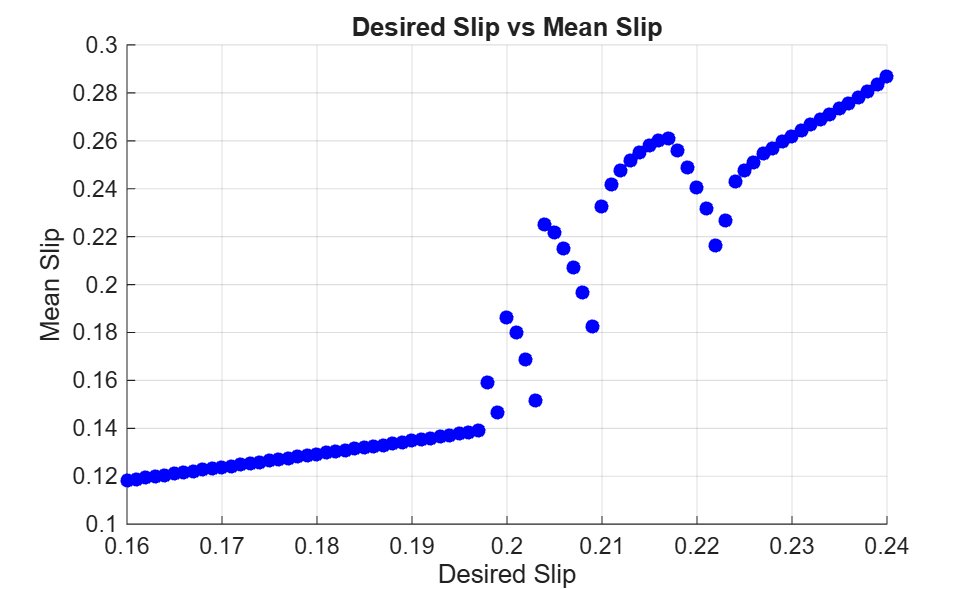
Before running parsim, create a figure for the "Desired Slip vs Mean Slip" scatter plot and register a KeyUpdatedFcn callback on the pool ValueStore if available. As each simulation completes, myPostSimFcn writes results to the ValueStore on the worker, which triggers the callback on the client and updates the plot incrementally.
fig1 = figure;
ax = axes(fig1);
xlabel(ax,"Desired Slip")
ylabel(ax,"Mean Slip")
title(ax,"Desired Slip vs Mean Slip")
grid on
hold on
pool = gcp("nocreate");
if ~isempty(pool)
    slipdata = pool.ValueStore;
    slipdata.KeyUpdatedFcn = @(src,key) updatePlot(src,key,ax);
end

function updatePlot(src,key,ax)
    plotdata = src(key);
    scatter(ax,plotdata.DesiredSlip,plotdata.MeanSlip,"filled",MarkerFaceColor="b")
    drawnow nocallbacks
end
Simulation Manager can also visualize post-processed results using scatter and surf plots, without the need to write values to the pool ValueStore. This example uses a manual plot to show how to retrieve results programmatically outside Simulation Manager and overlay results from multiple parsim calls.
Run Parallel Simulations with Fast Restart
Pass the SimulationInput array, simin, to parsim. parsim returns a Simulink.SimulationOutput array stored in out. Set ShowSimulationManager to on to view simulation progress.
Because non-tunable parameters do not change across simulations, set UseFastRestart to on. This reduces initialization and termination time for later simulations. For more information on fast restart, see Get Started with Fast Restart.
When you use a remote cluster, parsim automatically archives and transfers the project files, startup scripts, and shutdown scripts to workers. parsim loads the project on workers, so the startup script runs before simulations begin.
out = parsim(simin,ShowSimulationManager="on",UseFastRestart="on");
[29-Jul-2026 12:44:50] Checking for availability of parallel pool...
[29-Jul-2026 12:44:50] Starting Simulink on parallel workers...
[29-Jul-2026 12:44:57] Loading project on parallel workers...
[29-Jul-2026 12:44:57] Configuring simulation cache folder on parallel workers...
[29-Jul-2026 12:44:57] Loading model on parallel workers...
[29-Jul-2026 12:45:07] Running simulations...
[29-Jul-2026 12:47:12] Cleaning up parallel workers...
As simulations run, the scatter plot updates incrementally as each simulation completes.
Monitor Simulations in Simulation Manager
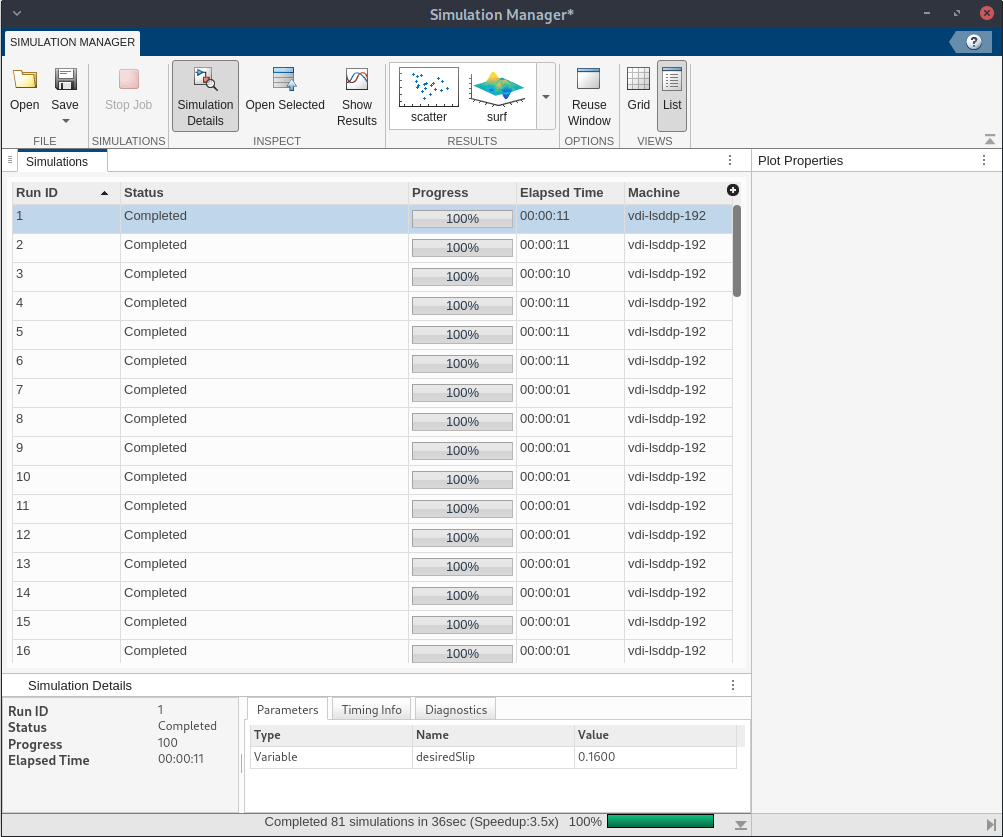
The Simulations tab shows all simulations and their current state: Compiling, Running,and Completed. Click a simulation to open the Simulation Details pane. For more information, see Simulation Manager.
Effect of Fast Restart on Initialization Times
To verify the effect of fast restart, extract initialization times from the SimulationMetadata and plot them.
metadata = [out.SimulationMetadata];
timinginfo = [metadata.TimingInfo];
initTimes = [timinginfo.InitializationElapsedWallTime];
fig2 = figure;
plot(initTimes,".-",MarkerSize=12)
title("Fast Restart Initialization Times for Parallel Simulations")
xlabel("Run Index")
ylabel("Initialization Time (s)")
grid on
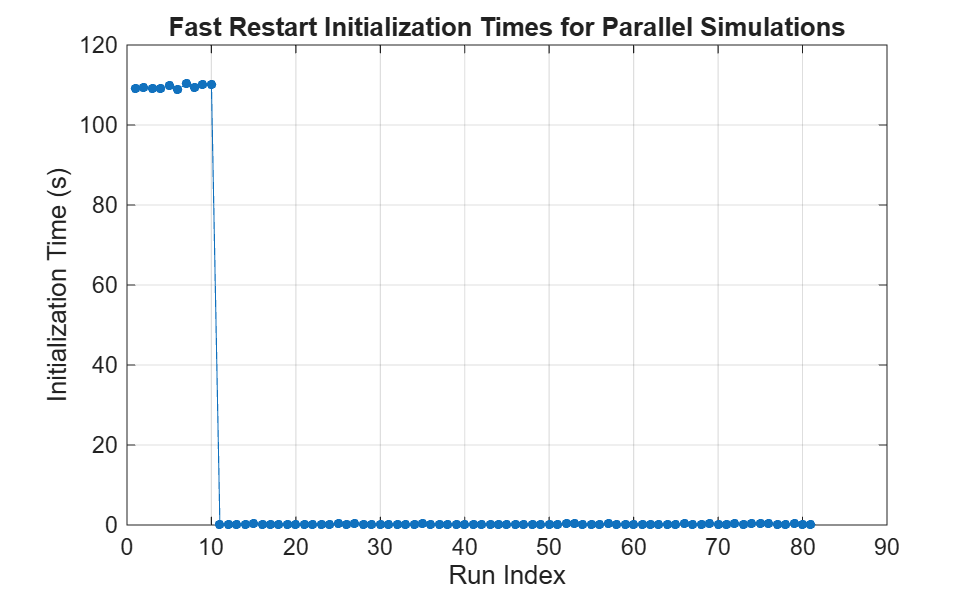
The plot shows that the first simulation on each worker requires several seconds to initialize, but later simulations take negligible initialization time because they use fast restart.
Debug Simulations Using Worker Diaries
When simulations run in parallel, SimulationMetadata contains the diary of each simulation within the ExecutionInfo structure. The Diary captures everything printed to the Command Window on workers during setup, execution, and post-processing. This helps you to debug problems such as user-written callbacks causing unintended behavior on workers.
If the simulations ran in parallel, display the diary of the first simulation.
if isfield(out(1).SimulationMetadata.ExecutionInfo,"Diary")
    disp("Simulation 1 diary:")
    disp(out(1).SimulationMetadata.ExecutionInfo.Diary)
    disp("***End of Diary***")
end
Simulation 1 diary:
### Searching for referenced models in model 'sldemo_absbrake'.
### Total of 2 models to build.
### Starting serial model build.
### Starting model reference simulation target build for: bang_bang_controller
### Successfully updated the model reference simulation target for: bang_bang_controller
### Starting model reference simulation target build for: sldemo_wheelspeed_absbrake
### Successfully updated the model reference simulation target for: sldemo_wheelspeed_absbrake

Build Summary

Model reference simulation targets:

Model                       Build Reason                                                   Status                        Build Duration
=======================================================================================================================================
bang_bang_controller        Target (bang_bang_controller_msf.mexw64) did not exist.        Code generated and compiled.  0h 0m 49.048s
sldemo_wheelspeed_absbrake  Target (sldemo_wheelspeed_absbrake_msf.mexw64) did not exist.  Code generated and compiled.  0h 0m 52.267s

2 of 2 models built (0 models already up to date)
Build duration: 0h 1m 46.398s
***End of Diary***
The diary for the first simulation shows the model reference build logs. The referenced model targets did not exist on the worker, so parsim built them from scratch. If simulation cache files are available on the client, parsim copies them to workers and skips the rebuild.
Display the diary of the last simulation.
if isfield(out(1).SimulationMetadata.ExecutionInfo,"Diary")
    disp("Simulation " + string(numSims) + " diary:")
    disp(out(numSims).SimulationMetadata.ExecutionInfo.Diary)
    disp("***End of Diary***")
end
Simulation 81 diary:
***End of Diary***
You can verify that the simulations ran using fast restart because the diary of the last simulation is empty and no build logs appear.
Run a Refined Parameter Sweep
You can repeat this process as the model evolves, to sweep over other parameters or different parameter values.
In the plot, MeanSlip varies irregularly between 0.2 and 0.21. To better understand model behavior in that range, clear the previous simulation inputs and create a finer sweep around those values.
clear simin slipsweep numSims
slipsweep = 0.197:0.0001:0.21;
numSims = numel(slipsweep);

simin(1:numSims) = Simulink.SimulationInput(mdl);
for idx = 1:numSims
    simin(idx) = setVariable(simin(idx),"desiredSlip", slipsweep(idx));
end
simin = setPostSimFcn(simin,@(simOut,simIn) myPostSimFcn(simOut,simIn));
In the Simulation Manager window, select the Reuse Window button from the Options section of the toolstrip.
fig1.WindowStyle = "normal";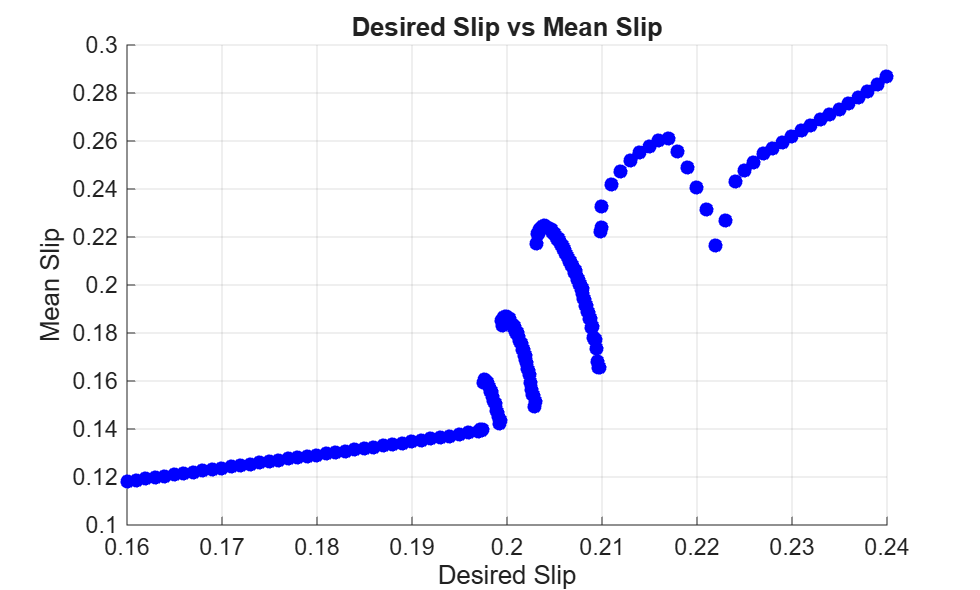
out = parsim(simin,ShowSimulationManager="on",UseFastRestart="on")
[29-Jul-2026 12:48:15] Checking for availability of parallel pool...
[29-Jul-2026 12:48:15] Starting Simulink on parallel workers...
[29-Jul-2026 12:48:20] Loading project on parallel workers...
[29-Jul-2026 12:48:20] Configuring simulation cache folder on parallel workers...
[29-Jul-2026 12:48:20] Loading model on parallel workers...
[29-Jul-2026 12:48:31] Running simulations...
[29-Jul-2026 12:50:32] Cleaning up parallel workers...
out =
1x131 Simulink.SimulationOutput array
When you are done running parallel simulations, you can close the parallel pool to free worker resources by deleting the pool.
delete(gcp("nocreate"));
See Also
parsim | Simulink.SimulationInput

