Generate MATLAB Tests from Requirements
R2026bYou can generate MATLAB® tests from requirements in the Requirements Editor, then verify the requirements by running the tests. Create starter tests and then complete the tests by adding content to the test file. If you have MATLAB Copilot, you can generate completed tests from requirements that have implementation links.
Alternatively, you can generate tests for MATLAB source code. For more information, see Create Starter Tests for MATLAB Source Code (MATLAB Test) and Generate Unit Tests Using MATLAB Copilot (MATLAB Test).
Generate Tests from Requirements
To generate a test from a requirement:
In the Requirements Editor, select a requirement.
Tip
To identify requirements that do not have links, display the verification status by selecting Columns > Verification Status, then scan for requirements with an empty bar in the Verified column.
Generate a test from a requirement:
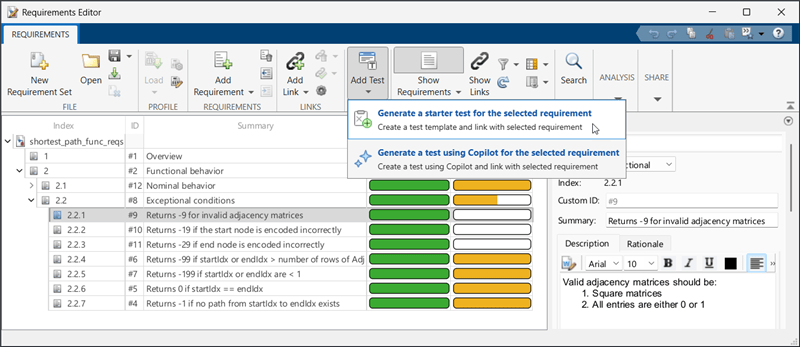
To generate a starter test, click Add Test > Generate a starter test for the selected requirement.
To generate a completed test, click Add Test > Generate a test using Copilot for the selected requirement. You can generate completed tests only for requirements that have an Implemented by link to MATLAB code. Additionally, you must have MATLAB Copilot.
In the Add Test for Requirement dialog box, select whether to create a new test file, or add the test to an existing file. If you create a new test file, you can specify the name and directory of the new file. If you add the test to an existing file, specify the path to the file or browse for the file.
To create a link from the generated test to the source requirement, ensure that Create verification link from test to requirement is enabled.
To add a new test file that contains the generated test to the current project, select Add test file to current project.

Open Generated Test
To open the generated test in the MATLAB Editor, from the Requirements Editor, select the requirement. In the right pane, under Links, click the link to the test file under Verified by.
Complete Starter Test
If you generated a starter test, you must complete it before you can run it. Otherwise, it fails. To complete the starter test:
Remove the line that contains the
verifyFailmethod, which causes the test to fail.In the Requirements Editor, read the requirement description and summary. Then, identify the MATLAB code that implements the requirement.
In the test file, execute the code that implements the requirement.
Choose a qualification method to test the output value of the executed code. For a list of qualification methods, see Table of Verifications, Assertions, and Other Qualifications.
Tip
If you're not sure which qualification method to use, consider using
verifyEqual, which compares the actual output value of executed code to a known expected value.Add the qualification method to the test. If needed, specify the expected output of the code for the same inputs that you used to execute the code.
For more information about completing starter tests, see Create Starter Tests for MATLAB Source Code (MATLAB Test).
Examine Test Generated by MATLAB Copilot
If you generate a completed test, MATLAB Copilot attempts to generate test code that verifies the requirement without any additional input from you. However, the generated tests might contain errors or incorrect code and might not correctly exercise the source code that implements the requirement.
Review the generated tests before use, and ensure that the tests exercise the functional behavior that you want to qualify. You can use MATLAB Copilot to explain the generated tests by opening the test in the MATLAB Editor, placing your cursor in the test and, on the Editor tab, selecting Copilot > Explain Code.
Verify Requirements
To verify requirements, you can run only the tests that link to the requirements that you want to verify by using the Requirements Editor. Alternatively, if you use a project to store your requirements and tests, you can run a test or a suite of tests and verify requirements that link to those tests by using the MATLAB Test Manager (MATLAB Test).
To view the requirements verification status based on the result of linked tests, in the Requirements Editor, select Columns > Verification Status.
Verify Specific Requirements
You can verify an individual requirement, a parent requirement and its children, or a requirement set by using the Requirements Editor. To verify requirements, in the Requirements Editor, right-click a requirement or a requirement set and select Run Tests. In the Run Tests dialog box, ensure that the tests are selected, then click Run Tests.

To programmatically verify requirements, pass an slreq.ReqSet object as an input to the runTests function.
Run Specific Tests
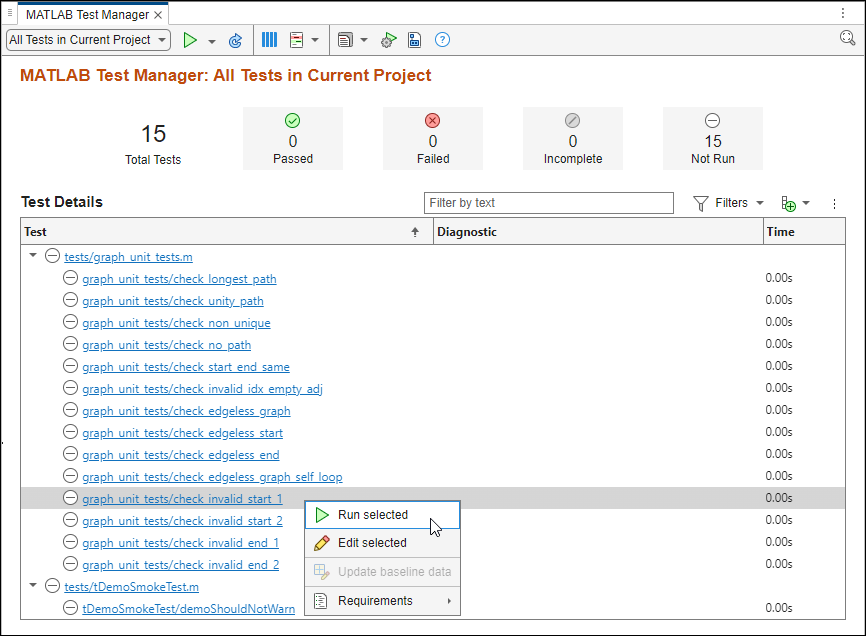
To run specific tests, which verifies all requirements linked to those tests, use one of these approaches in the MATLAB Test Manager:
Run all of the tests in the project by clicking the Run button
 .
.Run the tests in a test suite. In the MATLAB Test Manager menu, click the drop-down list on the left, select a test suite, then click the Run button
.Run individual tests by pressing Shift or Ctrl and selecting the tests, then right-click and select Run selected.
For more information, see Manage Tests and Results by Using the MATLAB Test Manager (MATLAB Test).
You can also run all of the tests in the project by
clicking the Run button
in the Code Quality
Dashboard (MATLAB Test).
When you use the MATLAB Test Manager or Code Quality Dashboard to run tests that link to requirements, Requirements Toolbox™ updates the verification status for the linked requirements in the Requirements Editor (since R2023b).
Note
You cannot verify requirements by using the Test Browser to run tests.
See Also
Apps
- Requirements Editor | MATLAB Test Manager (MATLAB Test) | Code Quality Dashboard (MATLAB Test)

