UVify IFO-S Autopilot in Hardware-in-the-Loop (HITL) Simulation in Simulink
R2026bThis example shows how to use the UAV Toolbox Support Package for PX4® Autopilots to deploy and verify algorithms on UVify IFO-S Drone, with NVIDIA® Jetson™ as Onboard computer. This example shows how to use the UAV Toolbox Support Package for PX4® Autopilots to deploy and verify flight control algorithms on a UVify IFO-S Autopilot using Hardware-in-the-Loop (HITL) simulation in Simulink®.
This example shows you how to:
Deploy a flight control algorithm modeled in Simulink® to UVify IFO-S Autopilot.
Enable Scenario visualization in Unreal Engine®.
Perform HITL Simulation of UAV Dynamics and sensors.
Limitation: The Unreal Engine simulation environment is supported only on Microsoft® Windows® system. If you are using a Linux® system, skip adding the 3D scenario simulation step and you will still be able to complete this example.
Prerequisites
If you are new to Simulink, watch the Simulink Quick Start video.
Go through the PX4 Hardware-in-the-Loop System Architecture document to understand the physical connections required to setup the Pixhawk® and Simulink for HITL Simulation.
Configure and set up Pixhawk in HITL mode. For more information, see Setting Up PX4 Autopilot in Hardware-in-the-Loop (HITL) Mode from QGroundControl.
Set up the PX4 Firmware as mentioned in Set Up PX4 Firmware for Hardware-in-the-Loop (HITL) Simulation. In the Select a PX4 Autopilot and Build Target screen, select a Pixhawk Series board as the PX4 Autopilot board from the menu. This example uses UVify IFO-S.
To get familiar with the cosimulation framework for UAVs, see Unreal Engine Simulation for Unmanned Aerial Vehicles.
Required Third-Party Software This example requires the third-party software QGroundControl (QGC).
Required Hardware To run this example, you need this hardware:
UVify IFO-S
Micro USB type-B cable
Micro-SD card
NVIDIA Jetson & power adaptor (recommended)
Development computer configured with MATLAB® supported GPU, as shown in GPU Computing Requirements (Parallel Computing Toolbox). It is recommend to use GPU with compute capability of more than 5.
HITL Workflow Overview
This diagram illustrates the PX4 and NVIDIA Jetson HITL setup and the physical communication between various modules.
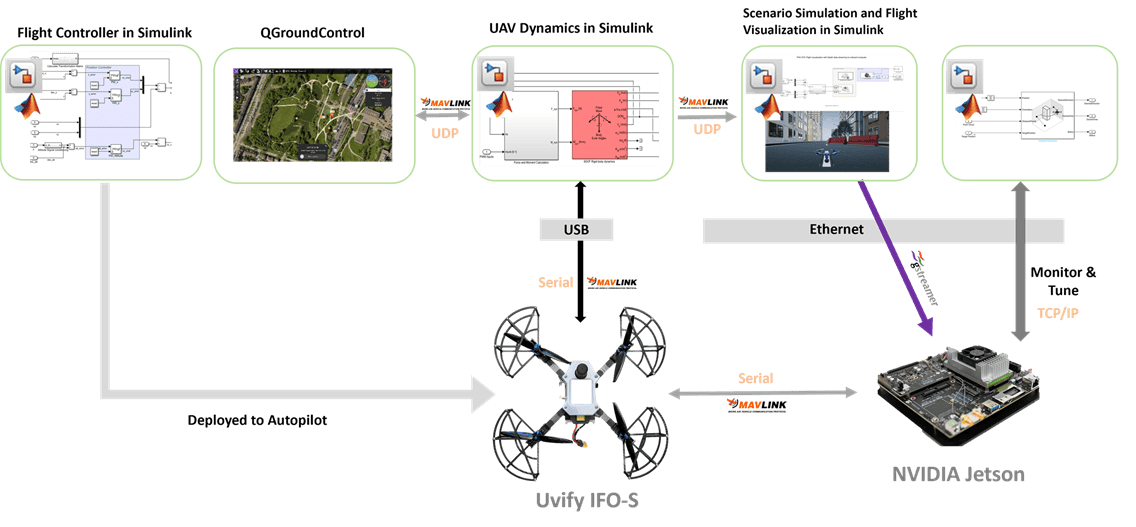
This example uses three Simulink models.
Flight Controller to be deployed on PX4 Autopilot
UAV Dynamics and sensor simulation
Flight visualization with Unreal Engine Simulation for Unmanned Aerial Vehicles
To avoid performance degradation when running multiple models, use two MATLAB sessions of the same version.
Session 1: Runs the flight controller deployment and UAV dynamics model.
Session 2: Runs the Unreal Engine-based flight visualization model.
Step 1: Make Hardware Connections and Set Up the UVify IFO-S Drone in HITL Mode
1. Connect your Autopilot board to the development computer using the USB cable.
2. Configure the Pixhawk board in HITL mode as documented in Setting Up PX4 Autopilot in Hardware-in-the-Loop (HITL) Mode from QGroundControl.
3. Set up the PX4 Firmware as mentioned in Set Up PX4 Firmware for Hardware-in-the-Loop (HITL) Simulation.
Step 2: Open First Session of MATLAB and the MATLAB Project
The support package includes an example MATLAB project having the PX4 flight controller and the UAV to follow the mission set in the QGroundControl (QGC).
1. Open MATLAB.
2. Open the example project by executing this command at the MATLAB command prompt:
openProject('px4demo_HITLSimulinkPlant')
3. Once the Simulink project is open, go to the Project tab, and in the Shortcuts section, click Open Autopilot Controller to open PX4 Controller named Quadcopter_ControllerWithNavigation.

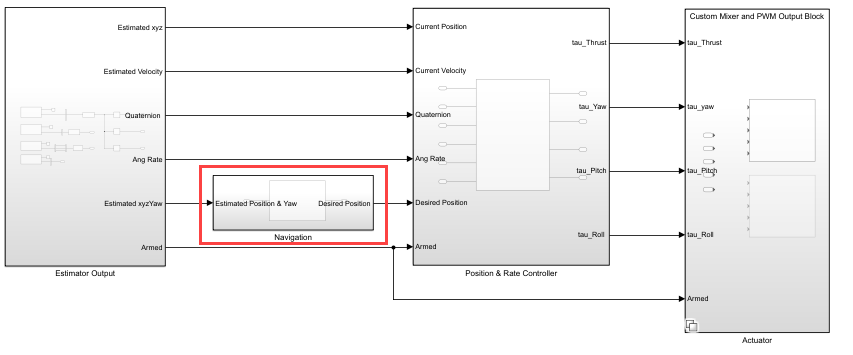
4. Navigate to the Navigation subsystem. This is a variant subsystem with guidanceType as the variant control variable. Define guidanceType = 1 in the base workspace to choose the navigation subsystem for this example.
5. In the Project tab, and in the Shortcuts section click Open UAV Dynamics to open the Simulink UAV Dynamics model named UAV_Dynamics_Autopilot_Communication.

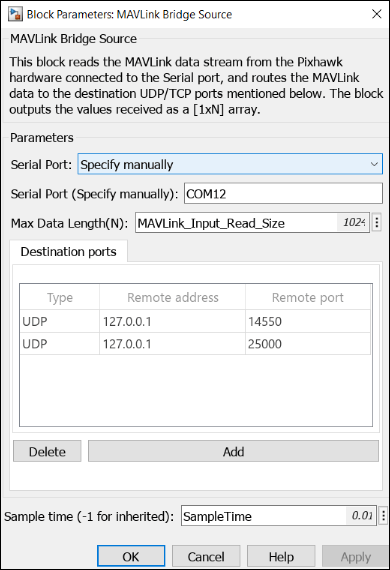
6. Double-click the MAVLink Bridge source and sink blocks and set the serial port of autopilot board.
7. Add a local development computer connection for flight visualization in MAVLink Bridge Source block. Set the port to 25000.
8. Copy the MATLAB Project Path to clipboard.
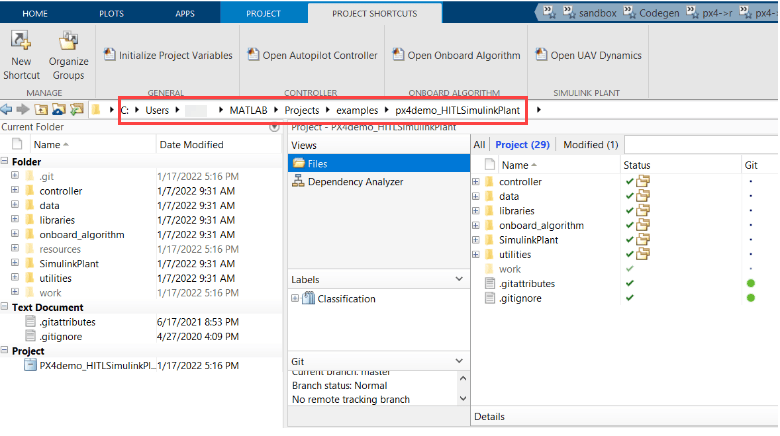
Step 3: Configure Simulink Controller Model for HITL Mode
1. Follow the instructions in Configure Simulink Model for Deployment in Hardware-in-the-Loop (HITL) Simulation. Set Hardware Board to UVify IFO-S.
2. In the Simulink model window toolstrip, on the Hardware tab, click Build, Deploy & Start for the controller model Quadcopter_ControllerWithNavigation.

The code is generated for the controller model and automatically deployed to the autopilot board.
After the deployment is complete, QGroundControl is automatically opened.
Note: If you are using Ubuntu®, QGC might not open automatically. To open QGC, open Terminal and go to the location where QGC is downloaded and run this command:
./QGroundControl.AppImage
Step 4: Open Second Session of MATLAB and Open the Flight Visualization Model
Note: Skip this step if you choose not to use flight visualization with PX4 HITL.
1. Open the second instance of the same MATLAB version. In this MATLAB session, the Simulink model for scenario simulation and flight visualization using unreal environment runs.
Ensure that your development PC is configured with MATLAB supported GPU (GPU with compute capability of more than 5).
2. Open the project by executing this command at the MATLAB command prompt:
openProject('px4demo_HITLSimulinkPlant')
3. Once the Simulink project is open, in the MATLAB window, go to Project tab, and in the Shortcuts section, click Open 3D Visualization with Unreal Engine to open the onboard model Unreal_3DVisualization.

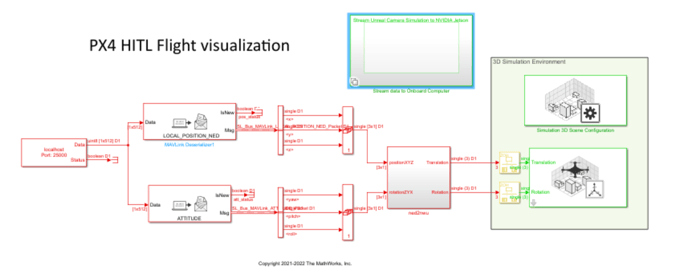
This model receives MAVLink data from the PX4 Autopilot over UDP (port 25000), decodes position and attitude data, and provides flight visualization using the Simulation 3D UAV Vehicle block.
4. Enable the streaming of simulated depth sensor data in NVIDIA Jetson by setting the variable enableOnboardStreaming to 1.
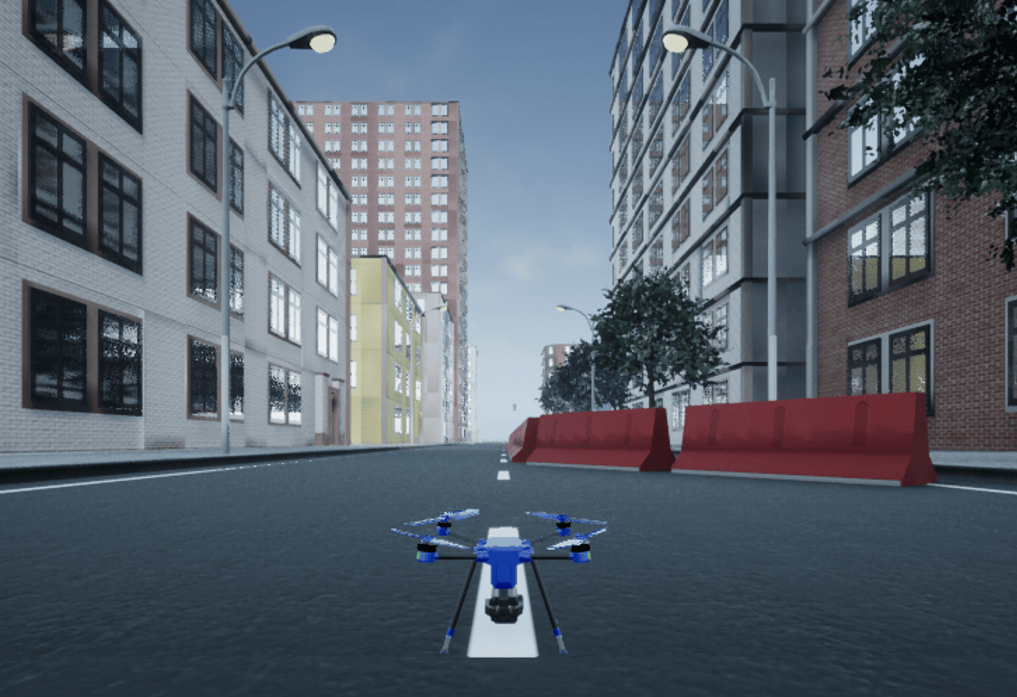
5. On the Simulation tab, click Run to simulate the model. Once the model starts running, the Unreal simulation environment opens. A sample screen is shown below.
Step 5: Run the UAV Dynamics Model, Upload Mission from QGroundControl and Fly the UAV
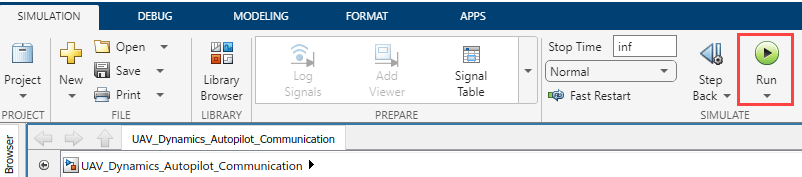
1. In the Simulink toolstrip of the plant model (UAV_Dynamics_Autopilot_Communication), on the Simulation tab, click Run to simulate the model.
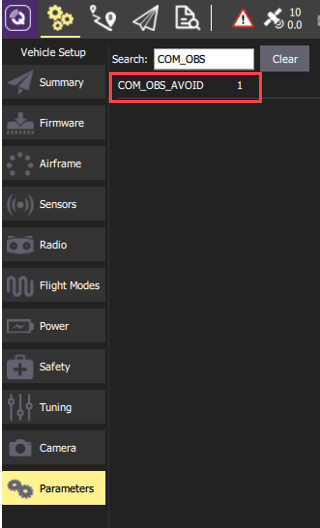
2. Set the PX4 parameter COM_OBS_AVOID enabling the PX4 path planning interface. Navigate to Parameters from the main menu and set the COM_OBS_AVOID parameter value to 1.
3. In the Parameters tab, set the COM_DISARM_PRFLT parameter value to -1.
2. Configure the actuators in QGC. For more information, see Configure and Assign Actuators in QGroundControl.

4. In the QGC, navigate to the Plan View.
Troubleshooting
While Simulating the visualization model in Step 4, you might get STD exception errors such as, "some module could not be found". To fix this issue, change the compiler to Microsoft Visual C++ 2019 by using the
mex -setup c++command.

