Pixel-Streaming Design in MATLAB
R2026bThis example shows how to design pixel-stream video processing algorithms using Vision HDL Toolbox™ objects in the MATLAB® environment and generate HDL code from the design.
To reduce simulation time, this example tests the design using a small thumbnail image. To simulate larger images, such as 1080p video format, use MATLAB Coder™ to accelerate the simulation. See Accelerate Pixel-Streaming Designs Using MATLAB Coder.
Test Bench
In the test bench PixelStreamingDesignHDLTestBench.m, the videoIn object reads each frame from a video source. It then converts the frame to grayscale, and uses the imresize function to reduce the frame from 240p to a thumbnail size for the sake of simulation speed. This thumbnail image is passed to the frm2pix object, which converts the full image frame to a stream of pixels and control structures. The test bench calls the PixelStreamingDesignHDLDesign.m function to process one pixel (and its associated control structure) at a time. After processing the entire pixel-stream and collecting the output stream, the pix2frm object converts the output stream to full-frame video. The viewer object displays the output image and original image side-by-side.
These lines from PixelStreamingDesignHDLTestBench.m implement the steps described above.
     ...
     for f = 1:numFrm
         frmFull = rgb2gray(readFrame(videoIn));             % Get a new frame
         frmIn = imresize(frmFull, [actLine actPixPerLine]); % Reduce the frame size
         [pixInVec,ctrlInVec] = frm2pix(frmIn);
         for p = 1:numPixPerFrm
             [pixOutVec(p),ctrlOutVec(p)] = PixelStreamingDesignHDLDesign(pixInVec(p),ctrlInVec(p));
         end
         frmOut = pix2frm(pixOutVec,ctrlOutVec);
         viewer([frmIn frmOut]);
     end
     ...
The code converts between full-frame and pixel-stream domains by using the frm2pix and pix2frm objects. The inner for-loop performs pixel-stream processing. The rest of the test bench performs full-frame processing (i.e., videoIn, imresize, and viewer).
The test bench displays the frame rate to show the simulation speed.
Pixel-Stream Design
The function defined in PixelStreamingDesignHDLDesign.m accepts a pixel stream and five control signals, and returns a modified pixel stream and control signals. For more information on the streaming pixel protocol used by System objects from the Vision HDL Toolbox, see Streaming Pixel Interface.
In this example, the function contains a gamma corrector System object™.
The focus of this example is the workflow, not the algorithm design itself. Therefore, the design code is simple. Once you are familiar with the workflow, you can implement advanced video algorithms by using the System objects from Vision HDL Toolbox.
Simulate the Design
Before HDL code generation, simulate the design with the test bench.
PixelStreamingDesignHDLTestBench;
10 frames have been processed in 7.89 seconds.
Average frame rate is 1.27 frames/second.
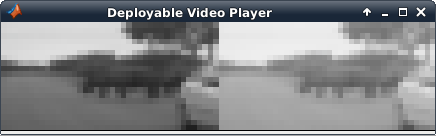
The viewer displays the original video on the left, and the output on the right. The gamma operation results in a brighter output image.
Open the HDL Coder app and create a new project. Enter the name for your project and select your working folder.
hdlcoder
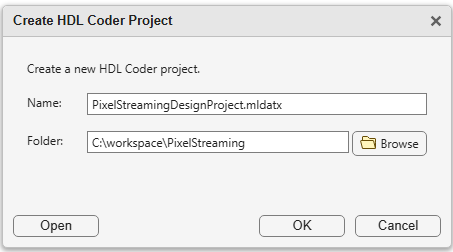
When you click OK, the HDL Workflow Advisor tool opens. Click on the Define Input Types step. Set the MATLAB Function to PixelStreamingDesignHDLDesign.m, and click the + button to set the MATLAB Test Bench to PixelStreamingDesignHDLTestBench.m.
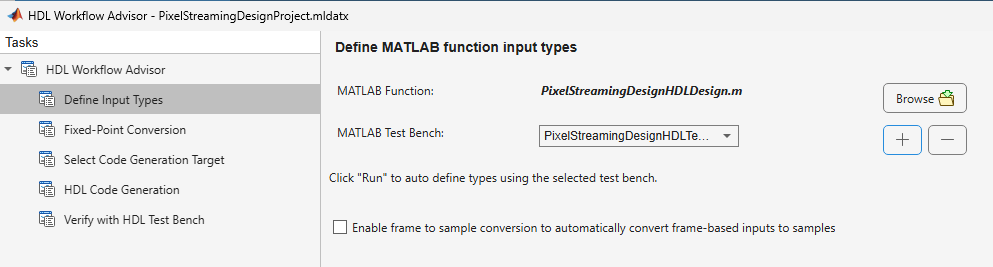
Now, right-click the HDL Code Generation step. Choose Run to selected task to run all the steps from the beginning through HDL code generation.
Examine the generated HDL code by clicking the links in the log window at the bottom of the HDL Workflow Advisor window.
For more detail about the HDL Workflow Advisor tool, see Workflow Advisor (HDL Coder).
See Also
visionhdl.FrameToPixels | visionhdl.PixelsToFrame | visionhdl.GammaCorrector

