MQTT Client Publish
R2026bMQTT Client Publish block

To add a block to a model, double-click the canvas and start typing the block name. Then, select the block from the list.
Libraries:
Industrial Communication Toolbox /
MQTT
Description
The MQTT Client Publish block publishes messages to one or more MQTT topics.
Each input port publishes messages to a corresponding MQTT topic specified in the Topics to publish parameter.
Note
You must associate the MQTT Client Publish block with an MQTT Client. You can create the client to connect to the MQTT broker using the MQTT pane in the Configuration Parameters dialog box of the model. You must add at least one MQTT Client Subscribe or MQTT Client Publish block in the model to enable this pane. For more information, see Configure MQTT Client in Simulink.
Examples
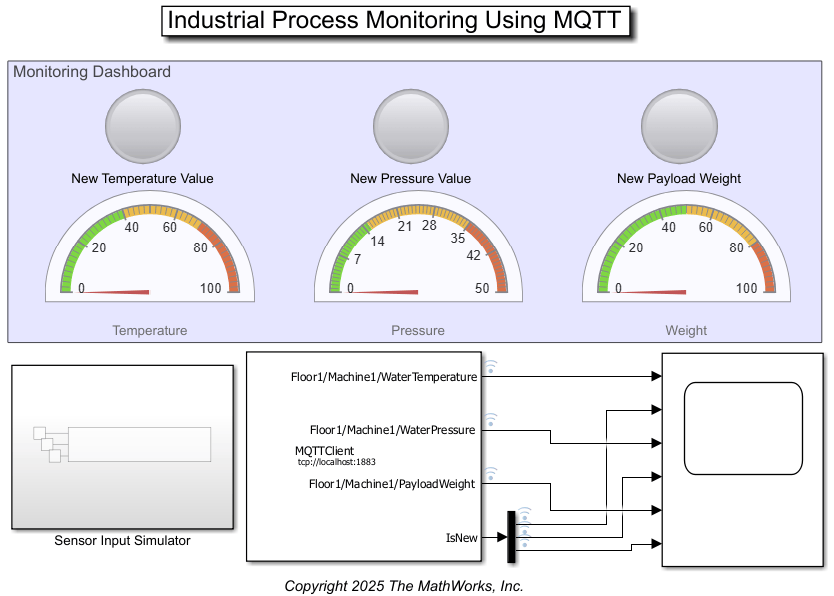
Industrial Process Monitoring Using MQTT
Monitor an industrial process using the MQTT Client blocks in Simulink®. You can connect to an MQTT broker using a Simulink model that acts as an MQTT client. You can publish messages to an MQTT topic using the MQTT Client Publish block and read messages from a topic using the MQTT Client Subscribe block.
- Since R2025a
- Open Live Script
Ports
Input
Messages to publish to MQTT topics. The number of input ports corresponds to the number of topics you add in the Topics to publish parameter. The block publishes messages to topics when the input data changes. You can toggle this setting using the Publish only on input data change parameter.
Dependencies
To enable this port, specify one or more topics in the Topics to publish parameter.
Data Types: single | double | int8 | int16 | int32 | int64 | uint8 | uint16 | uint32 | uint64 | string
Parameters
Select the MQTT client to associate with the block. The block updates the Broker address parameter once you select a client.
To add the clients using the MQTT pane, click Configure clients. For more information, see Configure MQTT Client in Simulink.
To update the client list and to show the latest MQTT clients, click Refresh.
Programmatic Use
To set the block parameter value programmatically, use
the set_param (Simulink) function.
To get the block parameter value
programmatically, use the get_param (Simulink) function.
| Parameter: | ClientList |
| Values: | MQTT client name |
| Data Types: | character vector | string |
Add topics to publish.
To add a topic, click Add. This action adds a row in the Topics to publish table with
QoSandRetainset to the default values of0andoff, respectively. You must specify a topic name for the client to publish to in theTopic namecolumn. Each time you click Add, the block adds a new row in the Topics to publish table and increments the serial number by 1.Slno: This field is noneditable and specifies the serial number of the topic. The serial number determines the order in which the block receives the signals at the input ports.Topic name: This is an editable text field that specifies the name of the topic. This field also defines the names for the input ports.QoS: This field specifies the quality of service (QoS) for message delivery. You can set this field to one of the values in the drop-down list:0: To deliver messages at most once and not more1: To deliver messages at least once and not less2: To deliver messages exactly once, not more or less
Retain: This field specifies whether the broker retains a message for new subscribers to the topic. Select this check box to retain the message.
To delete topics, select the topics and click Delete.
Note
Topic names that begin with the $ character are not supported
for publishing messages. These topics are reserved exclusively for server-side
implementations and should not be used by clients.
Programmatic Use
To set the block parameter value programmatically, use
the set_param (Simulink) function.
To get the block parameter value
programmatically, use the get_param (Simulink) function.
| Parameter: | TopicsTable |
| Values: | MQTT topic name and information |
| Data Types: | character vector | string |
When you select this parameter, the block publishes messages to topics only when there is a change in input data.
Programmatic Use
To set the block parameter value programmatically, use
the set_param (Simulink) function.
To get the block parameter value
programmatically, use the get_param (Simulink) function.
| Parameter: | PublishOnDataChange |
| Values: | on (default) | off |
| Data Types: | character vector | string |
Define the sample time of the block in seconds. The block publishes messages to the MQTT topic synchronously at the specified sample time. For more information, see Specify Sample Time (Simulink).
Programmatic Use
To set the block parameter value programmatically, use
the set_param (Simulink) function.
To get the block parameter value
programmatically, use the get_param (Simulink) function.
| Parameter: | SampleTime |
| Values: | -1 (default) | nonnegative scalar |
| Data Types: | double |
Extended Capabilities
This block generates platform-specific code for the host machine's platform only (Windows®, macOS, Linux®).
When you use password authentication in code generation workflows, provide passwords as environment variables.
setenv("<MQTTClientName>_password","<yourPassword>")sets the client password.setenv("<MQTTClientName>_clientkeypassword","<yourPassword>")sets the client key password.
MQTTClientName is the name that you specify when you add the MQTT client
in Simulink®.
For example, if the client name is MQTTHivemqClient, set the password
using setenv("MQTTHivemqClient_password","password123").
Version History
Introduced in R2025a
MATLAB Command
You clicked a link that corresponds to this MATLAB command:
Run the command by entering it in the MATLAB Command Window. Web browsers do not support MATLAB commands.
Seleccione un país/idioma
Seleccione un país/idioma para obtener contenido traducido, si está disponible, y ver eventos y ofertas de productos y servicios locales. Según su ubicación geográfica, recomendamos que seleccione: .
También puede seleccionar uno de estos países/idiomas:
Cómo obtener el mejor rendimiento
Seleccione China (en idioma chino o inglés) para obtener el mejor rendimiento. Los sitios web de otros países no están optimizados para ser accedidos desde su ubicación geográfica.
América
- América Latina (Español)
- Canada (English)
- United States (English)
Europa
- Belgium (English)
- Denmark (English)
- Deutschland (Deutsch)
- España (Español)
- Finland (English)
- France (Français)
- Ireland (English)
- Italia (Italiano)
- Luxembourg (English)
- Netherlands (English)
- Norway (English)
- Österreich (Deutsch)
- Portugal (English)
- Sweden (English)
- Switzerland
- United Kingdom (English)
