mlreportgen.ppt.Video Class
R2026bNamespace: mlreportgen.ppt
Description
Use an object of the mlreportgen.ppt.Video class to include a video in a
presentation.
The mlreportgen.ppt.Video class is a handle class.
Class Attributes
HandleCompatible | true |
ConstructOnLoad | true |
For information on class attributes, see Class Attributes.
Creation
Description
creates an empty videoObj = mlreportgen.ppt.VideoVideo object.
creates a videoObj = mlreportgen.ppt.Video(videoPath)Video object that contains the video specified by
videoPath.
creates a videoObj = mlreportgen.ppt.Video(videoPath,thumbnailPath)Video object that contains the thumbnail specified by
thumbnailPath.
Note
Closing the mlreportgen.ppt.Presentation object copies
the contents of the specified video file into the output presentation. Before the copying
process completes, do not delete or overwrite the video file.
Input Arguments
Path and name of the video file, specified as a character vector or string scalar. The PPT API supports these video formats:
| Video Format | File Extension |
|---|---|
| Advanced Systems Format | .asf |
| Audio Video Interleave | .avi |
| MPEG-4 Part 14 | .mp4 |
| MPEG Elementary Stream Video | .mpv |
| MPEG-1 or MPEG-2 | .mpg |
| Moving Picture Experts Group | .mpeg |
| Windows® Media Video | .wmv (Windows only) |
| QuickTime File Format | .mov (macOS only) |
Note
To see which file formats your version of PowerPoint® supports, see File formats that are supported in PowerPoint on the Microsoft® website.
Data Types: char | string
Path and name of the thumbnail file, specified as a character vector or string scalar. The PPT API supports these image formats:
| Image Format | File Extension |
|---|---|
| Windows Enhanced Metafile | .emf |
| Encapsulated PostScript® | .eps |
| Graphics Interchange Format | .gif |
| Joint Photographic Experts Group | .jpeg, .jpg |
| Portable Network Graphics | .png |
| Scalable Vector Graphics | .svg |
| Tagged Image File Format | .tif, .tiff |
Note
To see which file formats your version of PowerPoint supports, see File formats that are supported in PowerPoint on the Microsoft website.
This argument sets the PosterFrame property.
Data Types: char | string
Properties
Video file path, specified as a character vector or string scalar.
Attributes:
GetAccess | public |
SetAccess | public |
NonCopyable | true |
Data Types: char | string
Video name, specified as a character vector or string scalar.
Attributes:
GetAccess | public |
SetAccess | public |
NonCopyable | true |
Data Types: char | string
Path and name of the thumbnail file, specified as a character vector or string scalar. The PPT API supports these image formats:
| Image Format | File Extension |
|---|---|
| Windows Enhanced Metafile | .emf |
| Encapsulated PostScript | .eps |
| Graphics Interchange Format | .gif |
| Joint Photographic Experts Group | .jpeg, .jpg |
| Portable Network Graphics | .png |
| Scalable Vector Graphics | .svg |
| Tagged Image File Format | .tif, .tiff |
Note
To see which file formats your version of PowerPoint supports, see File formats that are supported in PowerPoint on the Microsoft website.
Attributes:
GetAccess | public |
SetAccess | public |
NonCopyable | true |
Data Types: char | string
Path of the caption file, specified as a character vector or string scalar. For more information on creating caption files for presentation videos, see Create closed captions for a video on the Microsoft website.
Attributes:
GetAccess | public |
SetAccess | public |
NonCopyable | true |
Data Types: char | string
Upper-left x-coordinate position, specified as a character vector or string scalar that contains
a number followed by an abbreviation for a unit of measurement. For example, "5in" specifies five inches. Valid
abbreviations are:
"px"— Pixels"cm"— Centimeters"in"— Inches"mm"— Millimeters"pc"— Picas"pt"— Points
You can also specify pixels by omitting the unit. For example, "5"
specifies 5 pixels.
Attributes:
GetAccess | public |
SetAccess | public |
NonCopyable | true |
Data Types: char | string
Upper-left y-coordinate position, specified as a character vector or string scalar that contains
a number followed by an abbreviation for a unit of measurement. For example, "5in" specifies five inches. Valid
abbreviations are:
"px"— Pixels"cm"— Centimeters"in"— Inches"mm"— Millimeters"pc"— Picas"pt"— Points
You can also specify pixels by omitting the unit. For example, "5"
specifies 5 pixels.
Attributes:
GetAccess | public |
SetAccess | public |
NonCopyable | true |
Data Types: char | string
Width of the video, specified as a character vector or string scalar that contains
a number followed by an abbreviation for a unit of measurement. For example, "5in" specifies five inches. Valid
abbreviations are:
"px"— Pixels"cm"— Centimeters"in"— Inches"mm"— Millimeters"pc"— Picas"pt"— Points
You can also specify pixels by omitting the unit. For example, "5"
specifies 5 pixels.
Note
When you replace a mlreportgen.ppt.ContentPlaceholder object in
a slide with the mlreportgen.ppt.Video object, the dimensions of the
mlreportgen.ppt.Video object are limited by the dimensions of the
ContentPlaceholder. If the value of the Width or
Height property is greater than the corresponding property of the
ContentPlaceholder object, the presentation automatically resizes both
the Width and Height properties to fit within the
dimensions of the ContentPlaceholder while retaining the aspect ratio of
the media. If you add the mlreportgen.ppt.Video object directly to the slide, the
size of the media is limited to the size of the slide.
Attributes:
GetAccess | public |
SetAccess | public |
NonCopyable | true |
Data Types: char | string
Height of the video, specified as a character vector or string scalar that contains
a number followed by an abbreviation for a unit of measurement. For example, "5in" specifies five inches. Valid
abbreviations are:
"px"— Pixels"cm"— Centimeters"in"— Inches"mm"— Millimeters"pc"— Picas"pt"— Points
You can also specify pixels by omitting the unit. For example, "5"
specifies 5 pixels.
Note
When you replace a mlreportgen.ppt.ContentPlaceholder object in
a slide with the mlreportgen.ppt.Video object, the dimensions of the
mlreportgen.ppt.Video object are limited by the dimensions of the
ContentPlaceholder. If the value of the Width or
Height property is greater than the corresponding property of the
ContentPlaceholder object, the presentation automatically resizes both
the Width and Height properties to fit within the
dimensions of the ContentPlaceholder while retaining the aspect ratio of
the media. If you add the mlreportgen.ppt.Video object directly to the slide, the
size of the media is limited to the size of the slide.
Attributes:
GetAccess | public |
SetAccess | public |
NonCopyable | true |
Data Types: char | string
Since R2026b
Border style, specified as one of the values in the table.
| Border Style | Description |
|---|---|
"" or "none" | No line |
"solid" | Solid line |
"dot" | Dotted line |
"dash" | Dashed line |
"largeDash" | Dashed line with large dashes |
"dashDot" | Line with alternating dashes and dots |
"largeDashDot" | Line with alternating large dashes and dots |
"largeDashDotDot" | Line with alternating large dashes and pairs of dots |
"systemDash" | Dashed line using the system-defined dash pattern |
"systemDot" | Dotted line using the system-defined dot pattern |
"systemDashDot" | Line with alternating dashes and dots using the system-defined pattern |
"systemDashDotDot" | Line with alternating dashes and pairs of dots using the system-defined pattern |
Attributes:
GetAccess | public |
SetAccess | public |
NonCopyable | true |
Data Types: char | string
Since R2026b
Border color, specified as a character vector or string scalar that contains a CSS color name or hexadecimal RGB value.
| Format | Value |
|---|---|
| CSS color name | CSS color name. For a list of CSS color names, see https://www.w3.org/wiki/CSS/Properties/color/keywords. |
| Hexadecimal RGB value | RGB color in the format "#RRGGBB". Use # as the first
character and two-digit hexadecimal numbers for the red, green, and blue values.
You can use uppercase or lowercase letters. |
Example: "red" specifies a red color by using the CSS
color name.
Example: "#0000ff" specifies a blue color by using
the hexadecimal RGB value.
Attributes:
GetAccess | public |
SetAccess | public |
NonCopyable | true |
Data Types: char | string
Since R2026b
Border width, specified as a character vector or string scalar that contains
a number followed by an abbreviation for a unit of measurement. For example, "3pt" specifies three points. Valid
abbreviations are:
"px"— Pixels"cm"— Centimeters"in"— Inches"mm"— Millimeters"pc"— Picas"pt"— Points
You can also specify pixels by omitting the unit. For example, "5"
specifies 5 pixels.
Attributes:
GetAccess | public |
SetAccess | public |
NonCopyable | true |
Data Types: char | string
Border formatting, specified as a cell array that contains an mlreportgen.ppt.Border object.
Add Border objects by concatenating the existing value of the
Style property with a cell array that contains the Border objects
that you want to add.
Attributes:
GetAccess | public |
SetAccess | public |
NonCopyable | true |
Data Types: cell
Parent of this object, specified as a PPT API object. A PPT API object must only have one parent.
Attributes:
GetAccess | public |
SetAccess | private |
NonCopyable | true |
The class ignores this property.
Attributes:
GetAccess | public |
SetAccess | private |
NonCopyable | true |
Tag, specified as a character vector or string scalar. The PPT API generates a
session-unique tag as part of the creation of this object. The generated tag has the
form CLASS:ID, where
CLASS is the object class and
ID is the value of the
Id property of the object. Use this value to help identify
where an issue occurs during presentation generation.
Attributes:
GetAccess | public |
SetAccess | public |
NonCopyable | true |
Data Types: char | string
Object identifier, specified as a character vector or string scalar. The PPT API
generates a session-unique identifier when it creates the presentation element object.
You can specify your own value for Id.
Attributes:
GetAccess | public |
SetAccess | public |
NonCopyable | true |
Data Types: char | string
Methods
replace |
Input Arguments
Return Values
For more information, see the method for the
|
clone |
Input Arguments
Return Values
For more information, see the method for the
|
Examples
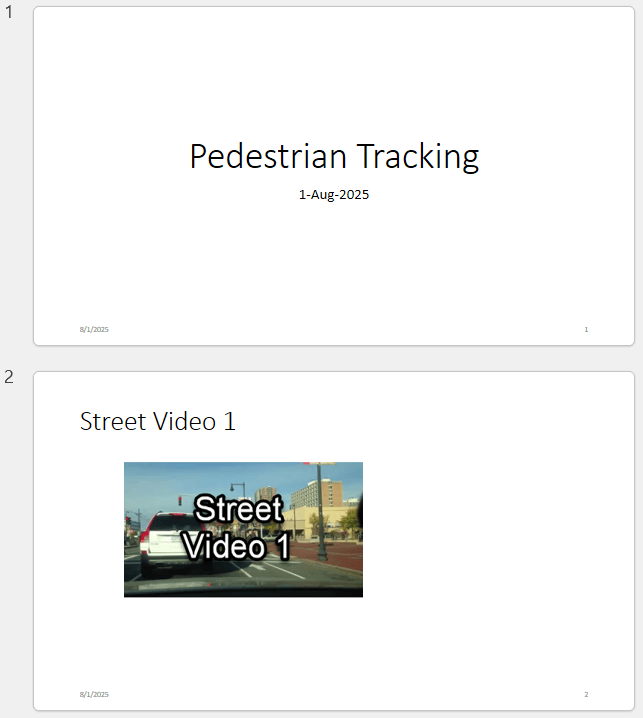
This example shows how to add a video with a custom thumbnail and a caption file to a presentation.
Import the PPT API namespace so you do not have to use fully qualified class names.
import mlreportgen.ppt.*;Create a presentation.
ppt = Presentation("MyPresentation.pptx");Open the presentation and add a title slide.
open(ppt);
slide1 = add(ppt,"Title Slide");Replace the title and subtitle with your content.
replace(slide1,"Title","Pedestrian Tracking"); replace(slide1,"Subtitle",string(datetime('now','Format','d-MMM-y')));
Add the video and customize the size and location. X and Y are the distance from the upper-left corner of the content placeholder.
video = Video("vippedtracking.mp4"); video.Height = "3in"; video.Width = "5.3in"; video.X = "2in"; video.Y = "2in";
Add a custom thumbnail to the video.
video.PosterFrame = "vippedtrackingThumbnail.png";Add a caption file to the video.
video.Caption = "vippedtrackingCaptions.vtt";Add the second slide and replace the content placeholder with the video.
slide2 = add(ppt,"Title and Content"); replace(slide2,"Title","Street Video 1"); replace(slide2,"Content",video);
Close and view the presentation. Closing the presentation copies the contents of the specified video file into the output presentation. Do not delete or overwrite the video file before the copying process completes.
close(ppt); rptview(ppt);
This image shows the generated PPT.
Since R2026b
To customize the border of a video in a PPT API presentation, specify the
border style, color, and width in an mlreportgen.ppt.Border object and
add the object to the Style property of an
mlreportgen.ppt.Video object.
Create a presentation.
import mlreportgen.ppt.* ppt = Presentation("myVideoBorder.pptx"); open(ppt);
Add a slide to the presentation.
slide = add(ppt,"Title and Content");Create a video.
v = Video(which("xylophone.mp4"));Create a border object and apply it to the video.
border = Border("solid","red","3pt"); v.Style = [v.Style {border}];
Add a title and the video to the slide.
replace(slide,"Title","Video with a custom border"); replace(slide,"Content",v);
Close and view the presentation.
close(ppt); rptview(ppt);
Tips
Version History
Introduced in R2026aAdd borders to videos in presentations by using the Border,
BorderColor, BorderWidth, and
Style properties.
MATLAB Command
You clicked a link that corresponds to this MATLAB command:
Run the command by entering it in the MATLAB Command Window. Web browsers do not support MATLAB commands.
Seleccione un país/idioma
Seleccione un país/idioma para obtener contenido traducido, si está disponible, y ver eventos y ofertas de productos y servicios locales. Según su ubicación geográfica, recomendamos que seleccione: .
También puede seleccionar uno de estos países/idiomas:
Cómo obtener el mejor rendimiento
Seleccione China (en idioma chino o inglés) para obtener el mejor rendimiento. Los sitios web de otros países no están optimizados para ser accedidos desde su ubicación geográfica.
América
- América Latina (Español)
- Canada (English)
- United States (English)
Europa
- Belgium (English)
- Denmark (English)
- Deutschland (Deutsch)
- España (Español)
- Finland (English)
- France (Français)
- Ireland (English)
- Italia (Italiano)
- Luxembourg (English)
- Netherlands (English)
- Norway (English)
- Österreich (Deutsch)
- Portugal (English)
- Sweden (English)
- Switzerland
- United Kingdom (English)