Simulink Variant Manager Basics
R2026bIn Model-Based Design using Simulink®, you can represent different design options for system components within a single model by using variant elements such as variant blocks, variant parameters, and variant transitions. You can use these elements to model different behaviors or configurations without needing to create separate models for each design alternative. For more information on variants, see Simulink Variants Overview.
To manage variant elements efficiently, use Simulink Variant Manager™. This app offers a centralized interface where you define and organize variant configurations—sets of variant choices that represent different system designs. Create these configurations manually or generate them automatically, depending on your workflow. Define constraints so that your model uses only valid combinations of variant choices, which helps prevent configuration errors. Then, validate configurations, switch between them, run simulations, and test the configurations to explore and compare multiple design alternatives more effectively.
Once your configurations are set up, you can save and reuse them using variant configuration objects, which simplifies sharing and reuse across teams or projects.
Variant Manager also includes Variant Reducer and Variant Analyzer. If you need to isolate a subset of variant configurations for deployment or for easy debugging, Variant Reducer lets you extract those configurations into a standalone model. Variant Analyzer lets you compare different configurations to better understand their differences and verify that they meet your design goals.
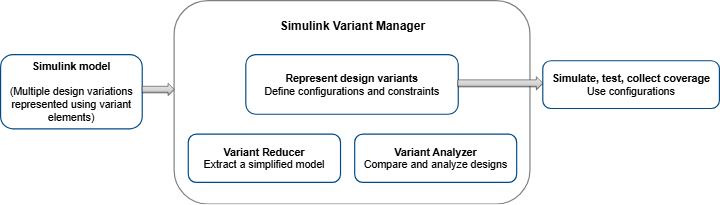
Variant Manager helps you manage multiple design alternatives in a structured and scalable way, whether you are working on a single model or a large system with many components.
Walk through the example model to learn how to use Variant Manager.
Open Example Model
This tutorial uses the example model slexVariantManagerOverviewGS, which comes with a minimal set of variant configurations. You can use this model to follow along with the steps in the tutorial.
modelName = "slexVariantManagerOverviewGS";
open_system(modelName);
Explore the Model
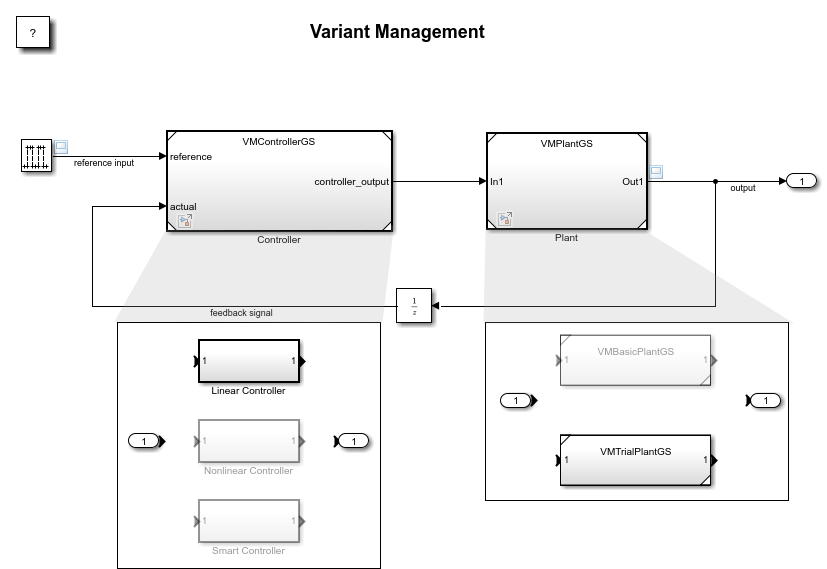
The slexVariantManagerOverviewGS model is designed to monitor and regulate
the behavior of a plant based on sensor feedback.
The model consists of two main parts:
Plant— This block represents the physical system or process that the controller must manage.Controller— This block generates control signals based on the feedback it receives from the plant.
You use component-based modeling to develop this system in Simulink. The Plant block is a Model block that references the model VMPlantGS, and the
Controller block references the model
VMControllerGS.Model blocks help you build a model
hierarchy by referencing other models in the top-level model.
Analyze the variant elements included within the model blocks:
The
Controllerblock has three variant choices:Linear Controller,Nonlinear Controller, andSmart Controller.The
Plantblock has two variant choices:VMBasicPlantGSandVMTrialPlantGS.
Tip
If you already have the top-level model slexVariantManagerOverviewGS open,
you can directly open the referenced components outside the top-level hierarchy.
To open the model VMControllerGS, click the Open As Top
Model
 badge on its Model block.
The
VMControllerGSmodel uses a Variant Subsystem block, which lets you represent multiple implementations (variants) of a component and then conditionally switch the active variant based on requirements. TheVMPlantGSmodel uses a Variant Assembly Subsystem block that references subsystem files. This block lets you manage your variant choices from a single source, so you can add or remove choices without opening the block or changing the model. Additionally, the variant choices of theControllerblock use variant parameters (Simulink.VariantVariableobjects) to model block parameter values that vary based on conditions.The top-level model uses a data dictionary called
dVariantManagerGS.sldd. Each component manages its own data using separate data dictionaries.
Open Completed Model
You can also access a fully set-up version of the models used in this tutorial, which already includes all configurations. To open this version, use this command.
open_system("slexVariantManagerOverview");Get Started with Variant Management
To get started with variant management using Simulink Variant Manager, follow these steps:
Create and save variant configurations and constraints:
Reuse referenced component configurations:
Explore more workflows:
See Also
Simulink.VariantConfigurations | Simulink.VariantManager.open

