Simulate Variant Models Using Variant Configurations
R2026bWhen you simulate a variant model programmatically, you can use a variant configuration
defined using Simulink®
Variant Manager™ rather than setting the control variable values manually. You need only to
specify the configuration name in a Simulink.SimulationInput object for
your model. This object lets you apply changes temporarily, so you can run simulations without
modifying the model. This method also improves traceability because the simulation output is
linked to the specific configuration used for that run.
In this example, you simulate the slexVariantManagerOverviewGS model using a
specific variant configuration, and then run multiple simulations in parallel using available
configurations.
Open Example Model
This tutorial uses the example model slexVariantManagerOverviewGS, which comes with a minimal set of variant configurations. You can use this model to follow along with the steps in the tutorial.
modelName = "slexVariantManagerOverviewGS";
open_system(modelName);
Simulate Model
Programmatically simulate the slexVariantManagerOverviewGS
model using the variant configuration LinearBasic.
Create a
SimulationInputobject namedsimInpto store the simulation settings.simInp = Simulink.SimulationInput(modelName);
Set the variant configuration. Assign the
LinearBasicconfiguration to theSimulationInputobject.simInp = setVariantConfiguration(simInp, "LinearBasic");Run the simulation.
simOut = sim(simInp, ShowProgress="on");Use the Scope block connected to the
Plantcomponent in the model to view the simulation signals and verify the simulation output.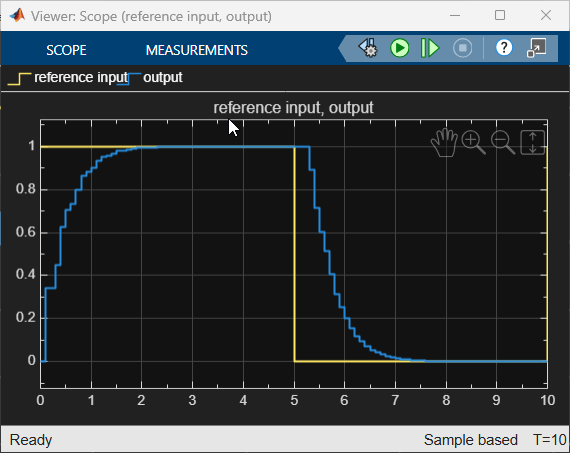
Try to find the variant configuration used during this simulation.
Open Simulation Manager to explore the simulation data.
openSimulationManager(simInp, simOut);
In the Simulations tab, in the tabular view of simulations, click the
 button and select Variant
Configuration to display the column in the table. You can
also select a row in the table and view the configuration name in the
Simulation Details pane.
button and select Variant
Configuration to display the column in the table. You can
also select a row in the table and view the configuration name in the
Simulation Details pane.Tip
Simulation Manager shows the variant configuration only if the configuration was set using the
Simulink.SimulationInputobject.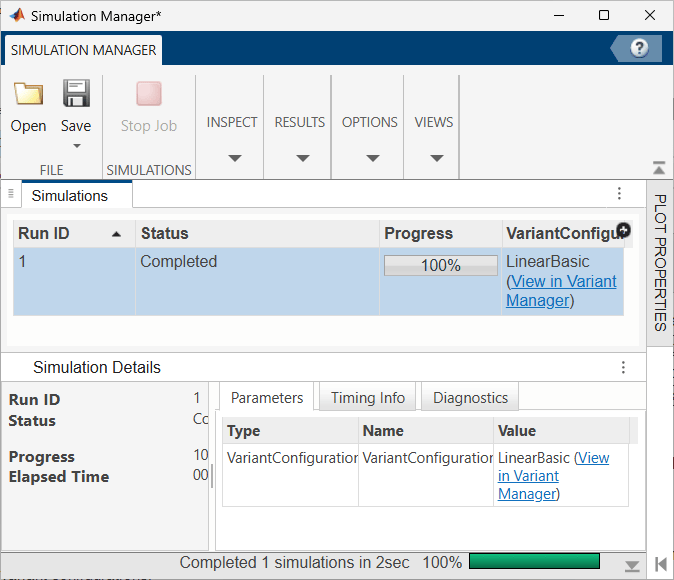
Run Parallel Simulations
Run parallel simulations programmatically for the
slexVariantManagerOverviewGS model using available variant configurations.
First, find the variant configurations object linked to your model. The object contains the predefined configurations specified as a structure array.
modelName="slexVariantManagerOverviewGS";
vcd = Simulink.VariantManager.getVariantConfigurations(modelName)
vcd =

  VariantConfigurations with properties:

     Configurations: [1×7 struct]
     Constraints: [1×2 struct]
     PreferredConfiguration: ''
Extract the configuration names as a cell array and find the number of configurations in the object.
cfgNames = {vcd.Configurations.Name};
 numCfgs = length(cfgNames);
Create an array of
Simulink.SimulationInputobjects of sizenumCfgs.simIns(1: numCfgs ) = Simulink.SimulationInput(modelName);
Set the variant configuration name for each
SimulationInputobject in the array.simIns = setVariantConfiguration(simIns,cfgNames);
Run the simulations in parallel.
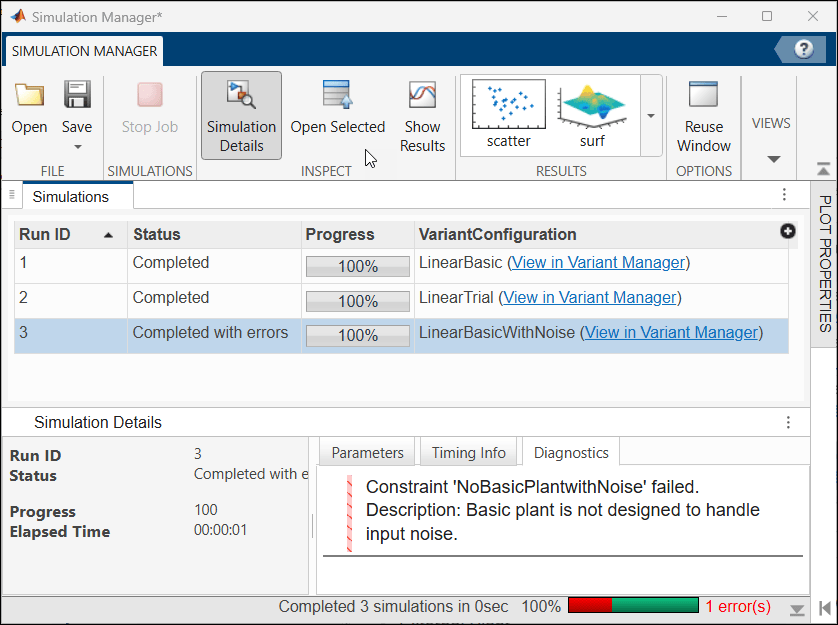
simOuts = parsim(simIns, ShowProgress="on");Check the simulation results. Open Simulation Manager to explore the outputs.
openSimulationManager(simIns, simOuts);
If the simulation does not finish and you see errors or warnings, look at the Diagnostics tab for more information.
See Also
Simulink.SimulationInput | setVariantConfiguration | parsim | Simulink.VariantManager.getVariantConfigurations

