RichMenu Extension
R2026bSimulink® context menus are the menus that open when you right-click something in Simulink. You can customize a subset of these menus: the context menu of the Simulink model canvas and the context menus of model elements in the model canvas such as blocks, signal lines, and annotations.
These context menus are made up of widgets such as menu items, push buttons, text fields and check boxes. Widgets that contain other widgets are called containers. You can add widgets to context menu containers at predefined locations called extension points. This process is called extending the container.
The RichMenu container is the widget that contains the context
menu. By extending the RichMenu container, you can add widgets to the
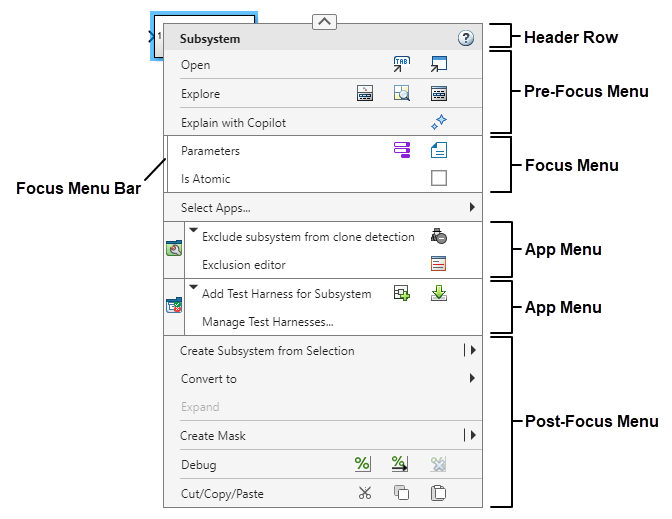
context menu at these extension points: the bottom of the Pre-Focus menu, the bottom of the
Focus menu, and the bottom of the Post-Focus menu. The Focus menu is the part of the context
menu with the vertical bar at the left edge. The Pre-Focus menu is the part of the context
menu above the Focus menu, excluding the header row. The Post-Focus menu is the part of the
context menu below the Focus menu, excluding the Select Apps row and app
options.
To extend a container:
Decide which widgets to add and where to add them. To learn about your options, see Simulink Context Menu Architecture.
Create a folder named
resources. In the folder, create a JSON-formatted file namedextensions.json. You can create more than oneextensions.jsonfile, as long as they are in differentresourcesfolders.In the file, add a set of JSON declarations that define your customizations. To learn how to write the JSON declarations, see Examples.
Code formatting mistakes such as missing brackets or incorrect line indentation can prevent your customizations from rendering as expected. To avoid formatting mistakes, consider writing the declarations in an integrated development environment (IDE) equipped to help you format code, for example, Visual Studio® Code.
Enable your customizations. Add the parent folder of the
resourcesfolder to the MATLAB® path using theaddpathfunction. Alternatively, right-click the folder in the Files panel and select Add to Path > Selected Folder(s) and Subfolders. Then, refresh the customizations using theslReloadStudioConfigfunction.
You can assign the new widgets custom icons and actions or the icons and actions of default context menu widgets. Since icons are defined as part of actions, if you assign the action of a default widget, you also assign the icon of that widget.
JSON Names of RichMenu Extension Points
The table lists the RichMenu extension points and the name you can use
to specify each extension point in the JSON declarations.
| Extension Point | Extension Point JSON Name |
|---|---|
| Bottom of Pre-Focus menu | mw.simulink.editor.contextMenu.preFocusMenu:after |
| Bottom of Focus menu | mw.simulink.editor.contextMenu.FocusMenu:after |
| Bottom of Post-Focus menu | mw.simulink.editor.contextMenu.postFocusMenu:after |
Examples
This example shows how to add one menu item to the Simulink® context menu at the bottom of the Focus menu and one to the bottom of the Post-Focus menu. The menu item at the bottom of the Focus menu checks for algebraic loops in the model. This menu item is labeled Check for Algebraic Loops, and is always visible when you open the context menu. The menu item at the bottom of the Post-Focus menu resizes all blocks in the model that display values on their icons to be large enough to show the full value. This menu item is labeled Resize All Blocks to Fit Content, and is only visible when you right-click a block.
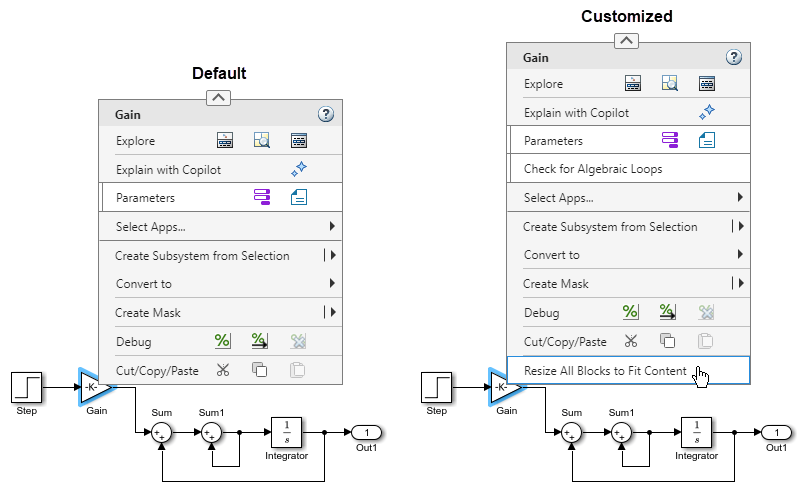
The example folder contains the files you need to create this customization. To view the files or to try out the finished customization, run this script. Running the script opens the files and a Simulink model. To see the customized context menus, in the model that opens, right-click the model canvas or a model element. To see the menu item labeled Resize All Blocks to Fit Content, right-click a block.
Define Customization
To write the extensions.json file that defines the customization, take these steps.
1. For each new widget you want to add to the context menu, use the container hierarchy in Simulink Context Menu Architecture to determine whether you can add the widget by itself or whether you need to add containers as scaffolding to house the widget. Start at the container you are extending and work your way down the hierarchy to the new widget. You must add all containers listed between those two points in the hierarchy.
In this example, you are adding widgets to the Focus and Post-Focus menus. To do so, extend the RichMenu widget. Working your way down the container hierarchy, you can see that you must take these steps:
Add two
MenuSectionwidgets to theRichMenuwidget.Add a
MenuItemwidget to eachMenuSectionwidget.
2. In a text editor, open a blank file for writing the JSON declarations. To avoid formatting mistakes, consider writing the declarations in an integrated development environment (IDE) equipped to help you format code, for example, Visual Studio® Code.
3. Save the file with the name extensions.json in a folder named resources.
4. To ensure backward compatibility of your JSON declarations in future releases, add a version number. In the extensions.json file, specify the current version as a JSON key-value pair. Set the key to "version", and the value to the version number specified as a JSON string. The current version number is 1.0.
"mw.schemaVersion": "1.0.0",
5. Specify the extension points at which you want to add widgets. For each of those extension points, create a JSON key-value pair. Set the key to the JSON name of the extension point, specified as a JSON string. Set the value to an empty JSON array literal.
"mw.schemaVersion": "1.0.0",

"mw.simulink.editor.contextMenu.focusMenu:after":[]

"mw.simulink.editor.contextMenu.postFocusMenu:after":[]
6. For each widget you want to add, create a JSON key-value pair. Set the key to a descriptive name for the widget in the myCustomMenus namespace. Set the value to an empty JSON object literal. In a later step, you use these key-value pairs to specify the properties of the new widgets.
"mw.schemaVersion": "1.0.0",

"mw.simulink.editor.contextMenu.focusMenu:after":[]

"mw.simulink.editor.contextMenu.postFocusMenu:after":[]

"myCustomMenus.myMenuSection1":{}

"myCustomMenus.myMenuItem1":{}

"myCustomMenus.myMenuSection2":{}

"myCustomMenus.myMenuItem2":{}
7. In the extension point key-value pairs, specify which widgets to add at each extension point. Only specify widgets that you are directly adding to the container you are extending. If those widgets are containers, do not list their contents.
In this example, you are extending the RichMenu widget by adding one MenuItem widget to the bottom of the Focus menu, and one MenuItem widget to the bottom of the PostFocus menu. In the JSON array literal of the Focus menu extension point, enter a reference to the JSON object literal of the myCustomMenus.myMenuSection1 widget. In the JSON array literal of the Post-Focus menu extension point, enter a reference to the JSON object literal of the myCustomMenus.myMenuSection2 widget. Specify the references as JSON strings containing the hash tag symbol # followed by the keys of the referenced JSON object literals. The references must be enclosed in brackets, even when you only specify one.
"mw.schemaVersion": "1.0.0",

"mw.simulink.editor.contextMenu.focusMenu:after":
    ["#myCustomMenus.myMenuSection1"],

"mw.simulink.editor.contextMenu.postFocusMenu:after":
    ["#myCustomMenus.myMenuSection2"],

"myCustomMenus.myMenuSection1":{}

"myCustomMenus.myMenuItem1":{}

"myCustomMenus.myMenuSection2":{}

"myCustomMenus.myMenuItem2":{}
Do not specify any of the other widgets you are adding in the extension point key-value pairs because those widgets are all contents of the MenuSection widgets. The only widgets you are adding directly to the RichMenu widget are the MenuSection widgets.
8. Specify the properties of the widgets you are adding to the context menu. For each widget, fill in the empty JSON object literal with JSON key-value pairs that set the widget properties. For a list of available properties for each type of widget, see the Properties section on this page.You must specify the values of all properties marked as required. Set the value of the action property to an empty JSON string for now.
For the MenuSection widgets:
Specify that you are adding a menu section by setting the
typevalue to"MenuSection".Specify that you are adding the menu item named
myCustomMenus.myMenuItem1to the menu section namedmyCustomMenus.myMenuSection1. Set theitemsvalue to a reference to the JSON object literal of the menu item:"#myCustomMenus.myMenuItem1".Specify that you are adding the menu item named
#myCustomMenus.myMenuItem2to the menu section namedmyCustomMenus.myMenuSection2. Set theitemsvalue to a reference to the JSON object literal of the menu item:"#myCustomMenus.myMenuItem2".
For the MenuItem widgets:
Specify that you are adding a menu item by setting the
typevalue to"MenuItem".Set the
actionvalue to an empty JSON string for now.The context menu only displays the menu item named
myCustomMenus.myMenuSection2when you right-click a block. In the JSON object literal of the menu item namedmyCustomMenus.myMenuSection2, set thewhenvalue to"selection.isAnyBlock". For morewhenvalues, see the Properties section on this page.The context menu always displays the menu item named
myCustomMenus.myMenuSection1. This is the default behavior. Do not specify awhenvalue for the menu item namedmyCustomMenus.myMenuSection1.
"mw.schemaVersion": "1.0.0",

"mw.simulink.editor.contextMenu.focusMenu:after":
["#myCustomMenus.myMenuSection1"]

"mw.simulink.editor.contextMenu.postFocusMenu:after":
["#myCustomMenus.myMenuSection2"]

"myCustomMenus.myMenuSection1":
{
    "type": "MenuSection",
    "items": ["#myCustomMenus.myMenuItem1"]
}

"myCustomMenus.myMenuItem1":
{
    "type": "MenuItem",
    "action": ""
}

"myCustomMenus.myMenuSection2":
{
    "type": "MenuSection",
    "items": ["#myCustomMenus.myMenuItem2"]
}

"myCustomMenus.myMenuItem2":
{
    "type": "MenuItem",
    "action": "",
    "when": "selection.isAnyBlock"
}
9. Specify widget actions.
Write a MATLAB function named check that checks for algebraic loops in the model, and a MATLAB function named resize that resizes all blocks in the model that display values on their icons to be large enough to show the full value. The functions must accept a callback info object as their sole input argument.
The example folder contains both function files. To view the files, enter these commands in the MATLAB Command Window.
open("addMenuItems/check")
open("addMenuItems/resize")
For each action that you want the menu items to take, create a JSON key-value pair. Set the key to a descriptive name for the action in the myCustomMenus namespace. Set the value to a JSON object literal that defines the action. The Properties section on this page lists the available action properties.
Set the keys to
myCustomMenus.checkForAlgLoopsandmyCustomMenus.resizeBlocks, respectively.In the JSON object literals, set the
typevalue to"Action".To specify the button tooltip, set the
descriptionvalue to"Check current system for algebraic loops"and"Resize all blocks in current system to fit values displayed on block icons", respectively.Set the
callbackvalue to the MATLAB function name, specified as a JSON string. The string must be a valid input to thefevalfunction.
"myCustomMenus.checkForAlgLoops":
{
    "type": "Action",
    "text": "Check for Algebraic Loops",
    "description": "Check current system for algebraic loops",
    "callback": "check"
}
In the JSON object literal of each menu item, set the action value to a reference to the JSON object literal of the action that you want the menu item to take: "#myCustomMenus.checkForAlgLoops" and "#myCustomMenus.resizeBlocks", respectively.
"myCustomMenus.myMenuItem1":
{
    "type": "MenuItem",
    "action": "#myCustomMenus.checkForAlgLoops"
}
10. Add commas between the JSON array literals and object literals, and enclose the JSON declarations in the file in a pair of braces.
The example folder contains a resources folder with the completed extensions.json file. To view the file, enter this command in the MATLAB Command Window.
open("addMenuItems/resources/extensions.json");Implement Customization
To implement the customization, take these steps.
1. Add the parent folder of the resources folder to the MATLAB path. If any callback functions are located outside of the parent folder, add the functions to the MATLAB path as well.
myResources = pwd + "/addMenuItems";
addpath(myResources)
2. Reload the Simulink studio configuration.
slReloadStudioConfig(myResources)
3. To view the customizations, open a Simulink model. For example, open the model included with this example named CustomMenuItemModel. Then, right-click the model canvas or a model element such as a block. To turn the CustomMenuItemModel model into an algebraic loop, uncomment the Sum blocks.
open_system("addMenuItems/CustomMenuItemModel.slx");This example shows how to add two button rows to the Simulink® context menu at the bottom of the Focus menu. The first button row contains push buttons that add Gain blocks to the model. The first button adds four Gain blocks to the model, and the second button adds eight Gain blocks. The second button row is the same as the first except that the buttons add Integrator blocks instead of Gain blocks. The first button row is labeled Add Gain Blocks, and the second button row is labeled Add Integrator Blocks. The buttons are always visible when you open a context menu.
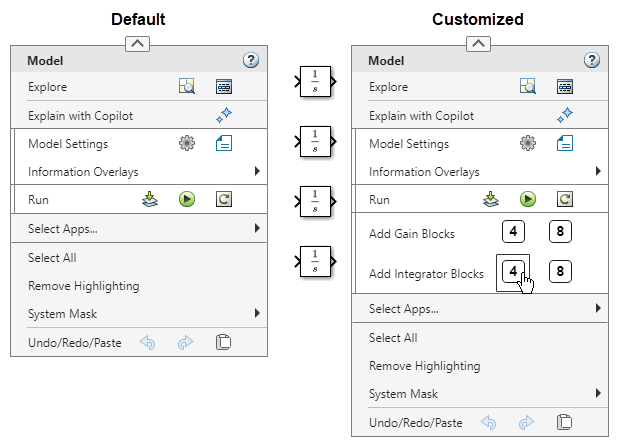
The example folder contains the files you need to create this customization. To view the files or to try out the finished customization, run this script. Running the script opens the files and a Simulink model. To see the customized context menus, in the model that opens, right-click the model canvas or a model element.
Define Customization
To write the extensions.json file that defines the customization, take these steps.
1. For each new widget you want to add to the context menu, use the container hierarchy in Simulink Context Menu Architecture to determine whether you can add the widget by itself or whether you need to add containers as scaffolding to house the widget. Start at the container you are extending and work your way down the hierarchy to the new widget. You must add all containers listed between those two points in the hierarchy.
In this example, you are adding four PushButton widgets to the bottom of the Focus Menu. The buttons are organized into two rows of two buttons each. To add widgets to the Focus Menu, extend the RichMenu widget. Working your way down the container hierarchy, you can see that you must take these steps:
Add a
MenuSectionwidget to theRichMenuwidget.Add two
ButtonRowItemwidgets to theMenuSectionwidget.Add two
PushButtonwidgets to eachButtonRowItemwidget.
2. In a text editor, open a blank file for writing the JSON declarations. To avoid formatting mistakes, consider writing the declarations in an integrated development environment (IDE) equipped to help you format code, for example, Visual Studio® Code.
3. Save the file with the name extensions.json in a folder named resources.
5. To ensure backwards compatibility of your JSON declarations in future releases, add a version number. In the extensions.json file, specify the current version as a JSON key-value pair. Set the key to "version", and the value to the version number specified as a JSON string. The current version number is 1.0.
"mw.schemaVersion": "1.0.0",
You are now ready to define your customizations in the extensions.json file.
6. In the extensions.json file, specify the extension point at which you want to add widgets. Create a JSON key-value pair for the extension point. Set the key to the JSON name of the extension point, specified as a JSON string. Set the value to an empty JSON array literal.
"mw.schemaVersion": "1.0.0",

"mw.simulink.editor.contextMenu.focusMenu:after":[]
7. For each widget you want to add, create a JSON key-value pair. Set the key to a descriptive name for the widget in the myCustomMenus namespace. Set the value to an empty JSON object literal. In a later step, you use these key-value pairs to specify the properties of the new widgets.
"mw.schemaVersion": "1.0.0",

"mw.simulink.editor.contextMenu.focusMenu:after":[]

"myCustomMenus.myMenuSection":{}

"myCustomMenus.gainButtonRow":{}

"myCustomMenus.gainButton1":{}

"myCustomMenus.gainButton2":{}

"myCustomMenus.intButtonRow":{}

"myCustomMenus.intButton1":{}

"myCustomMenus.intButton2":{}
8. In the extension point key-value pair, specify which widgets to add at the extension point. Only specify widgets that you are directly adding to the container you are extending. If those widgets are containers, do not list their contents.
In this example, you are extending the RichMenu widget by adding a MenuSection widget. In the JSON array literal of the Focus menu extension point, enter a reference to the JSON object literal of the MenuSection widget. Specify the reference as a JSON string containing the hash tag symbol # followed by the key of the referenced JSON object literal. The reference must be enclosed in brackets even though you are only specifying one.
"mw.schemaVersion": "1.0.0",

"mw.simulink.editor.contextMenu.focusMenu:after":
["#myCustomMenus.myMenuSection"]

"myCustomMenus.myMenuSection":{}

"myCustomMenus.gainButtonRow":{}

"myCustomMenus.gainButton1":{}
...
Do not specify any of the other widgets you are adding in the extension point key-value pair because those widgets are all contents of the MenuSection widget. The only widget you are adding directly to the RichMenu widget is the MenuSection widget.
9. Specify the properties of the widgets you are adding to the context menu. For each widget, fill in the empty JSON object literal with JSON key-value pairs that set the widget properties. For a list of available properties for each type of widget, see the Properties section on this page. You must specify the values of all properties marked as required. Set the value of the action property to an empty JSON string for now.
For the MenuSection widget:
Specify that you are adding a menu section by setting the
typevalue to"MenuSection".Specify that you are adding the button rows named
"#myCustomMenus.gainButtonRow"and"#myCustomMenus.intButtonRow"to the menu section. Set theitemsvalue to a JSON array literal of references to the JSON object literals of the button rows:["#myCustomMenus.gainButtonRow","#myCustomMenus.intButtonRow"].
For each ButtonRowItem widget:
Specify that you are adding a button row by setting the
typevalue to"ButtonRowItem".Specify the button row labels. For
myCustomMenus.gainButtonRow, set thetextvalue to"Add Gain Blocks". FormyCustomMenus.intButtonRow, set thetextvalue to"Add Integrator Blocks".Specify which buttons to add to each row by setting the
controlsvalue to a JSON array literal of references to the JSON object literals of the buttons. FormyCustomMenus.gainButtonRow, set thecontrolsvalue to:["#myCustomMenus.gainButton1","#myCustomMenus.gainButton2"]. FormyCustomMenus.intButtonRow, set thecontrolsvalue to:["#myCustomMenus.intButton1","#myCustomMenus.intButton2"].
For each PushButton widget:
Specify that you are adding a push button by setting the
typevalue to"PushButton".Set the
actionvalue to an empty JSON string for now.
"mw.schemaVersion": "1.0.0",

"mw.simulink.editor.contextMenu.focusMenu:after":
["#myCustomMenus.myMenuSection"]

"myCustomMenus.myMenuSection":
{
  "type": "MenuSection",
  "items":
  [
    "#myCustomMenus.gainButtonRow",
    "#myCustomMenus.intButtonRow"
  ]
}

"myCustomMenus.gainButtonRow":
{
  "type": "ButtonRowItem",
  "text": "Add Gain Blocks",
  "controls":
  [
    "#myCustomMenus.gainButton1",
    "#myCustomMenus.gainButton2"
  ]
}

"myCustomMenus.gainButton1":
{
  "type": "PushButton",
  "action": ""
}

"myCustomMenus.gainButton2":
{
  "type": "PushButton",
  "action": ""
}

"myCustomMenus.intButtonRow":
{
  "type": "ButtonRowItem",
  "text": "Add Integrator Blocks",
  "controls":
  [
    "#myCustomMenus.intButton1",
    "#myCustomMenus.intButton2"
  ]
}

"myCustomMenus.intButton1":
{
  "type": "PushButton",
  "action": ""
}

"myCustomMenus.intButton2":
{
  "type": "PushButton",
  "action": ""
}
10. Specify widget actions.
Write four MATLAB functions: one that adds four Gain blocks to the model, one that adds eight Gain blocks, one that adds four Integrator blocks, and one that adds eight Integrator blocks. Name the functions plus4Gains, plus8Gains, plus4Ints, and plus8Ints, respectively. The functions must accept a callback info object as their sole input argument.
The example folder contains all four function files. To view the files, enter these commands in the MATLAB Command Window.
open("addButtonRows/plus4Gains")
open("addButtonRows/plus8Gains")
open("addButtonRows/plus4Ints")
open("addButtonRows/plus8Ints")
For each action that you want the buttons to take, create a JSON key-value pair. Set the key to a descriptive name for the action in the myCustomMenus namespace. Set the value to a JSON object literal that defines the action. The Properties section on this page lists the available action properties.
Set the array keys to:
myCustomMenus.add4Gains,myCustomMenus.add8Gains,myCustomMenus.add4Ints, andmyCustomMenus.add8Ints, respectively.In the JSON object literal, set the
typevalue to"Action".To specify the button tooltip, set the
descriptionvalue to"Add four Gain blocks","Add eight Gain blocks","Add four Integrator blocks", and"Add eight Integrator blocks", respectively.Create one icon for adding four blocks and one for adding eight blocks. Save the icons as PNG files named
add-4andadd-8, respectively. Use the same icon for adding four Gain blocks and adding four Integrator blocks. Use the same icon for adding eight Gain blocks and for adding eight Integrator blocks. In each action array, set theiconvalue to the icon file path relative to theextensions.jsonfile. Theresourcesfolder in the example folder includes the button icons. Since these icons are in the same folder as theextensions.jsonfile, to use these icons, simply set theiconvalue to the file name, "add-4.png" or "add-8.png".Set the
callbackvalue to the MATLAB function name, specified as a JSON string. The string must be a valid input to thefevalfunction.
"myCustomMenus.add4Gains":
{
  "type": "Action",
  "description": "Add four Gain blocks",
  "icon": "add-4.png",
  "callback": "plus4Gains"
}
In the JSON object literal of each button, set the action value to a reference to the JSON object literal of the action that you want the button to take: "#myCustomMenus.add4Gains", "#myCustomMenus.add8Gains", "#myCustomMenus.add4Ints", and "#myCustomMenus.add8Ints", respectively.
"myCustomMenus.gainButton1":
{
  "type": "PushButton",
  "action": "#myCustomMenus.add4Gains"
}
11. Add commas between the JSON array literals and object literals, and enclose the JSON declarations in the file in a pair of braces.
The example folder contains a resources folder with the completed extensions.json file. To view the file, enter this command in the MATLAB Command Window.
open("addButtonRows/resources/extensions.json");Implement Customization
To implement the customization, take these steps.
1. Add the parent folder of the resources folder to the MATLAB path. If any callback functions are located outside of the parent folder, add the functions to the MATLAB path as well.
myResources = pwd + "/addButtonRows";
addpath(myResources)
2. Reload the Simulink studio configuration.
slReloadStudioConfig(myResources)
3. To view the customizations, open a Simulink model, for example, a new model. Then, right-click the model canvas or a model element such as a block.
h = new_system("myCustomButtonRowsModel");
open_system(h);This example shows how to add a drop-down item to the Simulink® context menu at the bottom of the Focus menu. The customization is only visible when you right-click an If block. The drop-down item is labeled If Expression. The if expression is the expression that determines whether the if action subsystem executes. When you pause on the drop-down item, a popup with two menu items appears. The two menu items are labeled u1 == 0 and u1 < 0. Clicking these menu items changes the if expression of the block to the expression shown. The drop-down item is only visible when you right-click an If block.
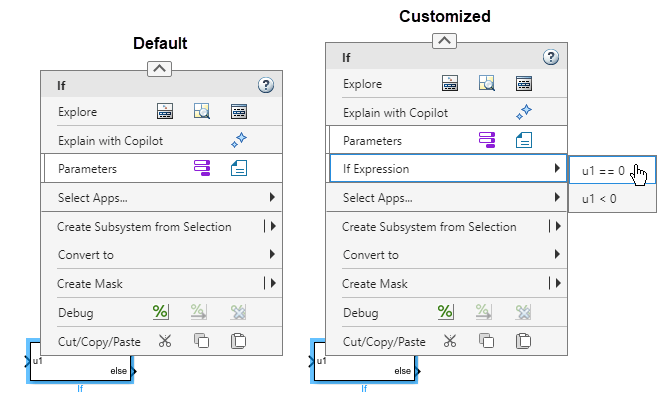
The example folder contains the files you need to create this customization. To view the files or to try out the finished customization, run this script. Running the script opens the files and a Simulink model. To see the customized context menus, in the model that opens, right-click the If block.
Define Customization
To write the extensions.json file that defines the customization, take these steps.
1. For each new widget you want to add to the context menu, use the container hierarchy in Simulink Context Menu Architecture to determine whether you can add the widget by itself or whether you need to add containers as scaffolding to house the widget. Start at the container you are extending and work your way down the hierarchy to the new widget. You must add all containers listed between those two points in the hierarchy.
In this example, you are adding a DropDownItem widget with a popup that displays two MenuItem widgets to the bottom of the Focus menu. To add widgets to the Focus menu, extend the RichMenu widget. Working your way down the container hierarchy, you can see that you must take these steps:
Add a
MenuSectionwidget to theRichMenuwidget.Add a
DropDownItemwidget to theMenuSectionwidget.Add a
Menuwidget as the popup of theDropDownItemwidget.Add a
MenuSectionwidget to theMenuwidget.Add two
MenuItemwidgets to theMenuSectionwidget.
2. In a text editor, open a blank file for writing the JSON declarations. To avoid formatting mistakes, consider writing the declarations in an integrated development environment (IDE) equipped to help you format code, for example, Visual Studio® Code.
3. Save the file with the name extensions.json in a folder named resources.
4. To ensure backwards compatibility of your JSON declarations in future releases, add a version number. In the extensions.json file, specify the current version as a JSON key-value pair. Set the key to "version", and the value to the version number specified as a JSON string. The current version number is 1.0.
"mw.schemaVersion": "1.0.0",
You are now ready to define your customizations in the extensions.json file.
5. Specify the extension points at which you want to add widgets. Create a JSON key-value pair for the extension point. Set the key to the JSON name of the extension point, specified as a JSON string. Set the value to an empty JSON array literal.
"mw.schemaVersion": "1.0.0",

"mw.simulink.editor.contextMenu.focusMenu:after":[]
6. For each widget you want to add, create a JSON key-value pair. Set the key to a descriptive name for the widget in the myCustomMenus namespace. Set the value to an empty JSON object literal. In a later step, you use these key-value pairs to specify the properties of the new widgets.
"mw.schemaVersion": "1.0.0",

"mw.simulink.editor.contextMenu.focusMenu:after":[]

"myCustomMenus.myMenuSection1":{}

"myCustomMenus.myDropDownItem":{}

"myCustomMenus.myAction":{}

"myCustomMenus.myMenu":{}

"myCustomMenus.myMenuSection2":{}

"myCustomMenus.myMenuItem1":{}

"myCustomMenus.setIfExpression1":{}

"myCustomMenus.myMenuItem2":{}

"myCustomMenus.setIfExpression2":{}
7. In the extension point key-value pair, specify which widgets to add at the extension point. Only specify widgets that you are directly adding to the container you are extending. If those widgets are containers, do not list their contents.
In this example, you are extending the RichMenu widget by adding a MenuSection widget. In the JSON array literal of the Focus menu extension point, enter a reference to the JSON object literal of the MenuSection widget. Specify the reference as a JSON string containing the hash tag symbol # followed by the key of the referenced JSON object literal. The reference must be enclosed in brackets even though you are only specifying one.
"mw.schemaVersion": "1.0.0",

"mw.simulink.editor.contextMenu.focusMenu:after":
["#myCustomMenus.myMenuSection1"]

"myCustomMenus.myMenuSection1":{}

"myCustomMenus.myDropDownItem":{}

"myCustomMenus.myAction":{}

...
Do not specify any of the other widgets you are adding in the extension point key-value pair because those widgets are all contents of the MenuSection widget. The only widget you are adding directly to the RichMenu widget is the MenuSection widget.
8. Specify the properties of the widgets you are adding to the context menu. For each widget, fill in the empty JSON object literal with JSON key-value pairs that set the widget properties. For a list of available properties for each type of widget, see the Properties section on this page. You must specify the values of all properties marked as required. Set the value of the action property to an empty JSON string for now.
For the MenuSection widget:
Specify that you are adding a menu section by setting the
typevalue to"MenuSection".Specify that you are adding the drop-down item named
myCustomMenus.myDropDownItemto the menu section. Set theitemsvalue to a reference to the JSON object literal of the drop-down item:["#myCustomMenus.myDropDownItem"].
For the DropDownItem widget:
Specify that you are adding a drop-down item by setting the
typevalue to"DropDownItem".Set the
actionvalue to an empty JSON string for now.Specify that you are adding the menu named
myCustomMenus.myMenuto the drop-down item as a popup. Set thepopupvalue to a reference to the JSON object literal of the menu:"#myCustomMenus.myMenu".Specify that the customization is only visible when you right-click an If block by setting the
whenvalue to"selection.isIf".
For the Menu widget:
Specify that you are adding a menu by setting the
typevalue to"Menu".Specify that you are adding the menu section named
myCustomMenus.myMenuSection2to the menu. Set thesectionsvalue to a reference to the JSON object literal of the menu section:["#myCustomMenus.myMenuSection2"].
For the MenuSection widget:
Specify that you are adding a menu section by setting the
typevalue to"MenuSection".Specify that you are adding the menu items named
"#myCustomMenus.myMenuItem1"and"#myCustomMenus.myMenuItem2"to the menu section. Set theitemsvalue to a JSON array literal of references to the JSON object literals of the menu items:["#myCustomMenus.myMenuItem1","#myCustomMenus.myMenuItem2"].
For the MenuItem widgets:
Specify that you are adding a menu item by setting the
typevalue to"MenuItem".Set the
actionvalue to an empty JSON string for now.
"mw.schemaVersion": "1.0.0",

"mw.simulink.editor.contextMenu.focusMenu:after":
["#myCustomMenus.myMenuSection1"],

"myCustomMenus.myMenuSection1":
{
    "type": "MenuSection",
    "items": ["#myCustomMenus.myDropDownItem"]
}

"myCustomMenus.myDropDownItem":
{
    "type": "DropDownItem",
    "action": "",
    "popup": "#myCustomMenus.myMenu",
    "when": "selection.isIf"
}

"myCustomMenus.myMenu":
{
    "type": "Menu",
    "sections":["#myCustomMenus.myMenuSection2"]
}

"myCustomMenus.myMenuSection2":
{
    "type": "MenuSection",
    "items": ["#myCustomMenus.myMenuItem1","#myCustomMenus.myMenuItem2"]
}

"myCustomMenus.myMenuItem1":
{
    "type": "MenuItem",
    "action": ""
}

"myCustomMenus.myMenuItem2":
{
    "type": "MenuItem",
    "action": ""
}
9. Specify widget actions.
Write a MATLAB function named u1EqualsZero that changes the if expression to u1==0, and a MATLAB function named u1LessThanZero that changes the if expression to u1<0. The functions must accept a callback info object as their sole input argument.
The example folder contains both function files. To view the files, enter these commands in the MATLAB Command Window.
open("addDropDownItem/u1EqualsZero.m")
open("addDropDownItem/u1LessThanZero.m")
For each action that you want the menu items to take, create a JSON key-value pair. Set the key to a descriptive name for the action in the myCustomMenus namespace. Set the value to a JSON object literal that defines the action. The Properties section on this page lists the available action properties.
Set the keys to
"myCustomMenus.setIfExpression1"and"myCustomMenus.setIfExpression2", respectively.In the JSON object literals, set the
typevalue to"Action".Set the
textvalue to"u1==0"and"u1<0".To specify the menu item tooltip, set the
descriptionvalue to"Set if expression to u1 == 0"and"Set if expression to u1<0".Set the
callbackvalue to the name of the corresponding MATLAB function. The string must be a valid input to thefevalfunction.
"myCustomMenus.setIfExpression1":
{
  "type": "Action",
  "text": "u1 == 0",
  "description": "Set if expression to u1 == 0",
  "callback": "u1EqualsZero"
}
In the JSON object literal of each menu item, set the action value to a reference to the JSON object literal of the action that you want the menu item to take: "#myCustomMenus.setIfExpression1" and "#myCustomMenus.setIfExpression2", respectively.
"myCustomMenus.myMenuItem1":
{
  "type": "MenuItem",
  "action": "#myCustomMenus.setIfExpression1"
}
While the drop-down item itself does not take an action when clicked, to specify the drop-down item label text, you must create a JSON object literal of type Action for the DropDownItem widget.
Set the key to
"myCustomMenus.myAction".In the JSON object literal, set the type values to
"Action".Set the text value to
"If Expression".
"myCustomMenus.myAction":
{
  "type": "Action",
  "text": "If Expression"
}
10. Add commas between the JSON array literals and object literals, and enclose the JSON declarations in the file in a pair of braces.
The example folder contains a resources folder with the completed extensions.json file. To view the file, enter this command in the MATLAB Command Window.
open("addDropDownItem/resources/extensions.json");Implement Customization
To implement the customization, take these steps.
1. Add the parent folder of the resources folder to the MATLAB path. If any callback functions are located outside of the parent folder, add the functions to the MATLAB path as well.
myResources = pwd + "/addDropDownItem";
addpath(myResources)
2. Reload the Simulink studio configuration.
slReloadStudioConfig(myResources)
3. To view the customizations, open a Simulink model containing an If block. For example, open the model included with this example named CustomDropDownItemModel. Then, right-click the If block.
open_system("addDropDownItem/CustomDropDownItemModel");This example shows how to add widgets that use the icons and actions of default widgets. In the example, you add a button row to the Simulink® context menu at the bottom of the Focus menu. The row is labeled About Model and contains two buttons.
The first button has the same icon as the Model Settings button
 and takes the same action. However, the button you add is displayed in different contexts than the default Model Settings button
  . The default Model Settings button
  is displayed in the model canvas context menu, while the button you add is displayed in block context menus.
The second button has the same icon as the Open help documentation button
 but takes a different action. When you click the second button, the MATLAB® Command Window outputs information about the model. The second button is always displayed.
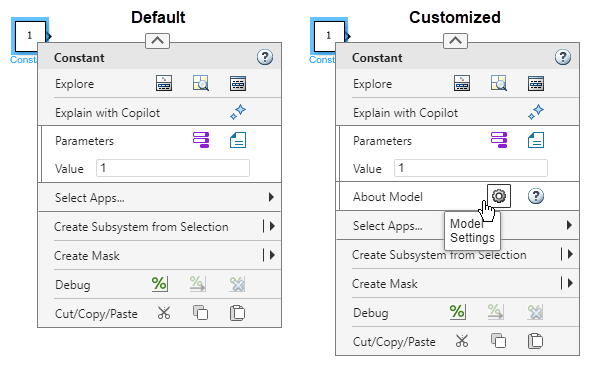
The example folder contains the files you need to create this customization. To view the files or to try out the finished customization, run this script. Running the script opens the files and a Simulink model. To see the customized context menus, in the model that opens, right-click the If block.
Define Customization
To write the extensions.json file that defines the customization, take these steps.
1. For each new widget you want to add to the context menu, use the container hierarchy in Simulink Context Menu Architecture to determine whether you can add the widget by itself or whether you need to add containers as scaffolding to house the widget. Start at the container you are extending and work your way down the hierarchy to the new widget. You must add all containers listed between those two points in the hierarchy.
In this example, you are adding a PushButton widgets to the bottom of the Focus Menu. To add widgets to the Focus Menu, extend the RichMenu widget. Working your way down the container hierarchy, you can see that you must take these steps:
Add a
MenuSectionwidget to theRichMenuwidget.Add a
ButtonRowItemwidget to theMenuSectionwidget.Add two
PushButtonwidgets to theButtonRowItemwidget.
2. Get the names of the icons and actions of any default widgets that you want to reuse in your customizations. To get the names, you must enter developer mode. To enter developer mode, use the slUIDeveloperMode function.
slUIDeveloperMode("on")Simulink UI developer mode is active. To display the icon, action, and extension point names for a widget in the MATLAB Command Window, pause on the widget in the Simulink Context Menu or Simulink Toolstrip and press Ctrl.
ans = logical
   0
Right-click the model canvas. In the model canvas context menu, pause on the Model Settings button  and press Ctrl (on macOS, press command). The MATLAB Command Window displays the icon and action names for the Model Settings button
  . You only need the action name, because assigning the action of a default widget to a custom widget automatically assigns the icon of the default widget to the custom widget.
Reusable PushButton Action: #mw.simulink.editor.modelSettingsAction
Reusable PushButton Icon: mw.simulink.editor.icons.topModelSettings
-------------------
Pause on the Open help documentation button  and press Ctrl. The MATLAB Command Window displays the icon and action names for the Open help documentation button
  . You only need the icon name because you plan to assign your button a custom action.
Reusable PushButton Action: #mw.simulink.editor.helpAction
Reusable PushButton Icon: help
-------------------
2. In a text editor, open a blank file for writing the JSON declarations. To avoid formatting mistakes, consider writing the declarations in an integrated development environment (IDE) equipped to help you format code, for example, Visual Studio® Code.
4. Save the file with the name extensions.json in a folder named resources.
6. To ensure backwards compatibility of your JSON declarations in future releases, add a version number. In the extensions.json file, specify the current version as a JSON key-value pair. Set the key to "version", and the value to the version number specified as a JSON string. The current version number is 1.0.
"mw.schemaVersion": "1.0.0",
You are now ready to define your customizations in the extensions.json file.
7. In the extensions.json file, specify the extension point at which you want to add widgets. Create a JSON key-value pair for the extension point. Set the key to the JSON name of the extension point, specified as a JSON string. Set the value to an empty JSON array literal.
"mw.schemaVersion": "1.0.0",

"mw.simulink.editor.contextMenu.focusMenu:after":[]
8. For each widget you want to add, create a JSON key-value pair. Set the key to a descriptive name for the widget in the myCustomMenus namespace. Set the value to an empty JSON object literal. In a later step, you use these key-value pairs to specify the properties of the new widgets.
"mw.schemaVersion": "1.0.0",

"mw.simulink.editor.contextMenu.focusMenu:after":[]

"myCustomMenus.myMenuSection":{}

"myCustomMenus.myButtonRow":{}

"myCustomMenus.modelSettingsButton":{}

"myCustomMenus.helpButton":{}
9. In the extension point key-value pair, specify the widgets to add at the extension point. Only specify widgets that you are directly adding to the container you are extending. If those widgets are containers, do not list their contents.
In this example, you are extending the RichMenu widget by adding a MenuSection widget. In the JSON array literal of the Focus menu extension point, enter a reference to the JSON object literal of the MenuSection widget. Specify the reference as a JSON string containing the hash tag symbol # followed by the key of the referenced JSON object literal. The reference must be enclosed in brackets even though you are only specifying one.
"mw.schemaVersion": "1.0.0",

"mw.simulink.editor.contextMenu.focusMenu:after":
["#myCustomMenus.myMenuSection"]

"myCustomMenus.myMenuSection":{}

"myCustomMenus.myButtonRow":{}

"myCustomMenus.modelSettingsButton":{}

"myCustomMenus.helpButton":{}
Do not specify any of the other widgets you are adding in the extension point key-value pair because those widgets are all contents of the MenuSection widget. The only widget you are adding directly to the RichMenu widget is the MenuSection widget.
10. Specify the properties of the widgets you are adding to the context menu. For each widget, fill in the empty JSON object literal with JSON key-value pairs that set the widget properties. For a list of available properties for each type of widget, see the Properties section on this page. You must specify the values of all properties marked as required. Set the value of the action property to an empty JSON string for now.
For the MenuSection widget:
Specify that you are adding a menu section by setting the
typevalue to"MenuSection".Specify that you are adding the button row named
myCustomMenus.myButtonRowto the menu section. Set theitemsvalue to a reference to the JSON object literal of the button row:["#myCustomMenus.myButtonRow"].
For the ButtonRowItem widget:
Specify that you are adding a button row by setting the
typevalue to"ButtonRowItem".Specify the button row label. Set the
textvalue to"About Model".Specify which buttons to add to the row by setting the
controlsvalue to a JSON array literal of references to the JSON object literals of the buttons. Set thecontrolsvalue to["#myCustomMenus.modelSettingsButton","#myCustomMenus.helpButton"].
For each PushButton widget:
Specify that you are adding a push button by setting the
typevalue to"PushButton".Set the
actionvalue to an empty JSON string for now.
The first button is only visible when you right-click a block. For the first PushButton widget only, set the when value to an expression that enforces this condition, specified as a JSON string: "selection.isAnyBlock". The second button is always visible. This is the default, so you do not need to set a when value.
"mw.schemaVersion": "1.0.0",

"mw.simulink.editor.contextMenu.focusMenu:after":
["#myCustomMenus.myMenuSection"]

"myCustomMenus.myMenuSection":
{
    "type": "MenuSection",
    "items": ["#myCustomMenus.myButtonRow"]
}

"myCustomMenus.myButtonRow":
{
    "type": "ButtonRowItem",
    "text": "About Model",
    "controls":
    [
        "#myCustomMenus.updateModelButton",
        "#myCustomMenus.runButton"
    ]
}

"myCustomMenus.modelSettingsButton":
{
    "type": "PushButton",
    "action": "",
    "when": "selection.isAnyBlock"
}

"myCustomMenus.helpButton":
{
    "type": "PushButton",
    "action": ""
}
11. Specify widget actions.
To assign the action and icon of the Model Settings button  to the first custom button, in the property array of the button, set the
 action value to the action name you acquired in the second step, specified as a JSON string: "#mw.simulink.editor.modelSettingsAction".
"myCustomMenus.modelSettingsButton":
{
    "type": "PushButton",
    "action": "#mw.simulink.editor.modelSettingsAction",
    "when": "selection.isAnyBlock"
}
For the second button, write a MATLAB function named getModelInfo that outputs this information about the model in the MATLAB Command Window. The function must accept a callback info object its sole input argument.
Who created the model
When the model was created
Who last modified the model
When the model was last modified
Whether the model is dirty
The example folder contains the function file. To view the file, enter this command in the MATLAB Command Window.
open("assignIconsAndActions/getModelInfo.m")To define the action that you want the second button to take, create a JSON key-value pair. Set the key to a descriptive name for the action in the myCustomMenus namespace. Set the value to a JSON object literal that defines the action. The Properties section on this page lists the available action properties.
Set the key to
myCustomMenus.learnAboutModel.In the array, set the
typevalue to"Action".To specify the button tooltip, set the
descriptionvalue to"Get information about model".Set the
iconvalue to the icon name you acquired in the second step, specified as a JSON string: "help".Set the
callbackvalue to the MATLAB function name,"getModelInfo". The string must be a valid input to thefevalfunction.
"myCustomMenus.learnAboutModel":
{
    "type": "Action",
    "description": "Get information about model",
    "icon": "help",
    "callback": "getModelInfo"
}
In the JSON object literal of the second button, set the action value to a reference to the JSON object literal of the action: "#myCustomMenus.learnAboutModel".
"myCustomMenus.helpButton":
{
    "type": "PushButton",
    "action": "#myCustomMenus.learnAboutModel"
}
12. Add commas between the JSON array literals and object literals, and enclose the JSON declarations in the file in a pair of braces.
The example folder contains a resources folder with the completed extensions.json file. To view the file, enter this command in the MATLAB Command Window.
open("assignIconsAndActions/resources/extensions.json");Implement Customization
To implement the customization, take these steps.
1. Add the parent folder of the resources folder to the MATLAB path. If any callback functions are located outside of the parent folder, add the functions to the MATLAB path as well.
myResources = pwd + "/assignIconsAndActions";
addpath(myResources)
2. Reload the Simulink studio configuration.
slReloadStudioConfig(myResources)
3. To view the customizations, open a Simulink model that contains blocks. For example, open the model included with this example named DefaultIconAndActionModel. Then, right-click the model canvas or a model element such as a block or signal line.
open_system("assignIconsAndActions/DefaultIconAndActionModel");Properties
Version History
Introduced in R2026a

