Select Hardware Board and Interface
R2026bIn this step, you select your target hardware and your HDL workflow. You then select the interface that you want to use to configure your hardware board
Select Hardware Board
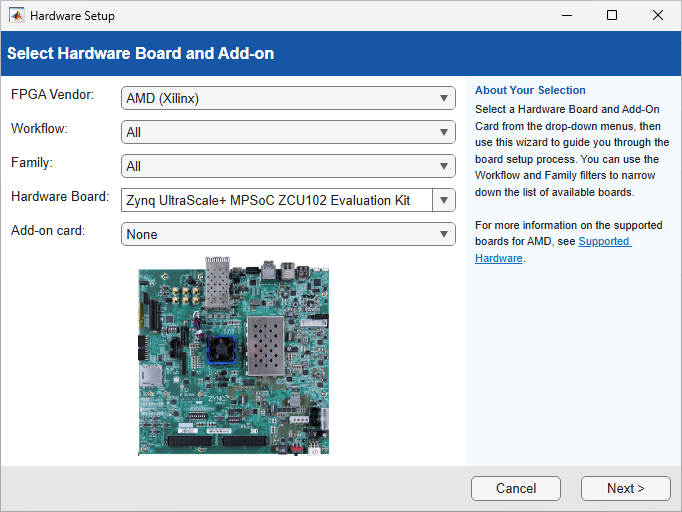
On the Select a Hardware Board page, use these parameters to select your target board and workflow:
FPGA Vendor: Select the FPGA manufacturer for the target device.
Workflow: Specify the HDL workflow you want to use. To filter the available boards, select the desired HDL workflow. You can choose from IP Core Generation, Deep Learning, FPGA Verification and Debug, and SoC System Generation.
Family: Specify the FPGA device family. To filter the available boards, select the respective device family.
Hardware Board: Choose the target hardware board. Alternatively, set Hardware Board to Custom Board to use a custom hardware board.
Add‑On Card: Choose an add‑on card. You can only select cards supported by the target hardware board.
For more information on the supported hardware, see Supported Third-Party Tools and Hardware.
When your board is not listed in the Hardware Board option, you can
set the Hardware Board to Custom Board. For
more information on how to set up the custom board, see Set Up Custom Boards Using the Hardware Setup.
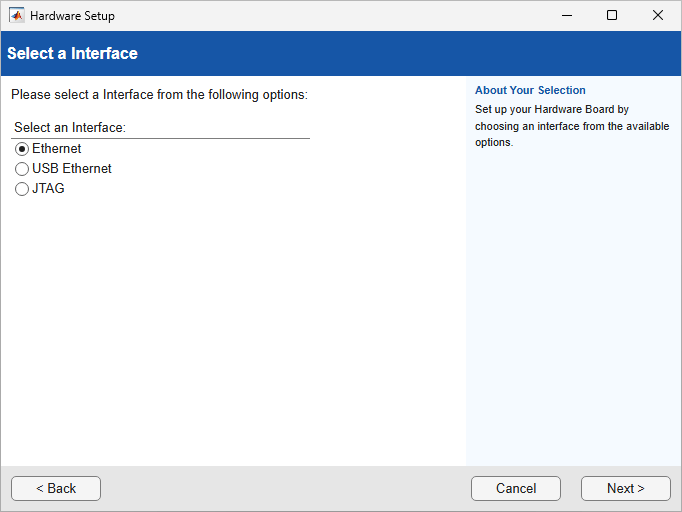
Select Interface
On the Select a Interface page, you can select the interface to use to configure your hardware board. The options you can choose depend on the selected hardware board in the Select a Hardware Board step. The hardware setup steps vary based on the selected hardware board and interface. For the full list of supported boards and interfaces, see Supported Third-Party Tools and Hardware.