Create State Transition Tables
R2026bIn this tutorial, you create a state transition table that models the logic of a rechargeable battery system. The battery system has these requirements:
The battery charges when it is connected to an external power source. Otherwise, the battery discharges until empty.
The battery capacity charges at a rate of 4% of total charge and discharges rate of 3%.
When the battery is charging or empty, the battery does not output power. When the battery is discharging, the battery outputs 3.5 watts of power.
To model these requirements, you build a state transition table that contains the
states Charge, Discharge, and
Empty.
Create Table
Create a new Simulink® model that contains an empty State Transition Table block.
Start MATLAB®. In the MATLAB Toolstrip, in the Home tab, click Simulink.
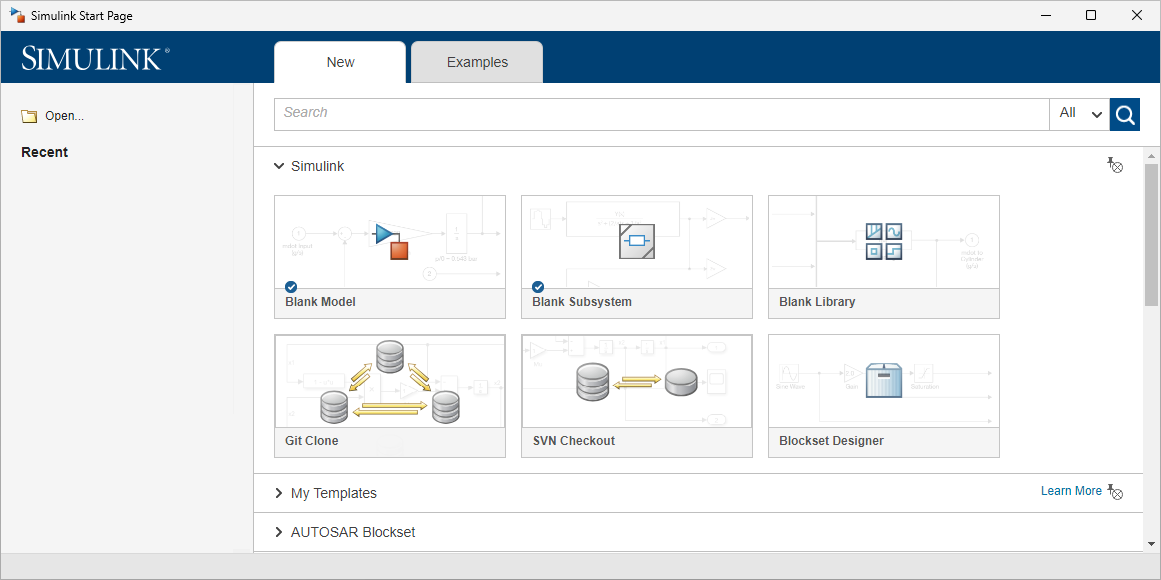
On the start page, in the Simulink section, click the Blank Model template. Simulink opens and displays an empty model.
In the model, add a State Transition Table block.
To view the state transition table, double-click the State Transition Table block.
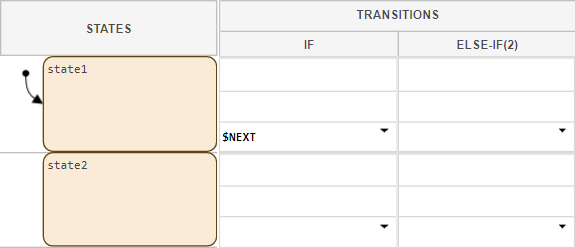
The state transition table contains the states
state1andstate2.
Add States
The battery system requires three states: Charge,
Discharge, and Empty. To add a third
state to the table and rename the existing states:
Point to
state2. At the bottom of the state, the Add state below link appears. Click the link.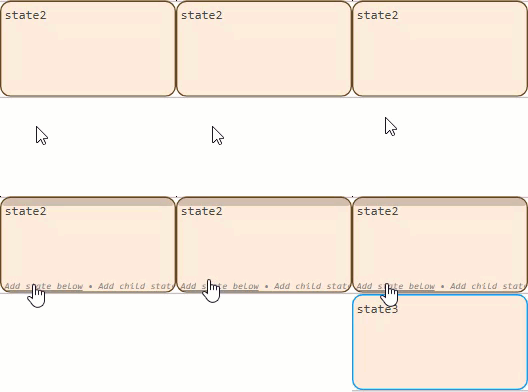
To edit a state name, click the interior of the state. A text cursor appears. Rename the states to
Charge,Discharge, andEmpty.Note
State names cannot contain spaces or begin with a number. Each state name must be unique.
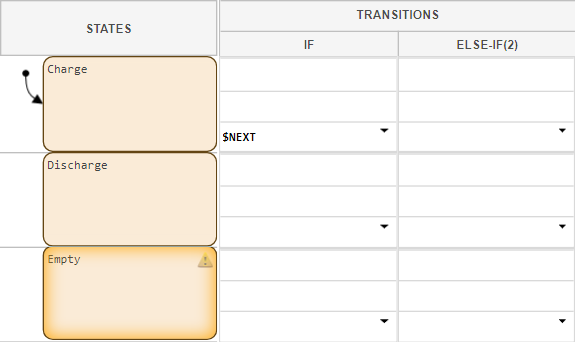
Select Initial Active State
When the simulation starts, the default transition determines which state
becomes active. The default transition icon  indicates the default transition.
To change the default transition, right-click a state and select Set to default. Because the requirements state that the battery must start in the charging mode, you do not need to move the default transition.
Move Between States
Transitions determine how and when your chart moves between states. Transitions appear in the Transitions column. In this table, each state has two associated transitions, If and Else-If(2).
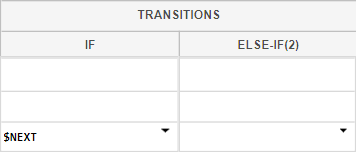
On each step, the table tests the transitions associated with the active state in left-to-right order. If the table moves along a transition, it does not test the remaining transitions. Each transition has three optional rows that define how it operates:
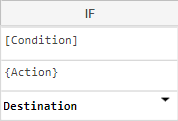
The first row is a condition that must be met before the table can move to the destination state. When you point to a condition, blue square brackets
 appear on the left side of the row.
In most cases, the text in the condition row must be surrounded by square brackets.
The second row is an action that executes when the table moves to the destination state. When you point to a condition, blue curly braces
 appear on the left side of the row.
In most cases, the text in the action row must be surrounded by curly braces.
The third row is the destination state. When the table meets the condition, the source state becomes inactive and the destination state becomes active. The destination keyword
$NEXTindicates the chart moves to the state below the source state. The keyword$PREVindicates the chart moves to the state above the source state.
If the transition does not have a destination state, the table does not test the transition. If the transition has a destination state but not a condition, the table always moves to the destination state.
Define Transitions
Use condition rows, action rows, and destination states to define how the battery transitions between operating modes.
In
Chargestate, in the If transition, click the condition row and enter[!isCharging]. This condition represents a battery that is not plugged into a power source.Click the destination state row and select
Discharge.In the
Dischargestate, in the If transition, enter the condition[isCharging]and select the destinationCharge. This condition represents a battery that is plugged into a power source.In the If-Else(2) transition, enter the condition
[chargePct<=4]and select the destinationEmpty.In the
Emptystate, in the If transition, enter the condition[isCharging]and select the destinationCharge.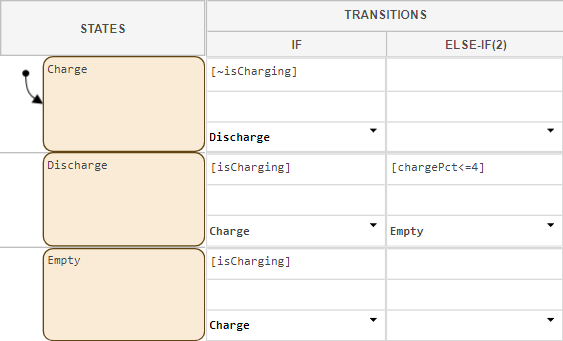
Add Executable Code
You can execute code in active states by adding state actions. State actions contain a keyword, followed by a colon and a block of executable code.
In this example, you use three types of state actions.
| State Action | Behavior |
|---|---|
entry | Executes when the state becomes active. |
during | Executes every step a state is active. Does not execute on a step when the state becomes active or becomes inactive. |
exit | Executes when the state becomes inactive. |
Add state actions that change the battery output and charge according to the operating mode.
In the
Chargestate, edit the state label by clicking the state name. Add a new line, then enter the text below. You can add new lines by pressing Enter.Theentry:sentPower=0;during:chargePct=chargePct+3;entryaction sets a variable namedsentPowerto0. This variable represents the battery output in watts. Theduringaction increments a variable namedchargePctby3. This variable represents the battery charge as a percentIn the
Dischargestate, add anentryaction that setssentPowerto3.5and aduringaction that decrementschargePctby4.entry:sentPower=3.5;during:chargePct=chargePct-4;In the
Emptystate. add anentryaction that setssentPowerto0.entry:sentPower=0;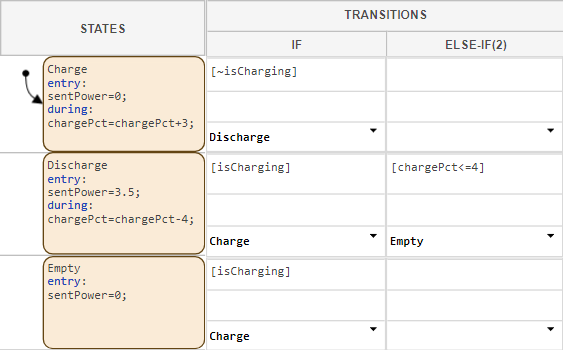
Define Table Data and Share with Simulink Model
When you use a variable in a transition or state, you must define the variable
as input data, output data, or local data. In the Symbols
pane, the warning badge  indicates undefined data.
| Icon | Type | Behavior |
|---|---|---|
 | Input Data | An input port on the State Transition Table block determines the value of this data. Defining an input data adds an input port to the State Transition Table block. You cannot manually assign values to input data. |
 | Output Data | The table outputs the value of this data to an output port on the State Transition Table block. Defining an output data adds an output port to the State Transition Table block. |
 | Local Data | This data stores information that is only accessible in the table. |
The table infers the type of each data based on context. For example, in this
example, the table infers that isCharging is an input data,
sentPower is an output data, and
chargePct is a local data.
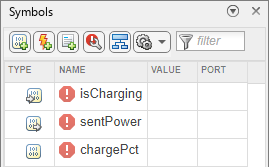
Define the type and value of the table data.
To accept the inferred data types, in the Symbols pane, click the Resolve undefined symbols button
 . The warning badges next to the undefined data
disappear.
. The warning badges next to the undefined data
disappear.Set the initial charge of the battery. In the Symbols pane, the Value column specifies the initial value of each data. Data with an undefined value defaults to
0.In the
chargePctrow, click the Value column and enter50.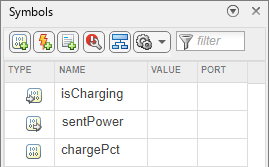
During simulation, the Value column updates as the value of each data changes. When the simulation ends, the Value column returns to the original assigned value. You cannot edit data during simulation.
To return to the top level of the Simulink model, in the explorer bar, click the Up to Parent button
 . The State Transition Table block has an input
and output port. To see the port names, expand the State Transition
Table block by clicking a corner of the block and dragging outward.
. The State Transition Table block has an input
and output port. To see the port names, expand the State Transition
Table block by clicking a corner of the block and dragging outward.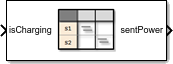
Connect Simulink Blocks to Table
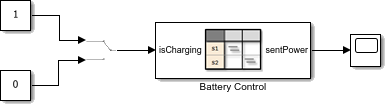
To complete the model, connect source and sink blocks to the input and outport ports of the State Transition Table block.
To represent a battery system that can connect to or disconnect from an external power source, add a Manual Switch block to the Simulink canvas. Connect the output to the isCharging port of the State Transition Table block.
Add a Constant block with a value of
1. Connect the block to the top input port of the Manual Switch block.Add a Constant block with a value of
0. Connect the block to the bottom input port of the Manual Switch block.Add a Scope block. Connect the sentPower port of the State Transition Table block to the Scope block.
Name the State Transition Table block
Battery
                                Control
.
Simulate Model
Simulate the completed model.
In the Simulation tab, set Stop Time to
Inf.Double-click to enter the State Transition Table block.
To simulate the model, in the Modeling tab, click Run. Observe the blue highlighting around the
Chargestate. This indicates the state is active.Return to the Simulink Editor.
Toggle the Manual Switch block by double-clicking the block.
Open the Stateflow® Editor. The
Dischargestate becomes active. Then, when the charge is near zero, theEmptystate becomes active.To end the simulation, in the Modeling tab, click Stop.
Toggle the Manual Switch block to
1.
In the next step of the tutorial, you use active state output, logging, and breakpoints to verify and debug the battery model.

