Getting Started with Frame-Based Image Filter
R2026bThis example shows how to design a hardware-targeted image filter by using frame-based functions in MATLAB®. It also shows:
Functional verification of the design
HDL code and testbench generation
HDL cosimulation
Modeling frame-based designs in Simulink®
Frame-Based Image Filter in MATLAB
hdlimfilter is function that simulates a frame-based image filter and supports HDL code generation. To explore this function, first import an input image, frameIn.
frameIn = im2single(imread('cameraman.tif'));
figure
imshow(frameIn)
title 'Input Frame'
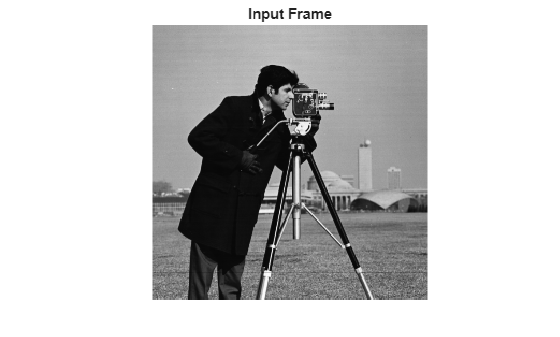
Then, create filter coefficients to configure the filter function. The last two arguments of the filter function are the padding method and padding value. In this case, the function pads the image with a constant value of zero. The function returns the filtered result in frameOut.
filter = [1 0; 0 -1];
frameOut = hdlimfilter(frameIn,filter,'Constant',0);
Simulation and Verification
Once simulation is done, display the output frame.
figure
imshow(frameOut)
title 'Output Frame'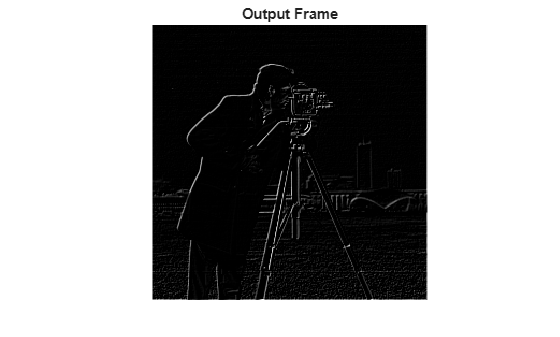
To verify the design, compare the output of the hdlimfilter function with the output of the Image Processing Toolbox™ imfilter function.
frameOutIPT = imfilter(frameIn,filter);

if(isequal(frameOutIPT,frameOut))
disp('Passed')
else
    disp('Failed')
end
Passed
HDL Code Generation
To generate HDL code, first create an hdlcfg object, then set properties of the object.
Although the hdlimfilter function has frame-based input and output for simulation, the HDL code generation tools convert this interface to a streaming interface suitable for hardware. To enable this frame-to-sample conversion, set the FrameToSampleConversion and AggressiveDataflowConversion properties to true. The AggressiveDataflowConversion property transforms the control signals of the filter to a dataflow representation required by the frame-to-sample conversion.
hdlcfg = coder.config('hdl');
DUT = 'hdlimfilter';
hdlcfg.DesignFunctionName = DUT;
hdlcfg.FrameToSampleConversion = true;
hdlcfg.AggressiveDataflowConversion = true;
Optionally, enable generation of an HDL testbench.
hdlcfg.GenerateHDLTestBench = true;
Provide the workspace variables you defined above as prototypes to communicate the size and type of the inputs to the function. This example uses floating-point input data, so you must enable native floating-point support. Optionally, to enable multipixel processing, you can set the SamplesPerCycle property to 2, 4 or 8.
HDLframeIn = single(frameIn);
HDLfilter = single(filter);
hdlcfg.FloatingPointLibrary = 'NativeFloatingPoint';
hdlcfg.FloatingPointTargetConfiguration = hdlcoder.createFloatingPointTargetConfig();
% hdlcfg.SamplesPerCycle = 2;
To generate HDL code, run this command:
codegen -config hdlcfg -args { HDLframeIn coder.Constant(HDLfilter) coder.Constant('Constant') coder.Constant(1)}
Verification with HDL Cosimulation
To manually simulate the generated DUT and testbench in QuestaSim®, follow either the GUI or programmatic steps.
To configure your HDL simulator environment variables, use the hdlsetuptoolpath function. For details, see hdlsetuptoolpath (HDL Coder).
Simulate from QuestaSim GUI
Change directory to the location of your generated code, then open QuestaSim from MATLAB:
!vsim
In QuestaSim, compile the DUT and testbench by selecting the Tools>Tcl> Execute Macro>DUT_tb_compile.do menu option.
Then, run the simulation by selecting the Tools>Tcl>Execute Macro>DUT_tb_sim.do menu option.
Simulate from MATLAB Command Window
Change folder to the location of your generated code. To compile the DUT and testbench, call this command in MATLAB:
!vsim -do DUT_tb_compile.do -do DUT_tb_sim.do
Synthesis Settings
You can also use hdlcfg to automatically simulate and synthesize the design. For details on coder.config properties, see coder.HdlConfig (HDL Coder).
This code shows how to configure the hdlcfg object to simulate in ModelSim™ and synthesize in Vivado® for a particular FPGA target.
% Simulation
hdlcfg.SimulateGeneratedCode = true;
hdlcfg.SimulationTool = 'ModelSim'; %  or 'ISIM'

% Enable Synthesis.
hdlcfg.SynthesizeGeneratedCode = true;

% Configure Synthesis tool.
hdlcfg.SynthesisTool = 'Xilinx Vivado'; %  or 'Altera Quartus II';
hdlcfg.SynthesisToolChipFamily = 'Zynq UltraScale+';
hdlcfg.SynthesisToolDeviceName = 'xczu9eg-ffvb1156-2-e';
hdlcfg.SynthesisToolPackageName = '';
hdlcfg.SynthesisToolSpeedValue = '';
hdlcfg.TargetFrequency = 300;

codegen -config hdlcfg -args { HDLframeIn coder.Constant(HDLfilter) coder.Constant('Constant') coder.Constant(1) }
For more information, see Programmatically Generate, Verify, and Synthesize HDL Code from MATLAB Code (HDL Coder).
Frame-Based Image Filter in Simulink
The ImageFilterDUT model shows how to use the hdlimfilter function with a MATLAB Function block in Simulink. The model also has an input data source and an output display. Simulate the model and observe the output. The output image matches the image obtained from the MATLAB code earlier in this example.
open_system('ImageFilterDUT');
set_param("ImageFilterDUT",SimulationCommand="update");
out = sim("ImageFilterDUT");
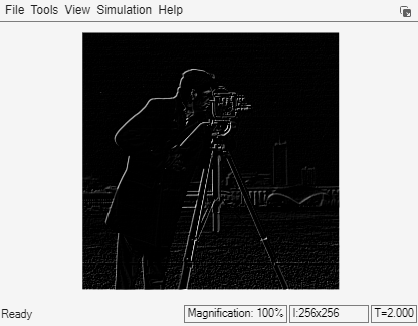
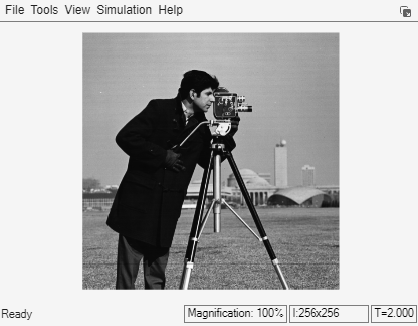
Now, configure the model for HDL code generation and use makehdl(gcb) to generate HDL code and an HDL testbench. Right-click the MATLAB Function block, and in the HDL Coder app section, select HDL Block Properties. Set the Architecture parameter to MATLAB Datapath.
To enable frame-to-sample conversion, set these properties:
hdlset_param("ImageFilterDUT",FrameToSampleConversion="on");
hdlset_param("ImageFilterDUT/DUT/In",ConvertToSamples="on"); % for each frame-based input port
hdlset_param("ImageFilterDUT",GenerateModel="on");
Now, you can use these commands to generate HDL code and an HDL testbench for the DUT subsystem.
makehdl("ImageFilterDUT/DUT")
makehdltb("ImageFilterDUT/DUT")
To deploy a frame-based design from Simulink® to an FPGA board, see Deploy Frame-Based Optical Flow Algorithm on FPGA.

