Share Results of Econometric Modeler App Session
R2026bThis example shows how to share the results of an Econometric Modeler app session by:
Exporting time series and model variables to the MATLAB® Workspace
Generating MATLAB plain text and live functions to use outside the app
Generating a report of your activities on time series and estimated models
During the session, the example transforms and plots data, runs
statistical tests, and estimates a multiplicative seasonal ARIMA model. The data set Data_Airline.mat contains monthly counts of airline passengers.
Import Data into Econometric Modeler
Download the Data_Airline.mat MAT-file into your current folder, and
then load it into the workspace.
fldr = pwd;
openExample("Data_Airline.mat",workDir=fldr);
load(fullfile(fldr,"Data_Airline.mat"))
To change the folder to which to download the data set, set fldr to its
absolute path.
At the command line, open the Econometric Modeler app.
econometricModeler
Alternatively, open the app from the apps gallery (see Econometric Modeler).
Import DataTimeTable into the app:
On the Modeler tab, in the Import section, click the Import button
 .
.In the Import Data dialog box, select the check box for the
DataTimeTablevariable.Click Import.
The variable PSSG appears in the Time
Series pane, its value appears in the
Preview pane, and its time series plot appears in the
Plot(PSSG) figure window.
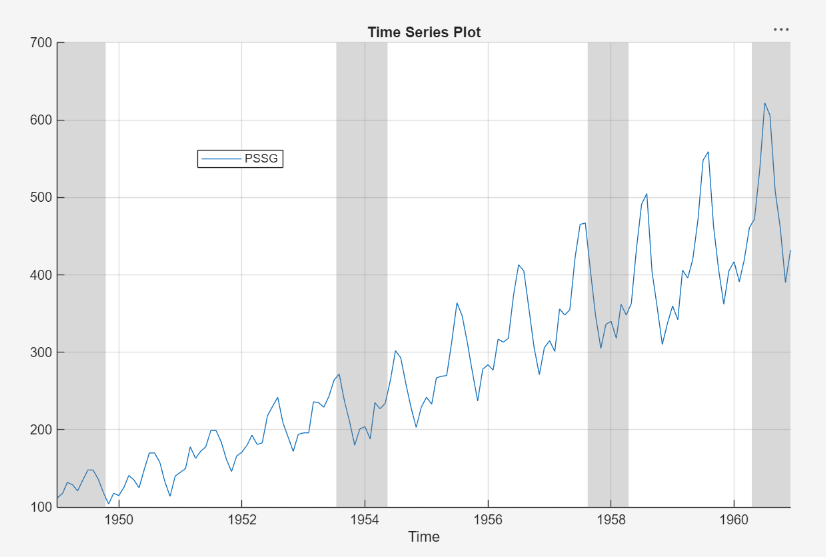
The series exhibits a seasonal trend, serial correlation, and possible exponential growth. For an interactive analysis of serial correlation, see Detect Serial Correlation Using Econometric Modeler App.
Stabilize Series
Address the exponential trend by applying the log transform to
PSSG.
In the Time Series pane, select
PSSG.On the Modeler tab, in the Transforms section, click Log.
The transformed variable PSSG_Log
appears in the Time Series pane, and its time series plot
appears in the Plot(PSSG_Log) figure window.
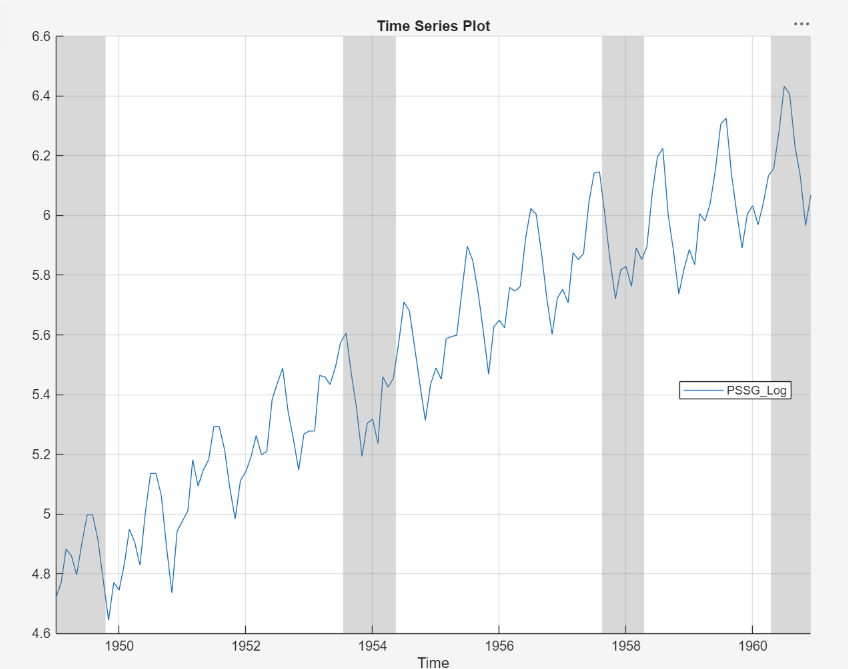
The exponential growth appears to be removed from the series.
Address the seasonal trend by applying the 12th order seasonal difference.
With PSSG_Log selected in the Time
Series pane, on the Modeler tab, in the
Transforms section, set Seasonal
to 12. Then, click
Seasonal.
The transformed variable PSSG_Log_SDiff appears in
the Time Series pane, and its time series plot appears in
the Plot(PSSG_Log_SDiff) figure window.
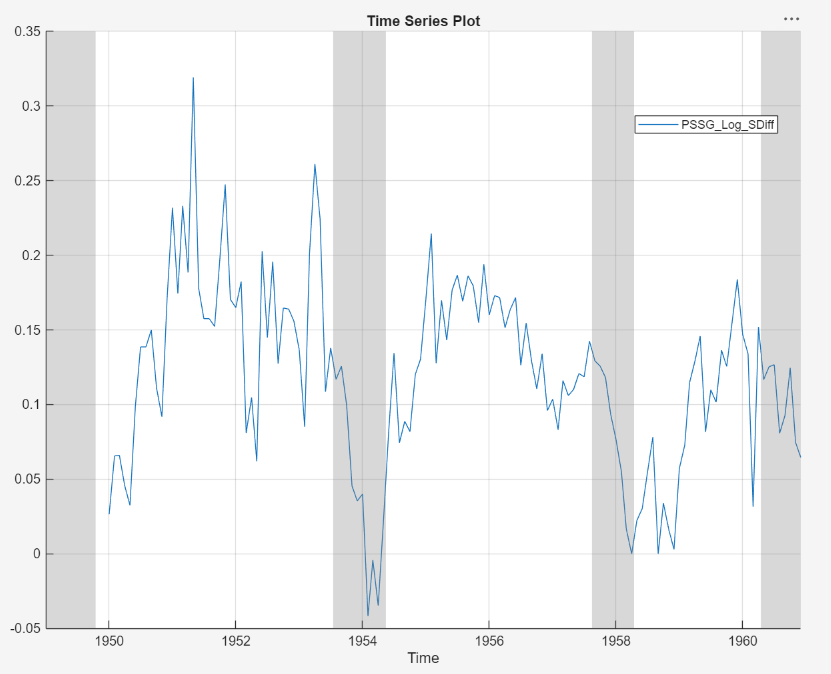
The transformed series appears to have a unit root.
Test the null hypothesis that PSSG_Log_SDiff has a
unit root by using the Augmented Dickey-Fuller test. Specify that the
alternative is an AR(0) model, then test again specifying an AR(1) model. Adjust
the significance level to 0.025 to maintain a total significance level of 0.05.
With
PSSG_Log_SDiffselected in the Time Series pane, on the Modeler tab, in the Tests section, click Add Test > Augmented Dickey-Fuller Test.On the ADF tab, in the Settings section, set Significance Level to
0.025.In the Tests section, click Run Test.
In the Settings section, set Number of Lags to
1.In the Tests section, click Run Test.
The test results appear in the Results table of the ADF(PSSG_Log_SDiff) document.

Both tests fail to reject the null hypothesis that the series is a unit root process.
Address the unit root by applying the first difference to
PSSG_Log_SDiff. With
PSSG_Log_SDiff selected in the Time
Series pane, click the Modeler tab. Then, in
the Transforms section, click
Difference.
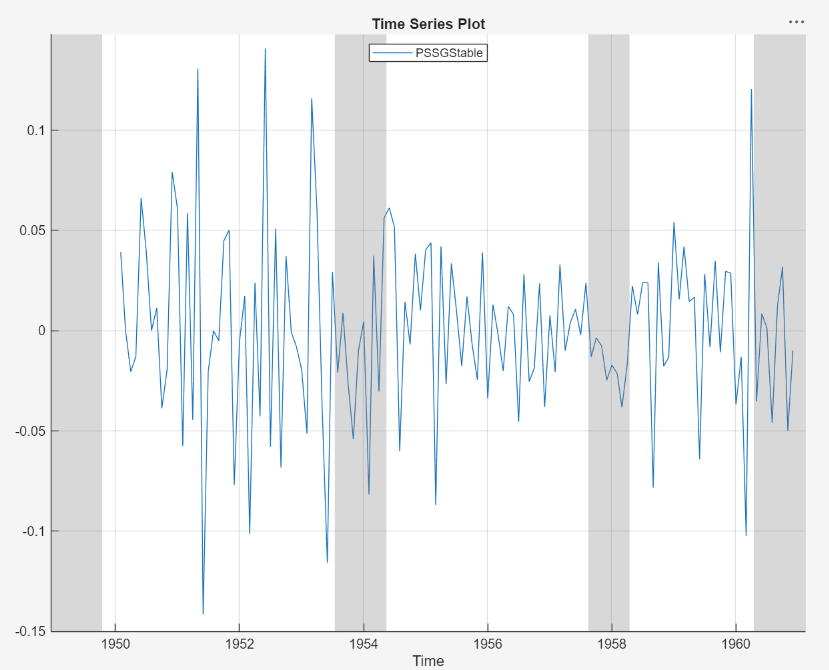
The transformed variable PSSG_Log_SDiff_Diff
appears in the Time Series pane, and its time series plot
appears in the Plot(PSSG_Log_SDiff_Diff) figure
window.
In the Time Series pane, rename the
PSSG_Log_SDiff_Diff variable by clicking it twice
to select its name and PSSGStable.
The app updates the names of all documents associated with the transformed series.
Identify Model for Series
Determine the lag structure for a conditional mean model of the data by plotting the sample autocorrelation function (ACF) and partial autocorrelation function (PACF).
With
PSSGStableselected in the Time Series pane, click the Plots tab, then click ACF.Show the first 50 lags of the ACF. On the ACF tab, set Number of Lags to
50.Click the Plots tab, then click PACF.
Show the first 50 lags of the PACF. On the PACF tab, set Number of Lags to
50.Drag the ACF(PSSGStable) figure window above the PACF(PSSGStable) figure window.
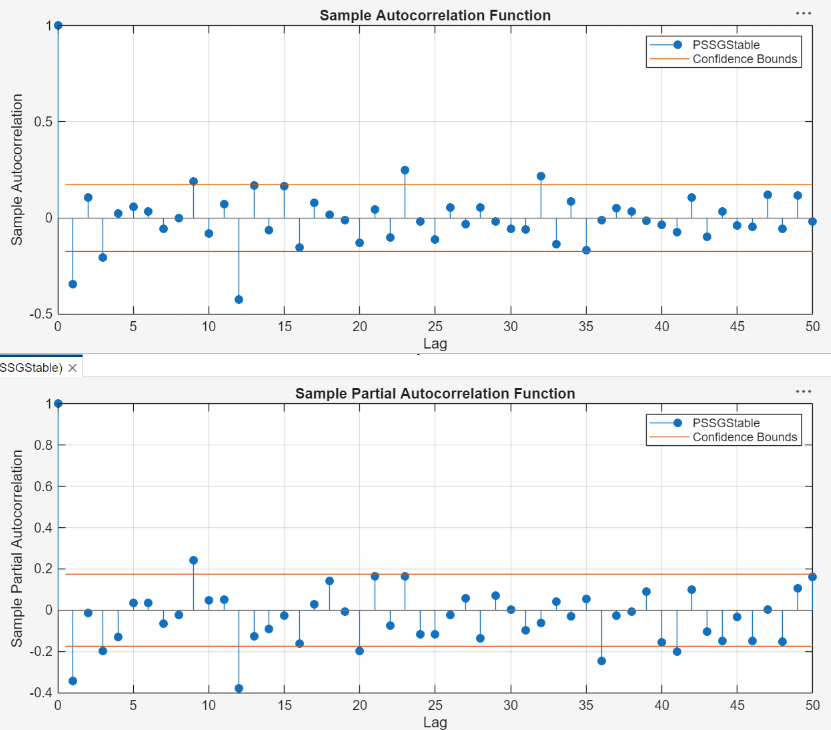
According to [1], the
autocorrelations in the ACF and PACF suggest that the following
SARIMA(0,1,1)×(0,1,1)12 model is appropriate for
PSSG_Log.
Close all figure windows.
Specify and Estimate SARIMA Model
Specify the SARIMA(0,1,1)×(0,1,1)12 model.
In the Time Series pane, select the
PSSG_Logtime series.On the Modeler tab, in the Models section, click the arrow to display the models gallery.
In the models gallery, in the ARIMA Models section, click SARIMA.
In the SARIMA Model Parameters dialog box, on the Lag Order tab:
Nonseasonal section
Set Autoregressive Order (p) to
0.Clear the Include Constant Term check box.
Seasonal section
Set Autoregressive Order (ps) to
0.The Seasonality (s) parameter is
12by default; this setting indicates monthly periodicity.
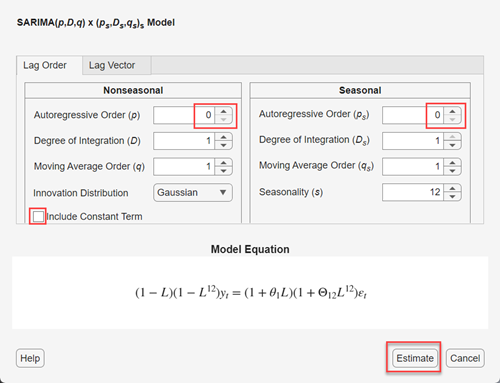
Click Estimate.
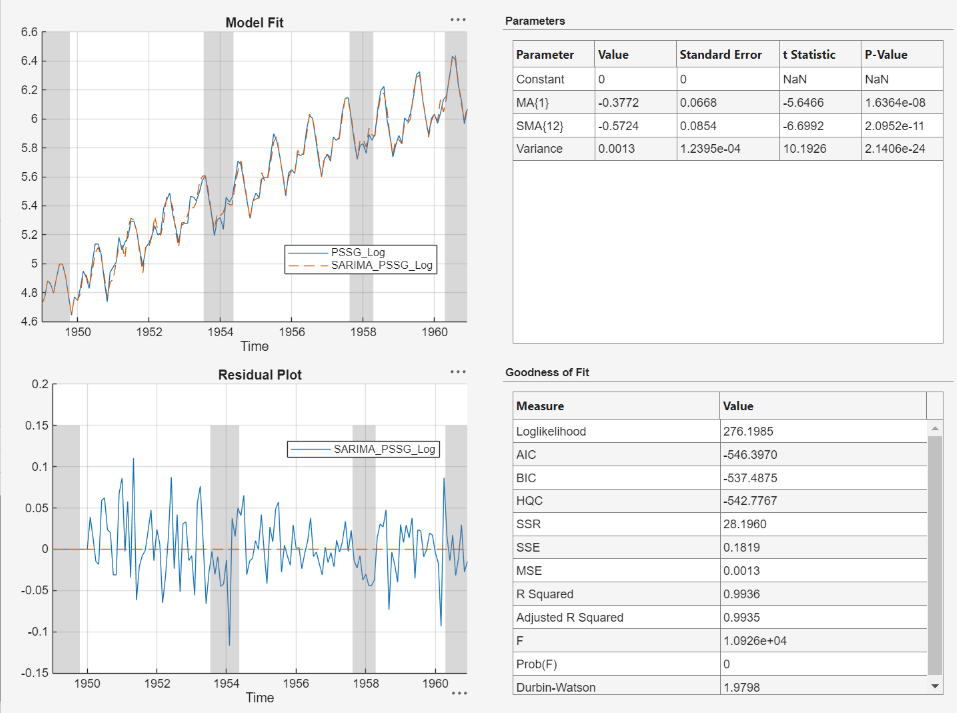
The model variable SARIMA_PSSG_Log appears in the
Models pane, its value appears in the
Preview pane, and its estimation summary appears in the
Fit(SARIMA_PSSG_Log) document.
Export Variables to Workspace
Export PSSG_Log,
PSSGStable, and
SARIMA_PSSG_Log to the MATLAB Workspace.
On the Modeler tab, in the Export section, click
 .
.In the Export Variables dialog box, select the Select check boxes for the
PSSGLogandPSSGStabletime series, and theSARIMA_PSSGLogmodel (if necessary). The app automatically selects the check boxes for all variables that are highlighted in the Time Series and Models panes. Click Export.
At the command line, list all variables in the workspace.
whos
  Name                   Size            Bytes  Class        Attributes

  Data                 144x1              1152  double
  DataTable            144x2              3485  table
  DataTimeTable        144x1              3255  timetable
  Description           22x54             2376  char
  PSSGStable           144x1              1152  double
  PSSG_Log             144x1              1152  double
  SARIMA_PSSG_Log        1x1              7375  arima
  dates                144x1              1182  datetime
  fldr                   1x37               74  char
  series                 1x1               162  cell
The contents of Data_Airline.mat, the numeric vectors
PSSG_Log and PSSGStable, and the
estimated arima model object
SARIMA_PSSG_Log are variables in the workspace.
Although you can forecast models in Econometric Modeler, forecast the next
three years (36 months) of log airline passenger counts using
SARIMA_PSSG_Log at the command line. Specify the
PSSG_Log as presample
data.
numObs = 36;
fPSSG = forecast(SARIMA_PSSG_Log,numObs,Y0=PSSG_Log);
Plot the passenger counts and the forecasts.
fh = DataTimeTable.Time(end) + calmonths(1:numObs);

figure
plot(DataTimeTable.Time,exp(PSSG_Log));
hold on
plot(fh,exp(fPSSG));
legend("Airline Passenger Counts","Forecasted Counts", ...
     Location="best")
title("Monthly Airline Passenger Counts, 1949-1963")
ylabel("Passenger counts")
hold off

Generate Plain Text Function from App Session
Generate a MATLAB function for use outside the app. The function returns the
estimated model SARIMA_PSSG_Log given
DataTimeTable.
In the Models pane of the app, select the
SARIMA_PSSG_Logmodel.On the Modeler tab, in the Export section, click Export > Generate Function. The MATLAB Editor opens and contains a function named
modelTimeSeries. The function acceptsDataTimeTable(the variable you imported in this session), transforms data, and returns the estimated SARIMA(0,1,1)×(0,1,1)12 modelSARIMA_PSSG_Log.
On the Editor tab, click Save > Save.
Save the function to your current folder by clicking Save in the Select File for Save As dialog box.
At the command line, estimate the
SARIMA(0,1,1)×(0,1,1)12 model by passing
DataTimeTable to modelTimeSeries. Name
the model SARIMA_PSSG_Log2. Compare the estimated model to
SARIMA_PSSG_Log.
SARIMA_PSSG_Log2 = modelTimeSeries(DataTimeTable);

summarize(SARIMA_PSSG_Log)
summarize(SARIMA_PSSG_Log2)
   ARIMA(0,1,1) Model Seasonally Integrated with Seasonal MA(12) (Gaussian Distribution)

    Effective Sample Size: 144
    Number of Estimated Parameters: 3
    LogLikelihood: 276.198
    AIC: -546.397
    BIC: -537.488

                  Value      StandardError    TStatistic      PValue
                _________    _____________    __________    __________

    Constant            0              0           NaN             NaN
    MA{1}        -0.37716       0.066794       -5.6466      1.6364e-08
    SMA{12}      -0.57238       0.085439       -6.6992      2.0952e-11
    Variance    0.0012634     0.00012395        10.193      2.1406e-24


   ARIMA(0,1,1) Model Seasonally Integrated with Seasonal MA(12) (Gaussian Distribution)

    Effective Sample Size: 144
    Number of Estimated Parameters: 3
    LogLikelihood: 276.198
    AIC: -546.397
    BIC: -537.488

                  Value      StandardError    TStatistic      PValue
                _________    _____________    __________    __________

    Constant            0              0           NaN             NaN
    MA{1}        -0.37716       0.066794       -5.6466      1.6364e-08
    SMA{12}      -0.57238       0.085439       -6.6992      2.0952e-11
    Variance    0.0012634     0.00012395        10.193      2.1406e-24
As expected, the models are identical.
Generate Live Function from App Session
Unlike a plain text function, a live function contains formatted text and
equations that you can modify by using the Live Editor. Generate a live function
that returns the MMSE forecasts from SARIMA_PSSG_Log.
From Econometric Modeler, in the Models pane, click
SARIMA_PSSG_Logmodel.On the Modeler tab, in the Forecasts section, click Forecast.
In the Forecast Model Response dialog, set Number of period in forecast horizon to
36for a 3-year forecast horizon. Then, click Forecast.In the Forecasts pane, select the
FOR_SARIMA_PSSG_Logvariable.On the Modeler tab, in the Export section, click Export > Generate Live Function. This figure shows the generated live function
forecastTimeSeries.
On the Live Editor tab, in the File section, click Save > Save.
Save the function to your current folder by clicking Save in the Select File for Save As dialog box.
At the command line, generate forecasts from the estimated
SARIMA(0,1,1)×(0,1,1)12 model by passing
DataTimeTable to
forecastTimeSeries.
ForeSARIMA_PSSG_Log = forecastTimeSeries(DataTimeTable)
ForeSARIMA_PSSG_Log =

  struct with fields:

                Forecast: [36×1 double]
    UpperConfidenceBound: [36×1 double]
    LowerConfidenceBound: [36×1 double]
ForeSARIMA_PSSG_Log is a structure array containing the
forecasts in the field Forecast, the upper confidence bounds
in UpperConfidenceBound, and the lower confidence bounds in
LowerConfidenceBound.
Exponentiate the data and forecasts, and plot the transformed series.
figure
plot(DataTimeTable.Time,exp(PSSG_Log));
hold on
plot(fh,exp(ForeSARIMA_PSSG_Log.Forecast));
legend("Airline Passenger Counts","Forecasted Counts", ...
     Location="best")
title("Monthly Airline Passenger Counts, 1949-1963")
ylabel("Passenger counts")
hold off
Generate Report
Generate a PDF report of all your actions on the
PSSG_Log and
PSSGStable time series, and the
SARIMA_PSSG_Log model.
On the Modeler tab, in the Export section, click Export > Generate Report.
In the Generate Report dialog box, select the Select check boxes for the
PSSG_LogandPSSGStabletime series, theSARIMA_PSSGLogmodel (if necessary), and theFOR_SARIMA_PSSG_Logforecasts. The app automatically selects the check boxes for all variables that are highlighted in the Time Series and Models panes. Click Report.
In the Select File to Write dialog box, navigate to the
C:\MyDatafolder.In the File name box, type
SARIMAReport.Click Save.
The app publishes the code required to create
PSSG_Log, PSSGStable,
SARIMA_PSSG_Log,
FOR_SARIMA_PSSG_Log in the PDF
C:\MyData\SARIMAReport.pdf. The report includes:
A title page and table of contents
Plots that include the selected time series
Descriptions of transformations applied to the selected time series
Results of statistical tests conducted on the selected time series
Estimation summaries of the selected models
Plots of forecasts generated from selected models

References
[1] Box, George E. P., Gwilym M. Jenkins, and Gregory C. Reinsel. Time Series Analysis: Forecasting and Control. 3rd ed. Englewood Cliffs, NJ: Prentice Hall, 1994.

