sim3d.Light
R2026bDescription
Use the sim3d.Light object to create an actor object with
N number of light elements in the 3D environment for custom lighting.
After you create a sim3d.Light object, you can modify aspects of the light
actor by setting property values.
Creation
Description
light = sim3d.Light()
light = sim3d.Light(Name=Value)NumberOfLights to
3.
Name-Value Arguments
Specify optional pairs of arguments as
Name1=Value1,...,NameN=ValueN, where Name is
the argument name and Value is the corresponding value.
Name-value arguments must appear after other arguments, but the order of the
pairs does not matter.
Example: light = sim3d.Light(ActorName='Light',Translation=[3 4 3],Rotation=[0
pi/2 -pi/4]) creates an actor object with one light element at the specified
position.
Example: lights =
sim3d.Light(ActorName='Lights',NumberOfLights=3,LightType='PointLight',Translation=[27
-15 0; 27 0 4; 27 15 -2],Rotation=[0 0 0; 0 -pi/2 0; 0 -pi/2 0]) creates an
actor object with three light elements of the type point light at the specified positions.
You cannot see the light actors themselves, but their effects on nearby surfaces are
visible.
Name of actor, specified as a character array or string. If you do not specify an actor name,
then the software assigns the actor an autogenerated name. Use
this argument to set the name of the
sim3d.Light object.
Note
If you specify the same name as an actor that already exists, then the software appends actor name you specify with a unique identifier.
Total number of lights, specified as a real positive scalar. Use this argument to create N number of light elements in the 3D environment.
Example: NumberOfLights=3
Data Types: double
Type of light, specified as 'PointLight',
'SpotLight', 'RectLight', or
'DirectionalLight'. Use this argument to simulate various
lighting effects.
| Light Type | Description | |
|---|---|---|
|
|
|
|
|
|
|
|
|
|
|
|
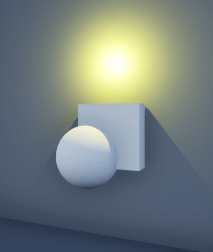
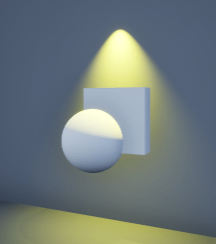
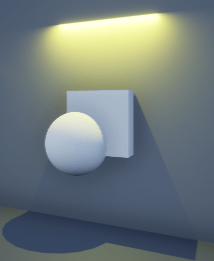
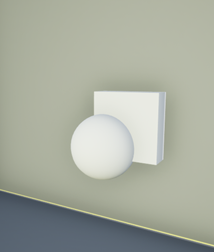
Example: LightType='SpotLight'
Data Types: string
Relative translation
(x,y,z) of the actor object to its
parent actor, specified as a real N-by-3 array, in m. N
specifies the number of elements created using the sim3d.Light object. When
you add an actor to the 3D environment, the default parent actor is the Scene
Origin at (0,0,0).
Example: Translation=[3 4 3]
Example: Translation=[0 -1 0; 0 0 0; 0 1 0]
Data Types: double
Relative rotation (roll, pitch, yaw) of the actor object to its parent actor, specified as a real N-by-3 array, in rad. When you add an actor to the 3D environment, by default the actor follows the Simulink® 3D Animation™ coordinate system. The rotation order is about X-axis (roll), then about Y-axis (pitch), then about Z-axis (yaw). When you update any of the three rotation values and leave others unchanged, the software reapplies all three rotations in the same order.
Example: Rotation=[0 pi/2 -pi/4]
Example: Rotation=[0 pi -pi/2; 0 pi -pi/2; 0 pi
-pi/2]
Data Types: double
Type of actor mobility to respond to physics, move the actor during simulation, or both, specified as one of these options.
'Static'– Actors do not move or update during simulation, and the software uses precomputed lighting.'Stationary'– Actors do not move or update during simulation, and the software uses dynamic lighting such as casting shadows.'Movable'– Actors can move or update during simulation, and the software uses dynamic lighting.
When the Mobility is 'Movable', all the
properties become run-time configurable, allowing for programmatic interaction. For more details
on programmatic interaction, see Programmatic Interaction.
The light actor must be movable to allow for dynamic changes such as casting
shadows and applying textures with the LightFunction property
during simulation.
Example: Mobility='Movable'
Output Arguments
Properties
Examples
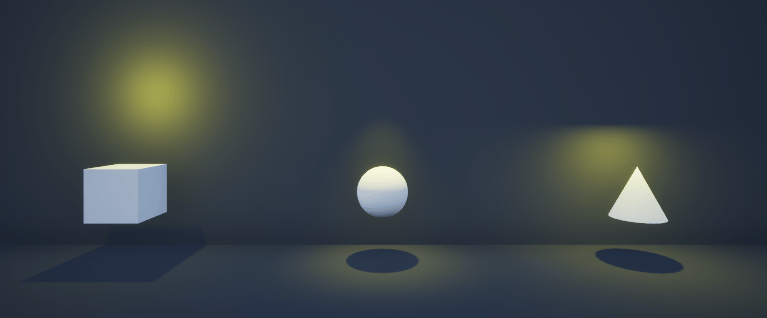
This example shows how to create custom lighting using a sim3d.Light object in the 3D environment. First, create a room. Next, create and place three actors inside the room. Then, create a point light, a spot light, and a rectangular light and place them above each actor inside the room. Finally, view the room and the actors illuminated by the different types of light in the Simulation 3D Viewer window.
Create 3D Environment
Create a world object using sim3d.World.
world = sim3d.World();
Create Room
Create a room using the sim3d.Actor object. Set the properties of the room to visualize the light and add the room to the world.
room = sim3d.Actor(ActorName='Room');
createShape(room,'box',[60 60 20]);
room.Shadows = 1;
room.TwoSided = 1;
room.Flat = 1;
room.Metallic = 0;
room.Shininess = 0;
room.Color = [0.1 0.1 0.1];
add(world,room);
Create Actors
Create actors inside the room using the sim3d.Actor object. Set the properties of the actors and add the actors to the world.
% Create box actor
box = sim3d.Actor(ActorName='Box');
createShape(box,'box',[3 3 3]);
box.Translation = [27 -15 -6];
box.Shadows = 1;
box.Metallic = 0;
box.Shininess = 0;
add(world,box);

% Create sphere actor
sphere = sim3d.Actor(ActorName='Sphere');
createShape(sphere,'sphere',[3 3 3]);
sphere.Translation = [27 0 -6];
sphere.Shadows = 1;
sphere.Metallic = 0;
sphere.Shininess = 0;
add(world,sphere);

% Create cone actor
cone = sim3d.Actor(ActorName='Cone');
createShape(cone,'cone',[3 3 3]);
cone.Translation = [27 15 -6];
cone.Shadows = 1;
cone.Metallic = 0;
cone.Shininess = 0;
add(world,cone);
Create Point Light
Create a point light, set the light properties, and place the light above the box actor.
pointlight = sim3d.Light( ...
    ActorName='PointLight', ...
    LightType='PointLight');
pointlight.SourceRadius = 0.5;
pointlight.Intensity = 50000;
pointlight.AttenuationRadius = 20;
pointlight.Translation = [27 -15 0];
pointlight.LightColor = [1 1 0];
add(world,pointlight);
Create Spot Light
Create a spot light, set the light properties, and place the light above the sphere actor.
spotlight = sim3d.Light( ...
    ActorName='SpotLight', ...
    LightType='SpotLight');
spotlight.Intensity = 500000;
spotlight.Translation = [27 0 4];
spotlight.Rotation = [0, -pi/2, 0];
spotlight.AttenuationRadius = 20;
spotlight.LightColor = [1 1 0];
spotlight.ConeAngle = 30;
add(world,spotlight);
Create Rectangular Light
Create a rectangular light, set the light properties, and place the light above the cone actor.
rectlight = sim3d.Light( ...
    ActorName='RectLight', ...
    LightType='RectLight');
rectlight.Intensity = 50000;
rectlight.Translation = [27 15 -2];
rectlight.Rotation = [0, -pi/2, 0];
rectlight.AttenuationRadius = 20;
rectlight.LightColor = [1 1 0];
rectlight.SourceWidth = 3;
add(world,rectlight);
Run Simulation
Set the Simulation 3D Viewer window point of view using createViewpoint function and setView function and run the simulation. You can visualize the reflections of each light type on the wall behind the actors.
view = createViewpoint(world);
view.Translation = [3 0 -2];
setView(world,view);

sampletime = 0.01;
stoptime = 5;
run(world,sampletime,stoptime);
delete(world);
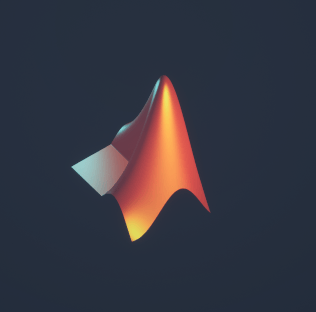
Project an image using the LightFunction property of the sim3d.Light object.
Create 3D Environment
Create a world object using the sim3d.World object.
world = sim3d.World();
Create Room
Create a room using the sim3d.Actor object. Set the properties of the room to visualize the projection and add the room to the world.
room = sim3d.Actor(ActorName='Room');
createShape(room,'box',[20 20 20]);
room.Shadows = 1;
room.TwoSided = 1;
room.Flat = 1;
room.Metallic = 0;
room.Shininess = 0;
room.Color = [0.1 0.1 0.1];
add(world,room);
Create Light Actor
Create a light actor using the sim3d.Light object. By default, the light actor is movable, which allows dynamic changes to the light during the simulation. To project the RGB image, create three light elements and assign red, green, and blue colors to each light element. To align the projection, rotate the light actor by pi/2 radians about the X-axis. Set the Intensity property of the light elements to make sure the projection is bright and visible. Use the ConeAngle property to control the spread of the projection.
spotlight = sim3d.Light(ActorName='SpotLight', ...
    LightType="SpotLight", ...
    Rotation=[pi/2 0 0], ...
    NumberOfLights=3);
spotlight.Translation = repmat([7 0 0], 3, 1);
spotlight.LightColor = [1 0 0; 0 1 0; 0 0 1];
spotlight.Intensity = repmat(1000000, 3, 1);
spotlight.ConeAngle = repmat(44,3,1);
Use the LightFunction property to specify the source file for projection and add the light to the world. You can also use the LightFunctionScale property to scale the source image for projection.
spotlight.LightFunction = repmat(string(fullfile(pwd,'LShapedMembrane.png')),3,1);
world.add(spotlight);
Run Simulation
Run the simulation. You can visualize the projection of the image on the wall.
sampletime = 0.01;
stoptime = 2;
run(world,sampletime,stoptime);
delete(world);
More About
To project an image or pattern, use spot light as the light source for the
sim3d.Light object.
The spot light emits a cone-shaped beam, similar to a flashlight or a stage spotlight, and projects the image within this cone.
The image is mapped onto the area illuminated by the light and appears on surfaces within the cone.
The
ConeAngleproperty of spot light adjusts the spread of the beam. A larger angle creates a bigger projection area.
To adjust the orientation of the projected image, rotate the light source. For example, when you use the image of the L-shaped membrane as the source file and project it in the 3D environment, the image demonstrates how the image appears in the environment without any rotation or adjustments.
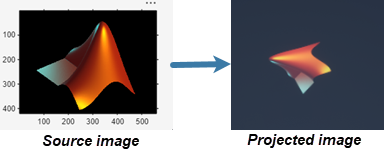
You can rotate the spot light by pi/2 about the X-axis of the 3D environment to adjust the orientation of the projected image.
To control the size of the projected image, use the
LightFunctionScale property.
Scaling is applied to the source image and then projected in the environment.
A scale such as
[2, 1, 1]stretches the image along X-axis of the source image.When you scale down, such as
[0.5, 0.5, 1], the image mapping extends beyond its original bounds and causes the image to repeat or tile.
To project an RGB image:
Create three light actors or three light elements in the
sim3d.Lightobject.Assign red, green, and blue colors to each light, respectively.
Version History
Introduced in R2024aSee Also
sim3d.World | sim3d.Actor | add | run | Simulation 3D Actor

