Create Standalone Instrument Panel App Using Standalone Application Compiler
R2026bThis example shows how use the Standalone Application Compiler (MATLAB Compiler) (MATLAB® Compiler™) app to package a Simulink® Real-Time™ instrument panel app into a deployable standalone application that does not require MATLAB® to run. To try out this workflow, use the slrt_ex_pendulum_100Hz.slx model and slrt_ex_pendulumApp.mlapp that are provided with this example.
Create an instrument panel app as an interface for a real-time application. Distribute this app as a standalone executable with an installer for users such as test engineers. For details on developing an instrument panel app that is ready for deployment, see Tips for Creating Standalone Executable Apps.
When you share a standalone executable instrument panel and its associated real-time application, ensure recipients use a target computer configured with the same RTOS version and settings used during compilation. This workflow uses the Standalone Application Compiler tool to package the instrument panel app.
Note: The standalone executable is platform-specific. Its format depends on the operating system on which it was generated. Cross-platform deployment is not supported.
Create App Designer Instrument Panel
Create a Simulink Real-Time application for your model. For details, see Create and Run Real-Time Application from Simulink Model.
Open App Designer from MATLAB. On the MATLAB Home tab, select New > App.
Add Simulink Real-Time components and other required components to the app.
Select an area outside the UI figure in the app.
In Component Browser, select Callbacks and add a StartupFcn callback.
Insert the function
slrealtime.includeAddonFilesForDeployedAppin the StartupFcn code to include add-on files in the deployed app. This function identifies the deployment files to include for x64 target computers or ARM64 target computers.Save the app.
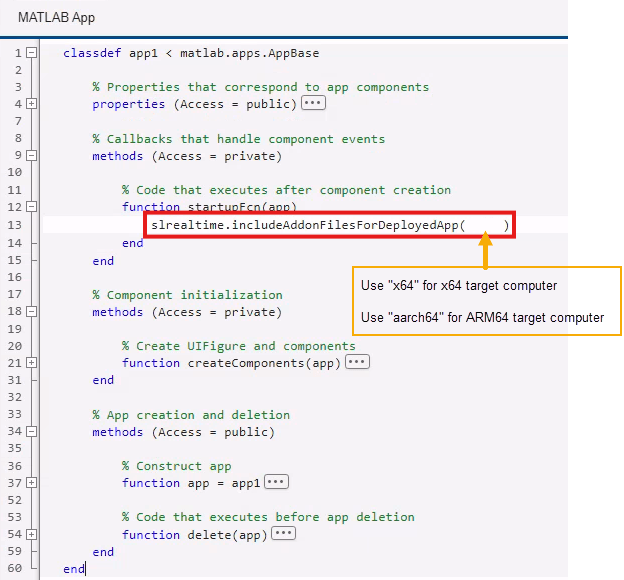
When you use the Simulink Real-Time App Generator to create an instrument panel, the app generator automatically adds the slrealtime.includeAddonFilesForDeployedApp('all') function to include the required add-on files in the deployed app.
Package App by Using Standalone Application Compiler
Open the Standalone Application Compiler. From the MATLAB Apps tab pull-down list, select Application Deployment > Standalone Application Compiler.
Click Start a new project and create a compiler task and click Select. A new compiler task named StandaloneDesktopApp1 opens in the Editor.
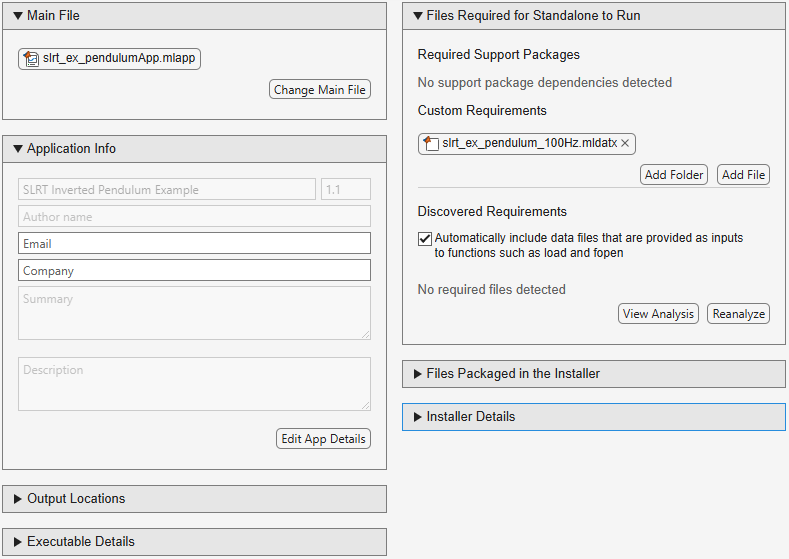
In the Main File section, select the instrument panel app MLAPP file.
In the Files Required for Standalone to Run section, click Add File to add the Simulink Real-Time application MLDATX file associated with the app.
Configure build options.
Customize Application Info such as Application Name, Author name, Summary, Description by clicking Edit App Details.
Customize the Output Locations.
Configure the Executable Details such as Application Type, Input Type, Code Obfuscation, etc.
Configure Installer Details, such as Package Type, Installer Name, Default Install Location, and Images for the Installer.
Click Build and Package. This generates:
Installer -
StandaloneDesktopApp1/output/package/MyAppInstaller.exe(recommended for distribution)Executable -
StandaloneDesktopApp1/output/build/MyDesktopApplication.exe(recommended for testing)
Test and Deploy the Standalone Application
You can test the standalone application in MATLAB before deployment. Run the executable from the MATLAB Command Window by typing:
!StandaloneDesktopApp1/output/build/MyDesktopApplication.exe
To deploy the standalone application to end users without MATLAB, they must have MATLAB Runtime installed at the same version as the MATLAB version used to build the application. You can ensure this by distributing the installer MyAppInstaller.exe to your end users, which either includes MATLAB Runtime, or installs it off the internet. For details on installing the standalone application, see Install Deployed Application (MATLAB Compiler).
Alternatively, supply end users with information on how to download MATLAB Runtime. For information on installing and using MATLAB Runtime, see Download and Install MATLAB Runtime (MATLAB Compiler)
After launching the deployed application, the end user can use the instrument panel to connect to the target computer. They can enter their target computer IP address (for example, 192.168.7.5) in the Target Selector component instead of Enter_IP_Address_Here.
Note: If your development machine or the end user machine use firewall software such as Windows Defender Firewall, configure exceptions for the compiled application. For details, see Troubleshoot Communication Failure Through Firewall (Windows).
See Also
Simulink Real-Time
Explorer | slrealtime.includeAddonFilesForDeployedApp | Instrument

