insertObjectInImage
R2026bSyntax
Description
[
inserts an object from a source image, newImage,boundingBox,newMask] = insertObjectInImage(destinationImage,sourceImage,mask)sourceImage, into a destination
image, destinationImage. By default, the
insertObjectInImage function inserts an object from the source image into a
randomized location on the destination image. The function returns the result as an
augmented image, newImage, a bounding box,
boundingBox, and a corresponding object mask,
newMask.
[
specifies options using one or more name-value arguments, in addition to the input arguments
from the previous syntax. For example,
newImage,boundingBox,newMask] = insertObjectInImage(___,Name=Value)BoundaryConstraintMode="inbounds-exact" specifies to insert objects
only when they are completely within the destination image.
Examples
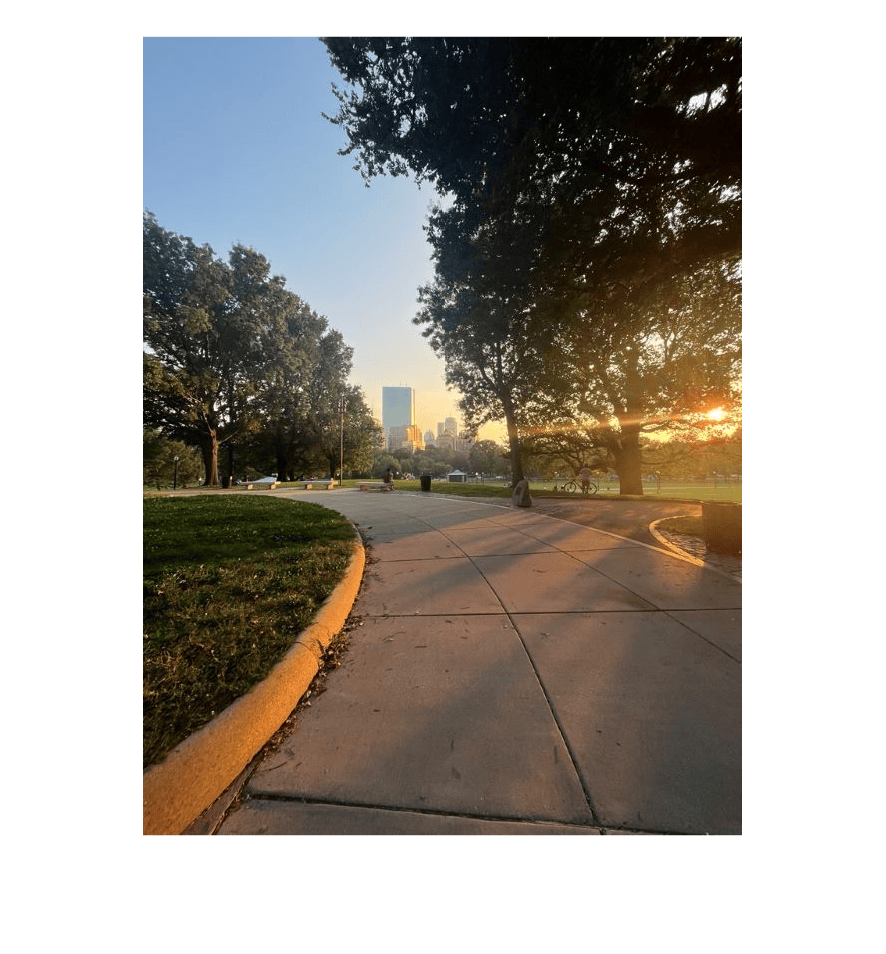
Read the destination image into the workspace and display the image.
destImage = imread("parkroad.jpg");
imshow(destImage)
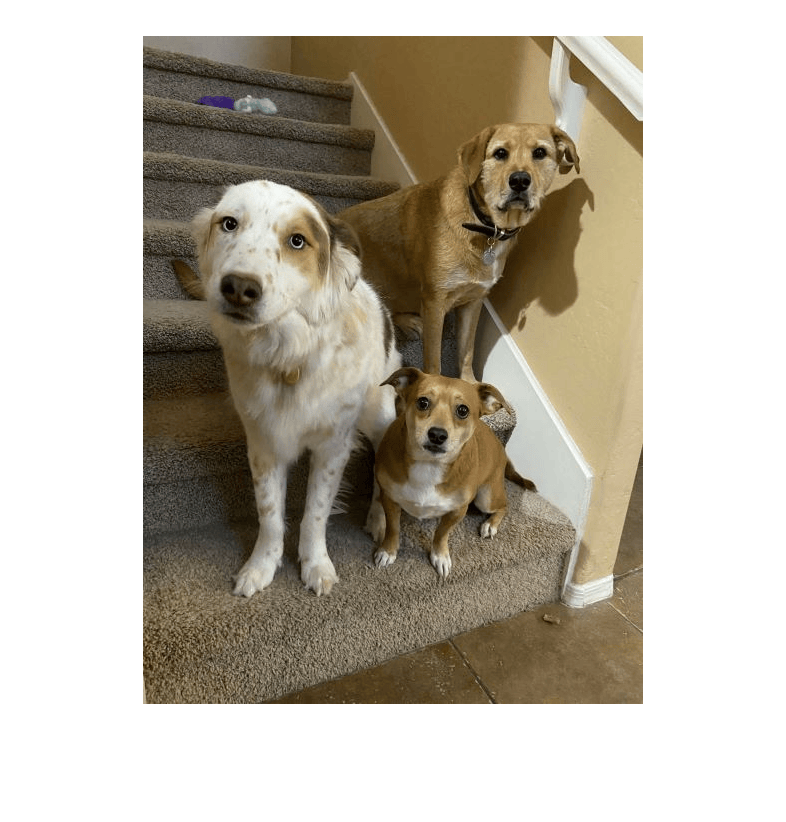
Read the source image containing the object, the small dog, into the workspace and display the image.
sourceImage = imread("DogTrio.jpg");
imshow(sourceImage)
Load the binary object mask into the workspace.
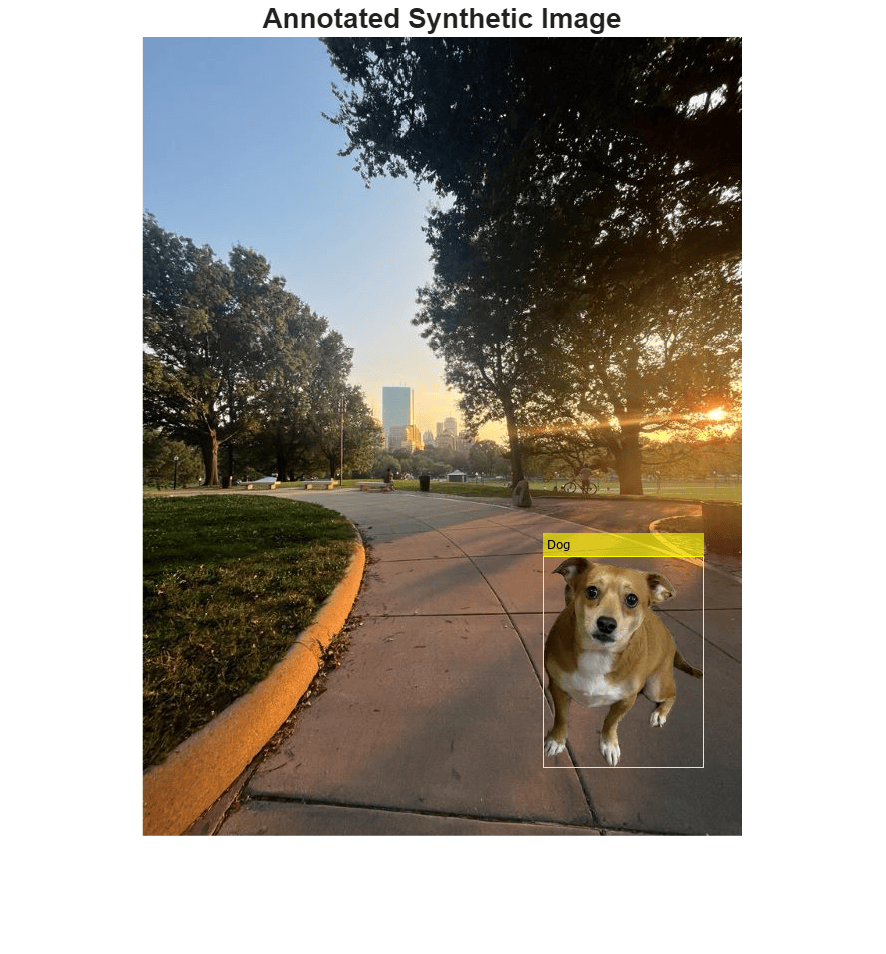
load("dogMask.mat");Insert the object from the source image into a randomized location on the destination image. Generate the augmented synthetic image, the object mask, and the corresponding bounding box.
[newImage,boundingBox,newMask] = insertObjectInImage(destImage,sourceImage,dogMask);
Annotate the image at the position specified by the generated bounding boxes using the insertObjectAnnotation function.
annotedNewImage = insertObjectAnnotation(newImage,"rectangle",boundingBox,"Dog");
Display the annotated synthetic image.
figure
imshow(annotedNewImage)
title("Annotated Synthetic Image")
Insert an anomaly defect into a normal image of a metal plate using industrial part images from the RobustAD data set. Use this technique to generate synthetic training data for anomaly detection models.
Load Destination Image
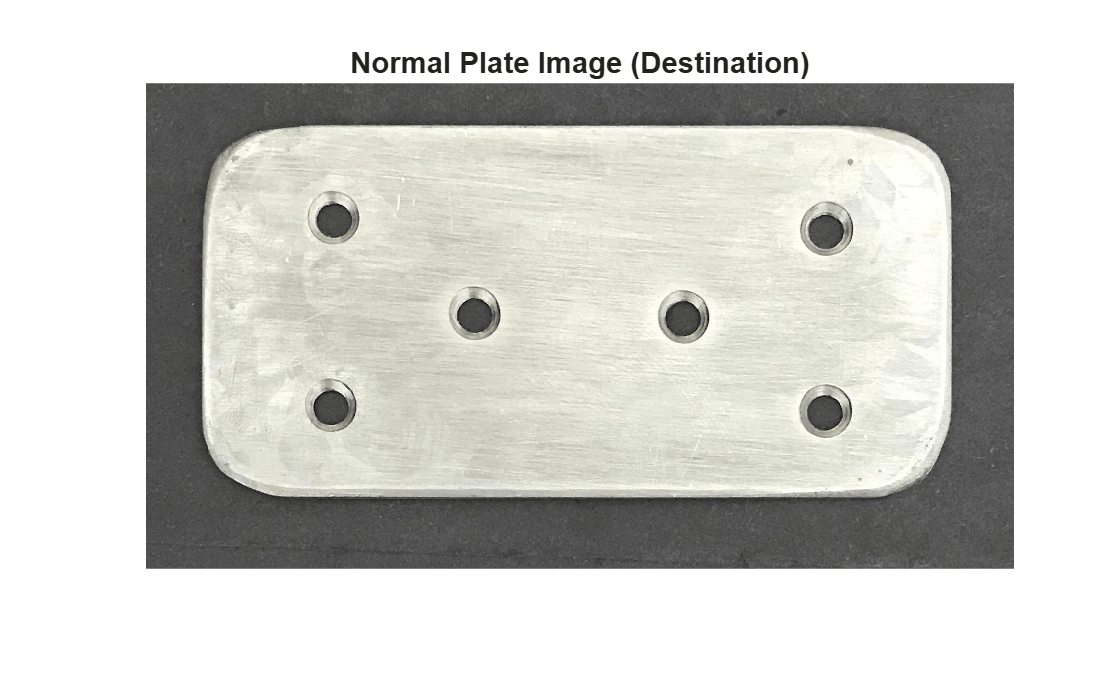
Load a normal, defect-free image of a metal plate into the workspace, and display the image. This is the destination image into which you insert the anomaly.
destImage = imread("metalplate.jpg"); imshow(destImage) title("Normal Plate Image (Destination)")
Load Anomalous Source Image
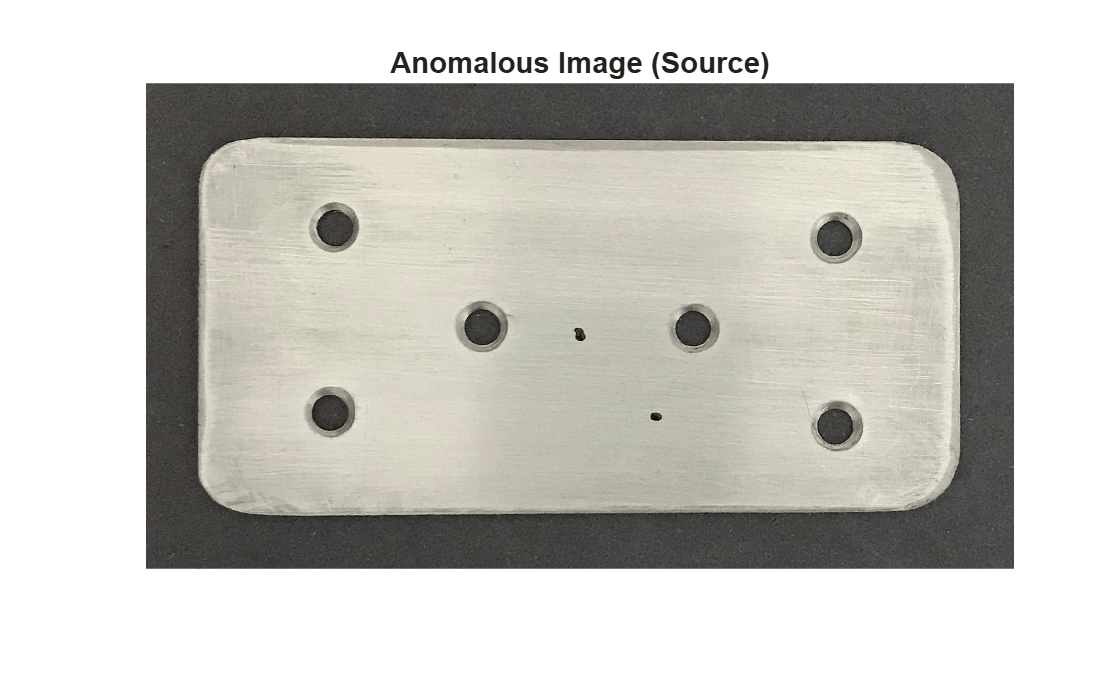
Load an anomalous image into the workspace, and display the image. Extract an anomaly object from this source image.
sourceImage = imread("metalplate_anomaly.jpg"); imshow(sourceImage) title("Anomalous Image (Source)")
Load Anomaly Mask
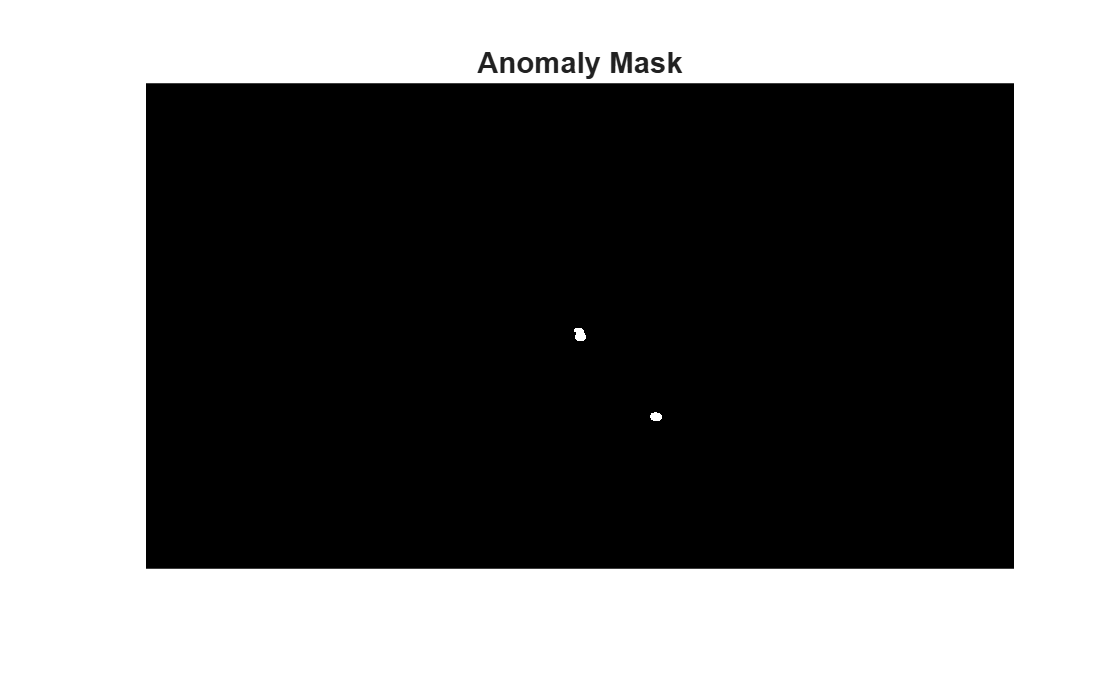
Load the binary mask that defines the boundary of the anomaly in the source image into the workspace, and display the mask. The mask is a logical matrix where true pixels indicate the anomaly region.
anomalyMask = imread("metalplate_anomalymask.png"); imshow(anomalyMask) title("Anomaly Mask")
Load Region Constraint Mask
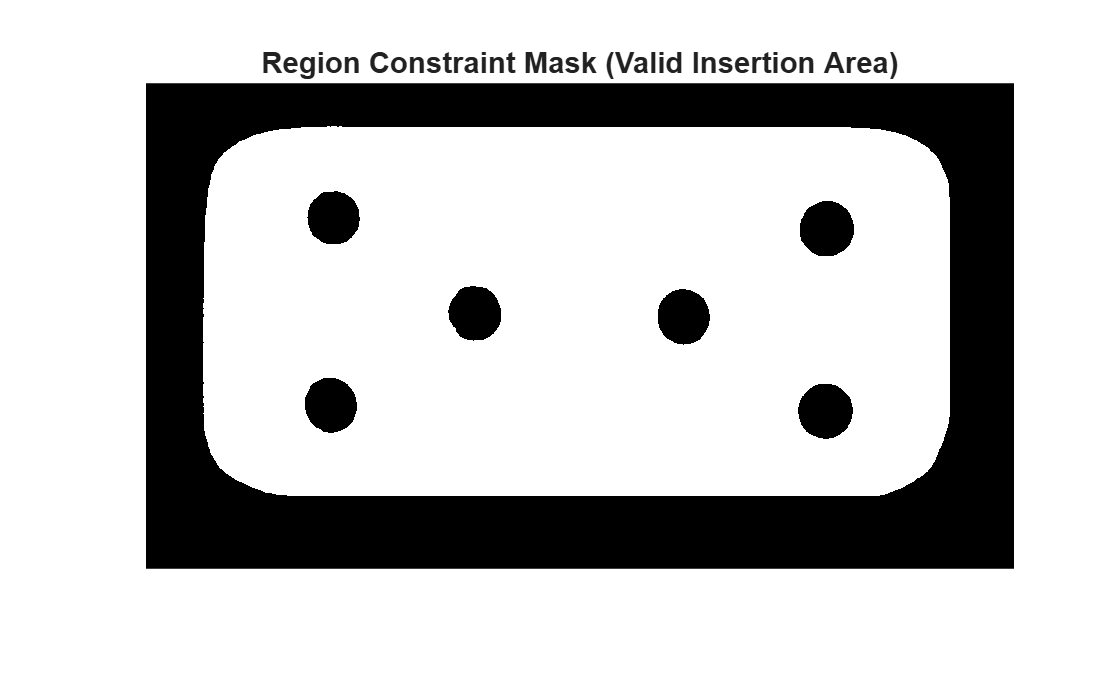
Load the normal mask corresponding to the destination image into the workspace, and display the mask. This mask defines the valid region on the plate where you can insert defects, ensuring you place the anomaly object only on the plate surface.
regionMask = imread("metalplate_normalmask.png"); regionMask = logical(regionMask); imshow(regionMask) title("Region Constraint Mask (Valid Insertion Area)")
Insert Anomaly into Normal Image
Use the insertObjectInImage function to insert the anomaly from the anomalous source image into the normal destination image. Specify the RegionConstraintMask name-value argument to restrict placement to the valid plate surface area. The function returns the augmented image, the bounding box of the inserted object, and a new mask indicating the object location in the output image.
[newImage,boundingBox,newMask] = insertObjectInImage(destImage,sourceImage,anomalyMask, ...
RegionConstraintMask=regionMask);Display Synthetic Anomaly Image
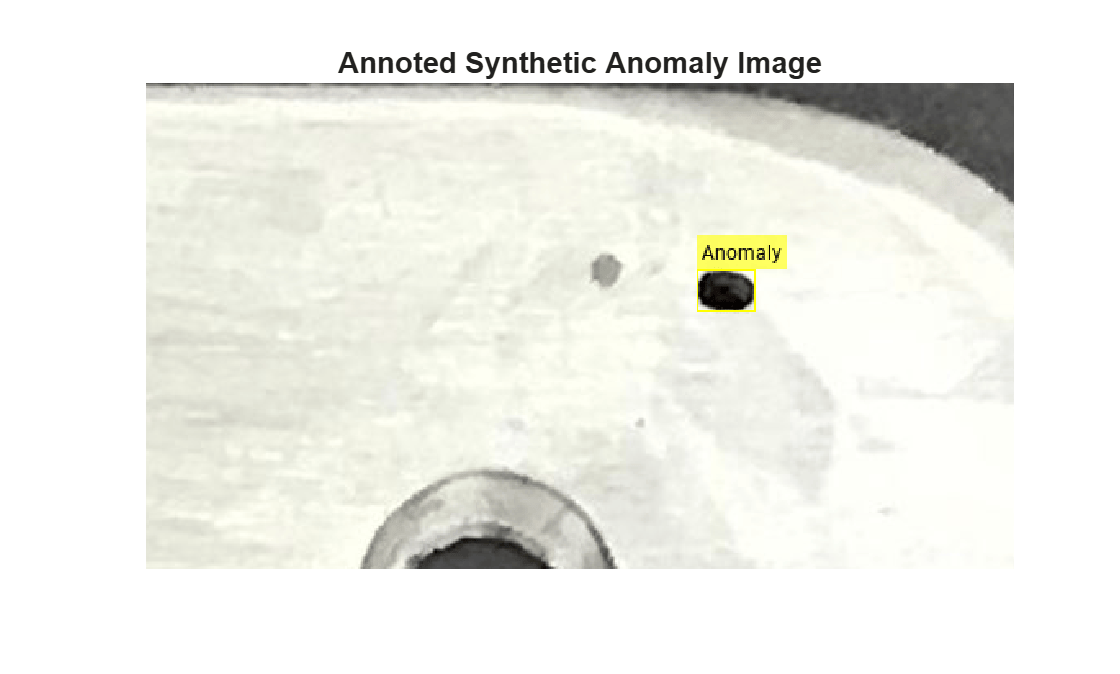
Annotate the synthetic image with a bounding box around the inserted anomaly by using the insertObjectAnnotation function. Display the annotated synthetic image.
annotatedImage = insertObjectAnnotation(newImage,"rectangle",boundingBox,"Anomaly"); imshow(annotatedImage) title("Annotated Synthetic Anomaly Image")
Visualize New Mask
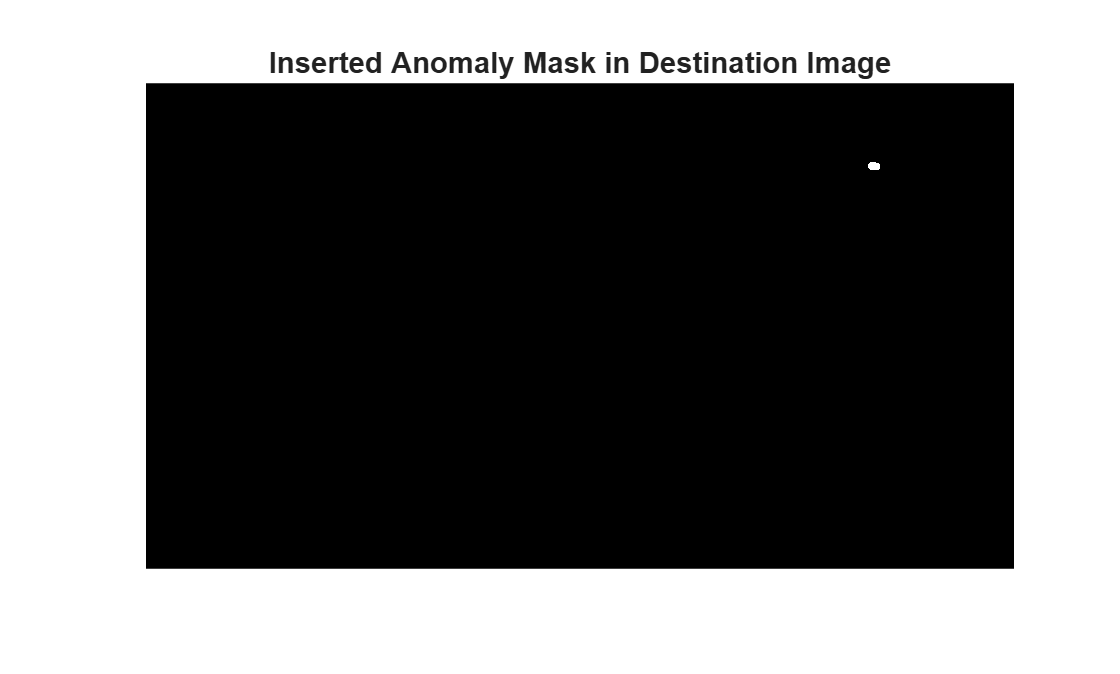
Visualize the returned mask, which corresponds to the location of the inserted anomaly in the destination image. You can use this mask as ground truth when training segmentation models.
imshow(newMask)
title("Inserted Anomaly Mask in Destination Image")
Apply Poisson Blending
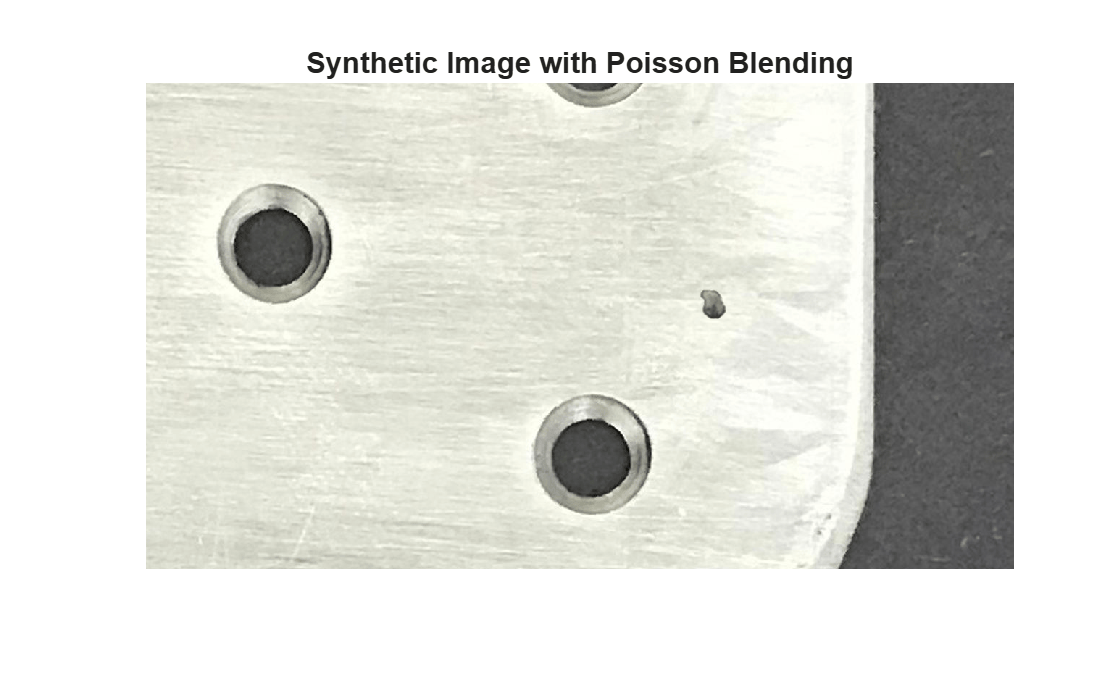
To create more realistic anomalies, specify the BlendMethod name-value argument as "poisson" to seamlessly blend the anomaly into the destination image while constraining placement to the valid region.
[blendedImage,boundingBox2,blendedMask] = insertObjectInImage(destImage,sourceImage,anomalyMask, ... BlendMethod="poisson",RegionConstraintMask=regionMask); imshow(blendedImage) title("Synthetic Image with Poisson Blending")
Copyright 2026 The MathWorks, Inc.
Input Arguments
Destination image into which to insert an object, specified as one of these options:
| Image Type | Data Format |
|---|---|
| Grayscale | M-by-N numeric matrix |
| Binary | M-by-N logical matrix |
| RGB | M-by-N-by-3 numeric array |
Source image containing an object to insert into the destination image, specified as one of these options:
| Image Type | Data Format |
|---|---|
| Grayscale | H-by-W numeric matrix |
| Binary | H-by-W logical matrix |
| RGB | H-by-W-by-3 numeric array |
Object mask of the source image, specified as an
H-by-W logical matrix. H and
W are the height and width of the source image,
sourceImage, respectively.
Name-Value Arguments
Specify optional pairs of arguments as
Name1=Value1,...,NameN=ValueN, where Name is
the argument name and Value is the corresponding value.
Name-value arguments must appear after other arguments, but the order of the
pairs does not matter.
Example: insertObjectInImage(destinationImage,sourceImage,mask,BoundaryConstraintMode="inbounds-exact")
specifies to insert objects only when they are completely within the destination
image.
Region constraint mask, specified as an
M-by-N logical array. M and
N are the height and width of the destination image destinationImage, respectively.
Specify the RegionConstraintMask value as
true (or 1) for only select pixel locations to
insert the object from the source image into a specific location on the destination
image. By default, the insertObjectInImage function inserts the object at
a randomized location anywhere in the destination image.
Boundary constraint mode, specified as "inbounds-bbox",
"inbounds-exact", or "center". This name-value
argument specifies the method used to constrain objects at the boundaries of images in
the destination image destinationImage.
| Value | Boundary Constraint Mode |
|---|---|
"inbounds-bbox" | To insert an object, the entire bounding box containing the object must be completely within the destination image. |
"inbounds-exact" | To insert an object, the object mask must be completely within the destination image. |
"center" | To insert an object, only the object centroid must be inside the destination image, so objects can be partially visible and clipped at the image boundary. |
Stack of mask images containing inserted objects, specified as an
M-by-N-by-P logical array.
P is the total number of masks in the stack, and
M and N are the height and width of the
destination image destinationImage, respectively. The value of
ObjectsInSceneMasks is true (or
1) at the pixel locations which already contain an inserted
object. By default, there are no existing inserted objects in the image.
Maximum object overlap between an object in a source image
sourceImage and a previously inserted object, specified as a
positive scalar in range [0, 1]. Specify the
ObjectsInSceneMaxOverlap value as 1 to
insert new objects on top of existing objects. Decrease this value to decrease the
overlap between the newly inserted objects and existing objects.
Maximum insertion attempts to satisfy the overlap value, specified as a positive
scalar. The overlap value is specified by the
ObjectsInSceneMaxOverlap name-value argument. If no insertion
location can be found on the destination image after
MaxInsertionAttempts iterations, the
insertObjectInImage function will not insert the object from the source
image into the destination image.
Blend method to use for inserting objects from the source image into the destination image, specified as one of these options:
BlendMethod Value | Blend Method |
|---|---|
"guidedfilter" | Guided filter blending [1] – Blur the object mask of the source image at the mask-object boundary. Guided image filtering uses edge context from the source image to filter the mask prior to blending the object image with the destination image. |
"poisson" | Poisson blending [2] – Blend the source object into the destination image by matching the color distribution of the source object to that of the boundary between the destination image and source object mask. |
"none" | No blending – At insertion locations of the destination image, replace pixels of the destination image by the source image pixel values. |
Geometric augmentation, specified as a function handle that returns an affinetform2d object. The geometric augmentation warps a source image and
the mask associated with the object in the image before it is inserted into the
destination image. For example, specify the GeometricAugmentation
value as @() randomAffine2d("Scale",[0.9,1.1]) to apply a
randomized scale transformation to an inserted object.
Output Arguments
Augmented image containing an inserted object, returned as one of these options:
| Image Type | Data Format |
|---|---|
| Grayscale | M-by-N numeric matrix |
| Binary | M-by-N logical matrix |
| RGB | M-by-N-by-3 numeric array |
Tip
Specify the RegionConstraintMask name-value argument to specify the region in the
destination image in which to insert the object. Otherwise, the
insertObjectInImage function inserts the object in the destination
image at a randomized location.
Axis-aligned bounding box enclosing mask of inserted object region, returned as a 4-element row vector. The row vector is of the form [x y w h], where:
x and
yspecify the upper-left corner of the rectangle.w specifies the width of the rectangle, which is its length along the x-axis.
h specifies the height of the rectangle, which is its length along the y-axis.
Mask containing inserted object region, returned as an
M-by-N logical array. M and
N are the height and width of the destination image,
destinationImage, respectively. The value of the logical array
returned by newMask is true (or
1) at the pixel locations where object content is inserted into the
destination image from the source image.
Tip
Specify the RegionConstraintMask name-value argument to specify the region in the
destination image in which to insert the object and the object mask. Otherwise, the
insertObjectInImage function inserts the object and its corresponding
mask in the destination image at a randomized location.
References
[1] He, Kaiming, Jian Sun, and Xiaoou Tang. “Guided Image Filtering.” IEEE Transactions on Pattern Analysis and Machine Intelligence 35, no. 6 (June 2013): 1397–1409. doi:10.1109/TPAMI.2012.213.
[2] Pérez, Patrick, Michel Gangnet, and Andrew Blake. “Poisson Image Editing.” In ACM SIGGRAPH 2003 Papers, 313–18. San Diego California: ACM, 2003. doi:10.1145/1201775.882269.
Version History
Introduced in R2025aStarting in R2026b, insertObjectInImage is available
in the Visual Inspection
Toolbox™ product. In releases R2026a and before, insertObjectInImage is available
in the Automated Visual Inspection Library for Computer Vision Toolbox™ add-on.
Specify to insert an object only when the object mask is completely within the
destination image by using the BoundaryConstraintMode name-value
argument. By default, the insertObjectInImage function inserts an object when
the bounding box containing the object is entirely within the destination image.
MATLAB Command
You clicked a link that corresponds to this MATLAB command:
Run the command by entering it in the MATLAB Command Window. Web browsers do not support MATLAB commands.
Seleccione un país/idioma
Seleccione un país/idioma para obtener contenido traducido, si está disponible, y ver eventos y ofertas de productos y servicios locales. Según su ubicación geográfica, recomendamos que seleccione: .
También puede seleccionar uno de estos países/idiomas:
Cómo obtener el mejor rendimiento
Seleccione China (en idioma chino o inglés) para obtener el mejor rendimiento. Los sitios web de otros países no están optimizados para ser accedidos desde su ubicación geográfica.
América
- América Latina (Español)
- Canada (English)
- United States (English)
Europa
- Belgium (English)
- Denmark (English)
- Deutschland (Deutsch)
- España (Español)
- Finland (English)
- France (Français)
- Ireland (English)
- Italia (Italiano)
- Luxembourg (English)
- Netherlands (English)
- Norway (English)
- Österreich (Deutsch)
- Portugal (English)
- Sweden (English)
- Switzerland
- United Kingdom (English)