box detection/rectangle detection
Mostrar comentarios más antiguos
Hi
Here is my sample image. How to automatically grab/crop/know the region of each colour square without using 'get rect' function?

Respuesta aceptada
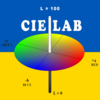
Image Analyst
el 24 de Nov. de 2021
0 votos
There is a function for this: colorChecker()
Attached is a full demo.

5 comentarios
Salad Box
el 29 de Nov. de 2021
Salad Box
el 30 de Nov. de 2021
Image Analyst
el 30 de Nov. de 2021
Yes. Several reasons for this. I do calibrated color image analysis all the time, and have for almost 30 years. You might want to take a look at my attached tutorial.
Most of the simple built-in transforms use a 3 by 3 matrix to convert RGB into XYZ like
X = a1 * R + a2 * G + a3 * B
Y = b1 * R + b2 * G + b3 * B
Z = c1 * R + c2 * G + c3 * B
Note that there are no cross terms like R*G, no additive constant, no higher order terms like R^2. Missing those terms will give a worse fit. Plus having only 24 chips from which to train might reduce accuracy, though some papers (Henry Kang) say that having more does not necessarily increase accuracy for non-training colors.
So for a simple transform you might expect delta E's of up to 5 or 10 for traning colors. Using better transforms will get you better results -- if you need it. Sometimes you don't because you just need to get something to do color segmentation and the inaccuracy won't affect the segmentated region that much. However if you need calibrated values, like you need to be able to trace your camera's values back to a claibrated spectrophotometer (the gold standard for color measurement), then you can do better than these simplistic built-in transforms. For example for one of my tests I looked at, I got a min delta E of 0.22 and a max of 7 with the average delta E of 2.4.
Now another problem. MATLAB's formulas assume your image with your chart in it should have sRGB colors.
You can look on Calibrite's web site for the spec or see the attached PDF file.
Note that every chip has nominal sRGB values. If your chart's chips don't have those, you will have a delta E. That's because using the built-in formula is not really calibrated. OK, consider this. Let's say you had the exact exposure to make your chart have the nominal, perfect values to give you a delta E of zero for every chip. Now say that you just cut your exposure time in half so that all the chip colors are half as bright as before. Now the formulas will say that your delta E's are enormous even though your actual scene, chart, and illumination didn't change one bit. All that changed was your exposure time and now you have huge delta E's. How could that be? It's because the formula assume a delta E of zero will be attained only if your chips have the nominal sRGB values, which is not usually the case. Actually never the case unless you synthesize a chart like I did here:
So what can you do? Well if you want calibrated color values, work in LAB color space, not RGB color space. So for each image you develop a new transform to convert RGB into XYZ and then LAB. Since you have known LAB values that don't depend on the exposure (they're intrinsic to the material) the transform will adapt to give you the correct LAB values regardless of the exposure. In super simplistic terms, say you have a transform that worked, and then you cut the exposure by half. Well the new transform would just have coefficients twice as big to make sure you get the same LAB values. (Not exactly - just super simple to help you visualize what's going on.)
Now that you have an LAB image you can usually do all your image analysis in that space. If you really want to get a new RGB image (I never do though), you can transform the calibrated LAB image into sRGB color space (or pretty close) using the "book formulas". Usually this is not necessary but might be desired if, for example, you took images of the same thing with different systems or cameras or lighting and wanted to make all the images look like they were taken on a single, standardized sRGB system because you were going to put them all in a Powerpoint presentation or something.
Sorry, I know your head is spinning now. I teach a course in color science and it's hard to boil down an 8 hour course into a few paragraphs. And color science is hard. No one says it's easy because it's tied up with human physiology. Even the world's color experts that I talk to say it's hard and even they admit they don't know everything. It takes a run-of-the-mill scientist seeing this stuff many, many times over years before it starts to sink it. I mean it was confusing for me when I first started studying it and I have a Ph.D. in optics and have studied radiometry, spectroscopy, etc. before I started with color science. So I feel your pain. Good luck though.
Salad Box
el 2 de Dic. de 2021

Roger Breton
el 30 de En. de 2024
I tried your "Test.m" code and still got the same error message: "Color patches were not detected."?
% Read in image that has a Color Checker chart in it but that has unknown image capture conditions.
% fileName = 'colorCheckerTestImage.jpg';
fileName = 'CC24 in Scene JPEG.jpg';
rgbImage = imread(fileName);
Más respuestas (1)
clc; clear all; close all;
filename = 'https://www.mathworks.com/matlabcentral/answers/uploaded_files/812319/image.jpeg';
img = imread(filename);
% use colorChecker
chart = colorChecker(img);
displayChart(chart)

% use measureColor
[colorTable, ccm] = measureColor(chart);
figure;
displayColorPatch(colorTable); set(gcf, 'units','normalized','position',[0,0,1,1])

colorTable
1 comentario
Salad Box
el 29 de Nov. de 2021
Categorías
Más información sobre Image Acquisition in Simulink en Centro de ayuda y File Exchange.
Productos
el 24 de Nov. de 2021
el 30 de En. de 2024
Community Treasure Hunt
Find the treasures in MATLAB Central and discover how the community can help you!
Start Hunting!
Translated by 

