Image Edge Detection Using Edge Function
Mostrar comentarios más antiguos
I would like to detect edges in the image in the attached TestImage.jpg. I've highlighted my region of interest in (ROI.jpg). I would not like to use a fixed ROI matrix as different images may not always fit the mask. So I would like to do some edge detection to automatically detect my ROI. I've tried the following:
% Read image as gray scale
I = rgb2gray(imread('TestImage.jpg'));
I = im2double(I);
BW = edge(I,'Canny',0.75,sqrt(150));
image(BW,'CDataMapping','scaled')
The results (DetectedEdges.jpg) does not seem to resolve all the edges I require. I've tried different threshold values as well. Is there a better way of getting my ROI?
Respuesta aceptada
Image Analyst
el 7 de Feb. de 2020
1 voto
First I'd get a first shot at the mask by thresholding. Luckily much of the surround is white so thresholding will get the bottom and sides. Then I might try a texture filter, like stdfilt(), because you know your object of interest is rough while the curved bars/rods behind it are smooth. Then threshold that texture mask and AND it with your intensity thresholding mask. If that doesn't work, post the code for it and we can start tweaking it.
9 comentarios

Afzal
el 7 de Feb. de 2020
Image Analyst
el 8 de Feb. de 2020
Well Afzal, I worked on it for about a half an hour (luck for you - that's much more than I usually give people), and got this:
% Initialization steps.
clc; % Clear the command window.
close all; % Close all figures (except those of imtool.)
imtool close all; % Close all imtool figures if you have the Image Processing Toolbox.
clear; % Erase all existing variables. Or clearvars if you want.
workspace; % Make sure the workspace panel is showing.
format long g;
format compact;
fontSize = 22;
% Check that user has the Image Processing Toolbox installed.
hasIPT = license('test', 'image_toolbox');
if ~hasIPT
% User does not have the toolbox installed.
message = sprintf('Sorry, but you do not seem to have the Image Processing Toolbox.\nDo you want to try to continue anyway?');
reply = questdlg(message, 'Toolbox missing', 'Yes', 'No', 'Yes');
if strcmpi(reply, 'No')
% User said No, so exit.
return;
end
end
%===============================================================================
% Read in image.
folder = pwd
baseFileName = 'TestImage.jpg';
% Get the full filename, with path prepended.
fullFileName = fullfile(folder, baseFileName);
if ~exist(fullFileName, 'file')
% Didn't find it there. Check the search path for it.
fullFileName = baseFileName; % No path this time.
if ~exist(fullFileName, 'file')
% Still didn't find it. Alert user.
errorMessage = sprintf('Error: %s does not exist.', fullFileName);
uiwait(warndlg(errorMessage));
return;
end
end
originalImage = imread(fullFileName);
% Display the original image.
subplot(2, 3, 1);
imshow(originalImage);
axis('on', 'image');
caption = sprintf('Original Image : "%s"', baseFileName);
title(caption, 'FontSize', fontSize);
impixelinfo;
% Enlarge figure to full screen.
set(gcf, 'Units', 'Normalized', 'Outerposition', [0, 0.1, 1, 0.9], ...
'Name', 'Demo by Image Analyst', 'NumberTitle', 'Off');
% Get the dimensions of the image. numberOfColorBands should be = 3.
[rows, columns, numberOfColorBands] = size(originalImage);
if numberOfColorBands > 1
fprintf('This image is RGB. I will change it to gray scale.\n');
grayImage = originalImage(:, :, 3); % blue channel seems to have the most contract.
else
% It's already gray scale.
grayImage = originalImage;
end
% Display the original image's histogram.
subplot(2, 3, 2);
imhist(grayImage);
grid on;
xticks(0:10:255);
title('Histogram of Gray Scale Image', 'FontSize', fontSize);
% Get bright stuff only.
whiteMask = grayImage > 160;
% Display the binary image.
subplot(2, 3, 3);
imshow(whiteMask);
% Apply a variety of pseudo-colors to the regions.
[labeledImage, numBlobs] = bwlabel(whiteMask);
fprintf('Found %d blobs in the white mask.\n', numBlobs);
coloredLabelsImage = label2rgb (labeledImage, 'hsv', 'k', 'shuffle');
% Display the pseudo-colored image.
subplot(2, 3, 3);
imshow(coloredLabelsImage);
axis('on', 'image');
caption = sprintf('White Mask');
title(caption, 'FontSize', fontSize);
% Perform a standard deviation filter.
se = strel('disk', 3, 0);
sdImage = stdfilt(grayImage, se.Neighborhood);
% Display the binary image.
subplot(2, 3, 4);
imshow(sdImage, []);
axis('on', 'image');
caption = sprintf('Texture Image');
title(caption, 'FontSize', fontSize);
% Use Image Analyst's interactive thresholding app:
% https://www.mathworks.com/matlabcentral/fileexchange/29372-thresholding-an-image
[lowThreshold, highThreshold, lastThresholdedBand] = threshold(7, 255, sdImage);
barMask = sdImage >= lowThreshold & sdImage <= highThreshold;
% Display the binary image.
subplot(2, 3, 5);
imshow(barMask, []);
axis('on', 'image');
caption = sprintf('Bar Mask from Std Dev Image');
title(caption, 'FontSize', fontSize);
% Process it to get rid of non-bar noise and clutter.
% Do a morphological closing by dilating and eroding to fill small holes.
se = strel('disk', 5, 0);
barMask = imclose(barMask, se);
% Get rid of thin lines with an opening.
barMask = imopen(barMask, se);
% Get the 4 largest blobs.
barMask = bwareafilt(barMask, 4);
% Apply a variety of pseudo-colors to the regions.
[labeledImage, numBlobs] = bwlabel(barMask);
fprintf('Found %d blobs in the white mask.\n', numBlobs);
coloredLabelsImage = label2rgb (labeledImage, 'hsv', 'k', 'shuffle');
% Display the pseudo-colored image.
subplot(2, 3, 6);
imshow(coloredLabelsImage);
axis('on', 'image');
caption = sprintf('Improved Bar Mask');
title(caption, 'FontSize', fontSize);
% Make area measurements.
[labeledImage, numBlobs] = bwlabel(barMask);
props = regionprops(labeledImage, 'Area', 'Centroid', 'Perimeter');
allAreas = [props.Area]
centroids = vertcat(props.Centroid);
xCentroids = centroids(:, 1);
yCentroids = centroids(:, 2);

Scroll the image sideways to see all of it.
Obviously it's not perfect but it's the best I could do in an hour. You can try to tweak the parameters (thresholds and filter sizes) if you want to improve it.
But rather than spend days trying to improve the segmentation, you'd be better off if you just improved your image from the start.
- You can see that using thresholding to get the white didn't really perform well because there are white pixels in the bar. This is most likely due to specular reflections of your lamp off the shiny parts of your bar. You can knock these out by using a polarizer in front of your lamp and another one in front of your camrea lens that you rotate until the reflections disappear.
- Also it would be good if you can use a jig so that the bar and "holder" are in the same location in the field of view. then you could use a fixed mask to erase everything known to never be part of the bar object of interest. Make the mask a little bit larger if the bar is bent or has a different size, but the fixed mask would go a long way in getting rid of the clutter around the white holder.
- Also see if you can use a uniform background of a different color. For example if you didn't have that reddish (wood?) background, that would help. It would also help TREMENDOUSLY if you could use a different color background. For example a bright red, green, or some other vivid color. In that case, we could just use rgb2hsv() and threshold on the saturation channel to find the background. It would be SO MUCH easier.
Also, we would like to know if the image always has two bars in it, one bending up and the other bending down, with a seam exactly halfway vertically (like two short but wide images were stitched together). Knowing that might help with the segmentation.
Afzal
el 8 de Feb. de 2020
Image Analyst
el 8 de Feb. de 2020
Yes, you could try deep learning though in my experience it may not be a super tight outline around the object. But you could use that as a starting point to refine it. However if you use my suggestions, tradional image analysis will be fine. How exact do your ROI boundaries need to be?
Afzal
el 9 de Feb. de 2020
Image Analyst
el 9 de Feb. de 2020
Why is it impossible for you to make sure your sample is in exactly the same place each time? Don't you put the part into some kind of a jig? It would be so much easier if you could. You should try very hard to make sure that is the case. Don't just accept a crummy image capture situation without trying hard to do something to improve it.
How are the different materials in the ROI identified? By intensity? If so, it's absolutely mandatory that you
- use polarizers to get rid of the specular reflections, and
- take a picture of a blank gray sheet that fills the field of view so that you can divide the actual images by it to correct for lens shading (which you definitely have even if you don't realize it) and correct for illumination non-uniformity.
I've attached my tutorial to help you, plus a background correction demo. The tutorial shows you how to divide out the background so that no matter where some object is in the scene, it will have the same gray level. The demo is code that actually does it. Please review them and attach an image of your gray sheet.
Image Analyst
el 9 de Feb. de 2020
Editada: Image Analyst
el 9 de Feb. de 2020
Well at least if you can get a slightly larger mask, that would help. You could use that ot get rid of 90% of the clutter and then refine it from there. Definitely see if you can lock down everything as tight as you can. Consult your professional machine shop if you need help.
I don't think you would need to do segmentation in two different color spaces. Doing it in HSV color space alone should be fine. Whatever you do in RGB colorspace you could do probably easier in HSV color space.
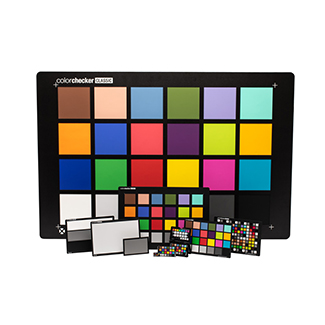
You'll also want to calibrate your system. That means putting in an x-rite Color Checker Chart so that you can get calibrated and consistent HSV values and not have them change every time the lighting changes. And of course have controlled lighting, preferably in a concealed light booth where your scene is not subject to ambient lighting changes in the lab or factory.
By the way, I think you attached the wrong images. The image of the hat looks nothing like the image of that metal bar, or whatever it is, that you attached in your original post.
Más respuestas (1)

Rajith
el 19 de Nov. de 2023
function out = edgy(in)
% Get the size of the input image
[r, c] = size(in);
% Create an output array that is two rows and columns smaller
out = zeros(r-2,c-2);
% Use the size of the new array for looping
[r, c] = size(out);
% Convert to double for doing calculations
in = double(in);
% Create the horizontal and vertical edge detector filters
ex = [-1 0 1; -2 0 2; -1 0 1];
ey = [1 2 1; 0 0 0; -1 -2 -1];
for ii = 1:r
for jj = 1:c
sx = in(ii:ii+2,jj:jj+2) .* ex;
sy = in(ii:ii+2,jj:jj+2) .* ey;
% Calculate the output pixel value
out(ii,jj) = sqrt(sum(sum(sx(:)))^2 + sum(sum(sy(:)))^2);
end
end
% Convert back to uint8
out = uint8(out);
end
Categorías
Más información sobre Image Preview and Device Configuration en Centro de ayuda y File Exchange.
Productos
el 7 de Feb. de 2020
el 19 de Nov. de 2023
Community Treasure Hunt
Find the treasures in MATLAB Central and discover how the community can help you!
Start Hunting!
Translated by 

