camheading
R2026bSet or query heading angle of camera for geographic globe
Syntax
Description
Set Heading and Mode
camheading(
sets the heading angle of the camera for the specified geographic globe. Setting the
heading angle shifts the camera left or right. For more information about how camera
rotations affect your view of the globe, see How Camera Orientation Affects Globe View.g,heading)

camheading( sets the camera heading
to automatic mode, enabling the geographic globe to determine the heading angle based on
plotted data. The mode defaults to automatic when you create a geographic globe. If you
interact with the globe using your mouse, then the mode switches to automatic.g,"auto")
camheading( sets the camera
heading to manual mode. When the hold state of the geographic globe is
g,"manual")"on", manual mode specifies that the geographic globe preserve the
heading angle when the plotted data changes. If you change the heading angle using the
camheading function, then the mode switches to manual.
Query Heading
outHeading = camheading(___) sets the heading angle
or mode and then returns the heading angle of the camera. You can return the heading angle
using any combination of input arguments from the previous syntaxes.
Examples
Create a geographic globe. Position the camera near Mount Kilimanjaro by specifying a latitude, longitude, and ellipsoidal height. Set the pitch angle to 0 degrees, so that the camera points across the summit.
uif = uifigure;
g = geoglobe(uif);
campos(g,-3.1519,37.3561,5500)
campitch(g,0)
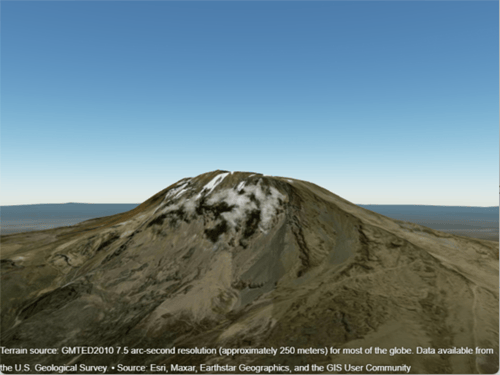
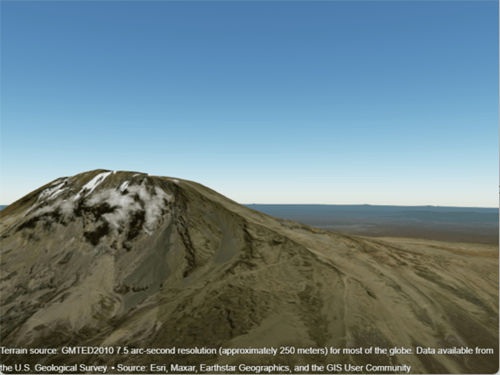
By default, the heading angle is 360 degrees, which is equivalent to a heading angle of 0 degrees. Shift the camera to the right by changing the heading angle to 15 degrees.
camheading(g,15)
Create a geographic globe. Position the camera at the top of Mount Washington by specifying a latitude, longitude, and ellipsoidal height. Change the pitch angle so that the camera faces the horizon instead straight down.
uif = uifigure;
g = geoglobe(uif);
campos(g,44.2700,-71.3038,2000)
campitch(g,0)
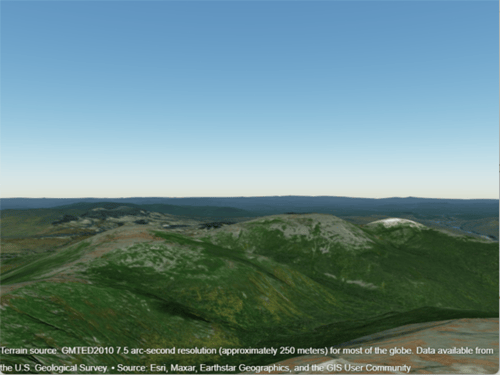
Animate the view by incrementally changing the heading angle. As the heading angle increases, the camera view shifts to the right.
for heading = 0:5:180
    camheading(g,heading)
    drawnow
end
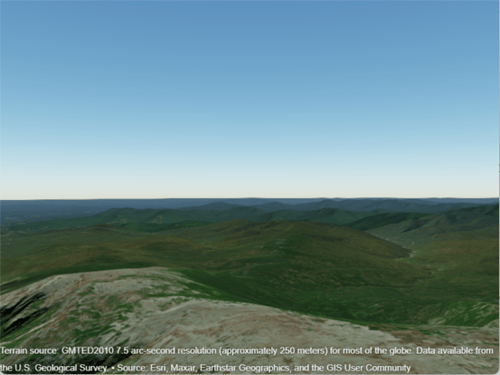
Get the position and the heading, pitch, and roll angles of the camera. Use this information to control the view of a different geographic globe or to automate navigation.
Create a geographic globe. Navigate to an area of interest using your mouse or gestures. For this example, navigate to an area around Hawaii.
uif = uifigure;
g = geoglobe(uif);

Query the latitude, longitude, and ellipsoidal height of the camera, and assign each to a variable.
[camlat,camlon,camh] = campos(g)
camlat =

   18.3172


camlon =

 -155.5891


camh =

   6.2692e+04
Query the heading, pitch, and roll angles of the camera, and assign each to a variable.
heading = camheading(g)
pitch = campitch(g)
roll = camroll(g)
heading =

    3.7590


pitch =

  -29.9880


roll =

  359.9993
Use these values to control the view of a different geographic globe. For example, create a new geographic globe and programmatically set the view.
uif2 = uifigure;
g2 = geoglobe(uif2);
campos(g2,camlat,camlon,camh)
camheading(g2,heading)
campitch(g2,pitch)
camroll(g2,roll)
In many cases, the camera view of the geographic globe changes when you plot new data. You can preserve the camera view by setting the camera modes to "manual" and the hold state to "on".
Read the buildings layer from an OpenStreetMap file [1] containing data for several city blocks in Shibuya, Tokyo, Japan. Display the buildings in a geographic globe with a road map and no terrain data.
GT = readgeotable("shibuya.osm",Layer="buildings");
addCustomBuildings("shibuya",GT)

uif = uifigure;
g = geoglobe(uif,Buildings="shibuya",Basemap="streets-light",Terrain="none");
Adjust the camera view by interacting with the globe.
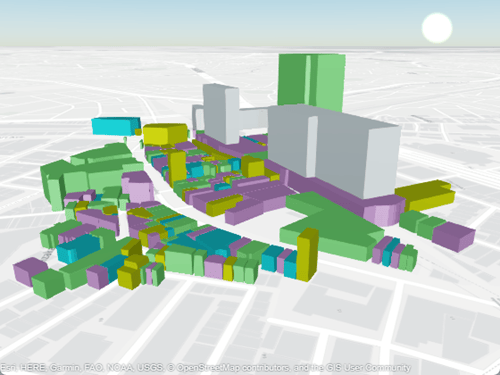
Read track points from a GPX file into a geospatial table. Extract the latitude and longitude coordinates from the geospatial table, and specify a height value for each coordinate.
track = readgeotable("shibuya_track.gpx",Layer="track_points");
lat = track.Shape.Latitude;
lon = track.Shape.Longitude;
height = linspace(10,100,length(lat));
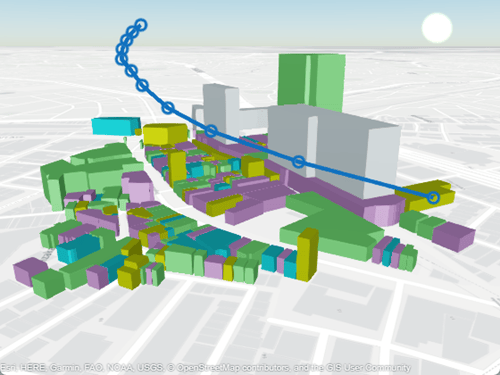
Set the camera modes to "manual" and the hold state to "on". Then, plot the data. Note that the camera position does not change.
campos(g,"manual")
camheight(g,"manual")
camheading(g,"manual")
campitch(g,"manual")
camroll(g,"manual")
hold(g,"on")

geoplot3(g,lat,lon,height,"-o",LineWidth=3)
[1] You can download OpenStreetMap files from https://www.openstreetmap.org, which provides access to crowd-sourced map data all over the world. The data is licensed under the Open Data Commons Open Database License (ODbL), https://opendatacommons.org/licenses/odbl/.
Input Arguments
More About
The values of the camera heading, pitch, and roll angles affect your view of a geographic globe. Mapping Toolbox™ references these values to the globe using a north-east-down (NED) coordinate system. As a result, when the heading, pitch, and roll angles of the camera are zero, the camera sits on a plane that is parallel to the tangent plane of the globe at the current latitude and longitude. For more information about NED coordinate systems, see Comparison of 3-D Coordinate Systems.
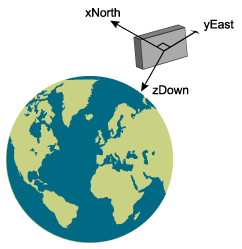
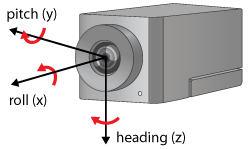
Change your view of a geographic globe by changing the heading, pitch, and roll angles of the camera:
Heading — Rotate the camera about its z-axis, which shifts the view left or right. Move the view to the right by increasing the heading angle.
Pitch — Rotate the camera about its y-axis, which tilts the view up or down. Tilt the view up by increasing the pitch angle.
Roll — Rotate the camera about its x-axis, which spins the camera around its lens. Spin the view counterclockwise by increasing the roll angle.
Tips
When the pitch angle is near –90 (the default) or 90 degrees, the camera loses one rotational degree of freedom. As a result, when you change the roll angle, the heading angle may change instead. This phenomenon is called gimbal lock. To avoid the effects of gimbal lock, use the
camheadingfunction instead of thecamrollfunction.
Version History
Introduced in R2020b
See Also
Functions
1 Alignment of boundaries and region labels are a presentation of the feature provided by the data vendors and do not imply endorsement by MathWorks®.

