Intelligent Bin Picking by Interfacing with UR Series Cobot or URSim Using Simulink RTDE Blocks
R2026bThis example shows you how to send the planned trajectory for intelligent bin picking
to the Universal Robots UR Series cobot or the URSim offline simulator. The Simulink
library, UR RTDE Blocks, in Robotics System Toolbox Support Package
for Universal Robots UR Series Manipulators provides blocks for connecting to and
controlling Universal Robots cobots or URSim via Real-Time Data Exchange (RTDE)
protocol. For details of each block, refer to Blocks listed in
Get Started with Real-Time Data Exchange (RTDE) Connectivity Interface. The
actual execution on the cobot varies due to the effects of the UR controller. These
variations can be observed on the digital twin in Unreal Engine®, which visualizes the real-time motion and differences from the planned
path.
The example can be run by interfacing with either the URSim offline simulator or the physical manipulator (UR Series cobot), and by using Unreal Engine available in Simulink® 3D Animation™ as the visualization environment.
| Option | Perception Dataset | Perception Interface | Interface Elements for Connectivity and Cobot Manipulation | Controller |
|---|---|---|---|---|
| Run example in Unreal Engine with URSim controller feedback | Synthetic | Unreal Engine | Blocks in Simulink library, UR RTDE
Blocks
| URSim Simulator |
| Run example in Unreal Engine with UR Cobot Controller feedback | Real objects | RealSense depth camera that uses RealSense SDK 2.0 for Windows | UR Cobot Controller |
This example is the alternate workflow (Workflow 2) mentioned in the example Intelligent Bin Picking System in Simulink, and it uses the same files, but with a different configuration as explained in this example. To download the required files that support this alternate workflow, run the below command.
openExample('robotics/IntelligentBinPickingExample')The downloaded files are available in the
IntelligentBinPickingExample folder, and you need to follow the
steps mentioned in the below sections to perform intelligent bin picking using URSim
offline simulator or UR Series cobot.
Bin Picking with URSim Offline Simulator
This example supports URSim offline simulator installed on a Linux VM hosted on Windows.
Set Up URSim Offline Simulator
To set up the URSim offline simulator for interfacing with Robotics System Toolbox™ Support Package for Universal Robots UR Series Manipulators, complete the steps described in Set Up URSim Offline Simulator for RTDE.
Model Overview
You need to set the target environment to support URSim simulator, set the
gripper type, specify the IP address, and run the
initRobotModelParam helper function to initialize and
load all the necessary parameters in the
IntelligentBinPicking_Harness.slx model. The model also
executes this function at startup as part of a PreLoadFcn callback.
targetEnv = TargetEnvs.URSim
gripperType = GripperTypeEnum.TwoFinger
ipAddress = "<UR Controller IP>"
The UR Controller IP must be the same IP address that you
mention in the Joint Angle Acquisition window of Hardware
Setup (as explained in Setting Up Connectivity Medium as RTDE and Validating Connection).
After setting the above mentioned values, run the
initRobotModelParam helper
function.
initRobotModelParam
**************************************************************
>>>> Setting Parameters <<<<
  TargetEnv        : URSim
  GripperType      : TwoFinger

**************************************************************
Loading Robot Model and Parameters...OK
Loading Planner Tasks Maximum Errors...
posTargetError: 0.01
Loading Model Simulation Parameters...Loading User Command Bus...OK
Loading Motion Planner Collision Object Bus...OK
Loading Object Detector Response Bus...OK
Loading Motion Planner Task Bus...OK
Loading Motion Planner Command Bus...OK
Loading Joint Trajectory Bus...OK
Loading Motion Planner Response Bus...OK
Loading Manipulator Feedback Bus...OK
Loading Robot Command Bus...OK
Open the IntelligentBinPicking_Harness.slx model that uses
the updated target environment (URSim offline simulator). If the model is
already open (as part of Workflow 1 described in Intelligent Bin Picking System in Simulink example),
close and re-open the model again so that it uses the updated target
environment.
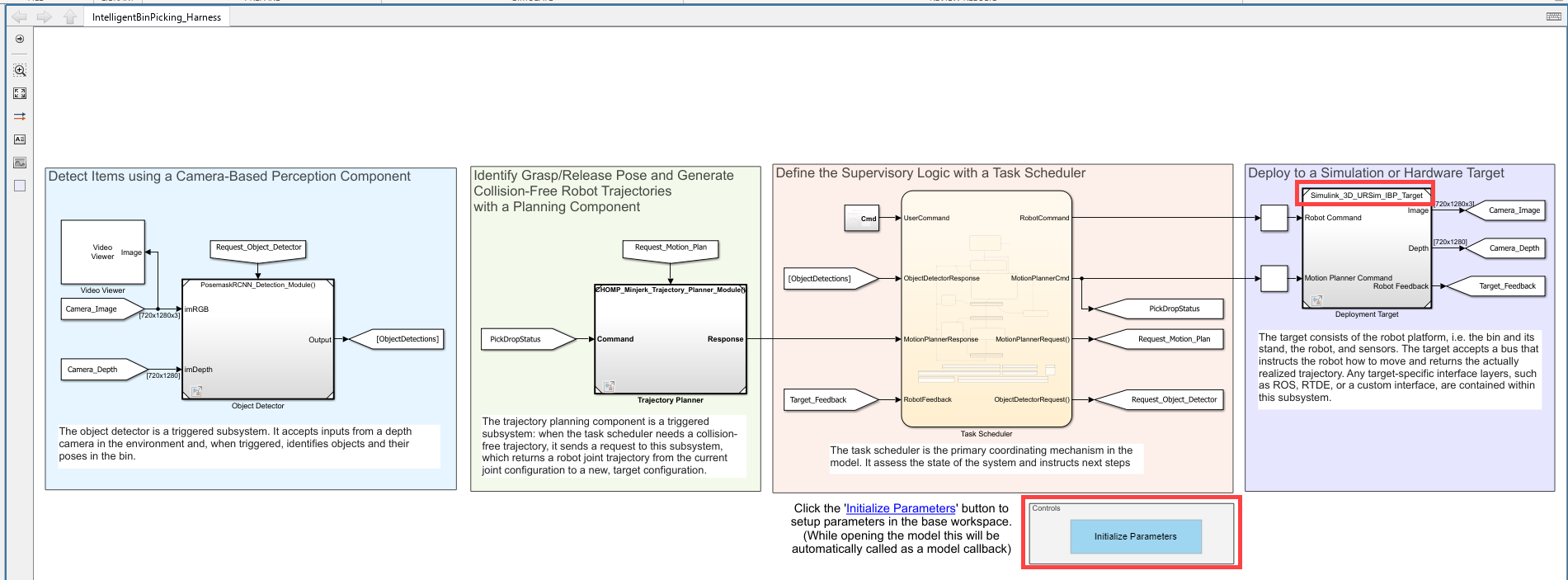
open_system("IntelligentBinPicking_Harness.slx")In the model, click Initialize Parameters to set up all required parameters for URSim. The updated model also displays the new target environment.
Plan Collision-Free Trajectories for URSim
For interfacing with URSim or UR Series cobot, the motion planning routine in
the Trajectory Planner subsystem in the model uses two system
objects.
MotionPlannerCHOMP— This is a wrapper for amanipulatorCHOMPobject. The system object accepts the start and goal configuration and details of the obstacles. It also takes the robot and static environment details as parameters. Internally, the bulk of the computation is handled by the helper file,exampleHelperCHOMPMotionPlanner, which creates and executes the planner. For performance, this code is mexed and the mexed code is ultimately called in lieu of the original MATLAB in the system object. You can take a look at the system object or motion planner code with the following commands:
edit('MotionPlannerCHOMP.m'); % System object
edit('exampleHelperCHOMPMotionPlanner.m'); % Planner creation & execution within the system object
MinjerkpolytrajHelper— This is a system object wrapper for theminjerkpolytrajfunction. This function generates a minimum jerk polynomial trajectory that achieves a given set of input waypoints with their corresponding time points. The result is a time-optimal trajectory. You can inspect this code with this command.
edit('MinjerkpolytrajHelper.m')
These two blocks in sequence return a sampled collision-free trajectory that is time-optimal given kinematic constraints.

Simulate Intelligent Bin Picking in Unreal Engine for URSim Offline Simulator
After opening the IntelligentBinPicking_Harness model,
click Run to simulate intelligent bin picking in URSim and
Unreal Engine. This is achieved using these referenced models:
PosemaskRCNN_Detection_Module.slx— The perception component is a Pose Mask R-CNN network that has been trained on labeled images from Simulink 3D Animation. For more information about training the Pose Mask R-CNN network, see the Perform 6-DoF Pose Estimation for Bin Picking Using Deep Learning (Computer Vision Toolbox) example.Simulink_3D_URSim_IBP_Target.slx— The simulation target is a semi-structured bin picking scene created using Simulink 3D AnimationCHOMP_Minjerk_Trajectory_Planner_Module.slx— The trajectory planner that uses an optimization-based planner,manipulatorCHOMP, coupled withminjerkpolytraj, to produce time-optimal trajectories.
Click Run or execute this code to start the simulation in URSim and Unreal Engine.
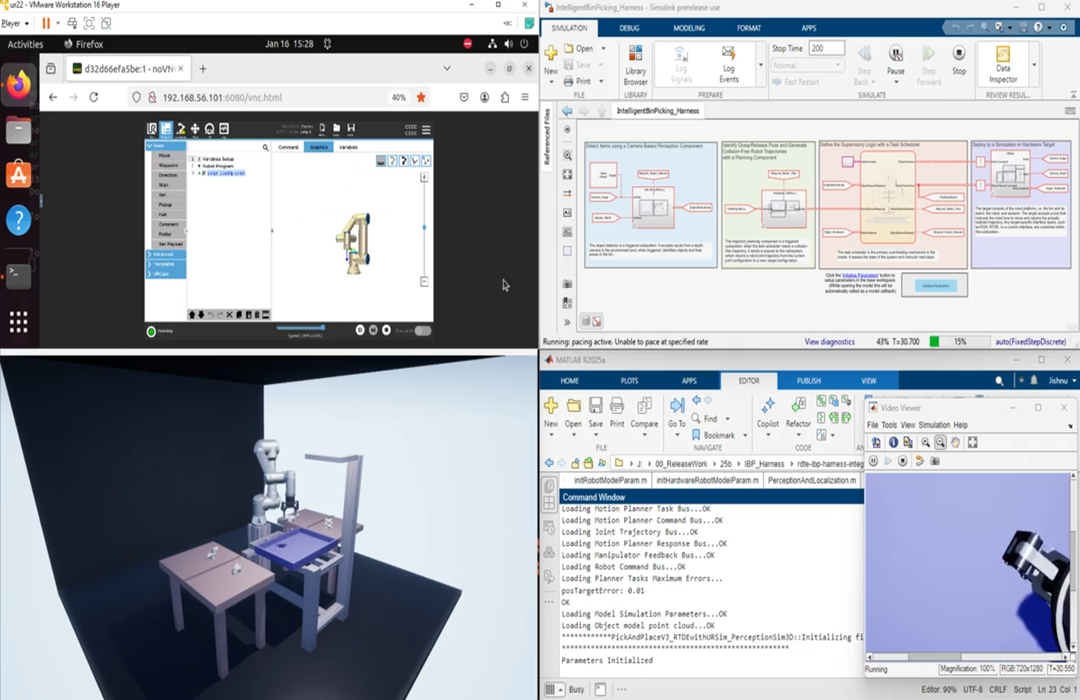
sim('IntelligentBinPicking_Harness.slx');This image shows the URSim simulator (in a system browser) and the Unreal Engine, at a particular waypoint along the trajectory, showing the similar pose for all the joints.
Bin Picking with UR Series Cobot
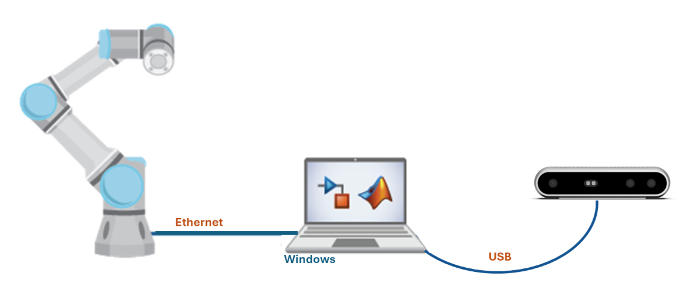
This example supports controlling UR Series cobot directly from MATLAB installed on Windows.
Set Up UR Series Cobot and RealSense Camera
To set up the UR Series cobot for interfacing with Robotics System Toolbox™ Support Package for Universal Robots UR Series Manipulators:
Configure the cobot and gripper by completing the steps described in Set Up UR Series Cobot for RTDE.
Configure the RealSense Camera to acquire pointcloud and RGB image. To do this, download the RealSense SDK 2.0 for Windows and run the executable file, and follow the setup wizard to complete the installation.
Model Overview
You need to set the target environment to support UR Series cobot, set the
gripper type, specify the IP address, and run the
initRobotModelParam helper function to initialize and
load all the necessary parameters in the
IntelligentBinPicking_Harness.slx model. The model also
executes this function at startup as part of a PreLoadFcn callback.
targetEnv = TargetEnvs.Hardware
gripperType = GripperTypeEnum.TwoFinger
ipAddress = "<UR Controller IP>"
The UR Controller IP must be the same IP address that you
mention in the Joint Angle Acquisition window of Hardware
Setup (as explained in Setting Up Connectivity Medium as RTDE and Validating Connection to URSeries Cobot).
After setting the above mentioned values, run the
initRobotModelParam helper
function.
initRobotModelParam
**************************************************************
>>>> Setting Parameters <<<<
  TargetEnv        : Hardware
  GripperType      : TwoFinger

**************************************************************
Loading Robot Model and Parameters...OK
Loading Planner Tasks Maximum Errors...
posTargetError: 0.01
Loading Model Simulation Parameters...Loading User Command Bus...OK
Loading Motion Planner Collision Object Bus...OK
Loading Object Detector Response Bus...OK
Loading Motion Planner Task Bus...OK
Loading Motion Planner Command Bus...OK
Loading Joint Trajectory Bus...OK
Loading Motion Planner Response Bus...OK
Loading Manipulator Feedback Bus...OK
Loading Robot Command Bus...OK
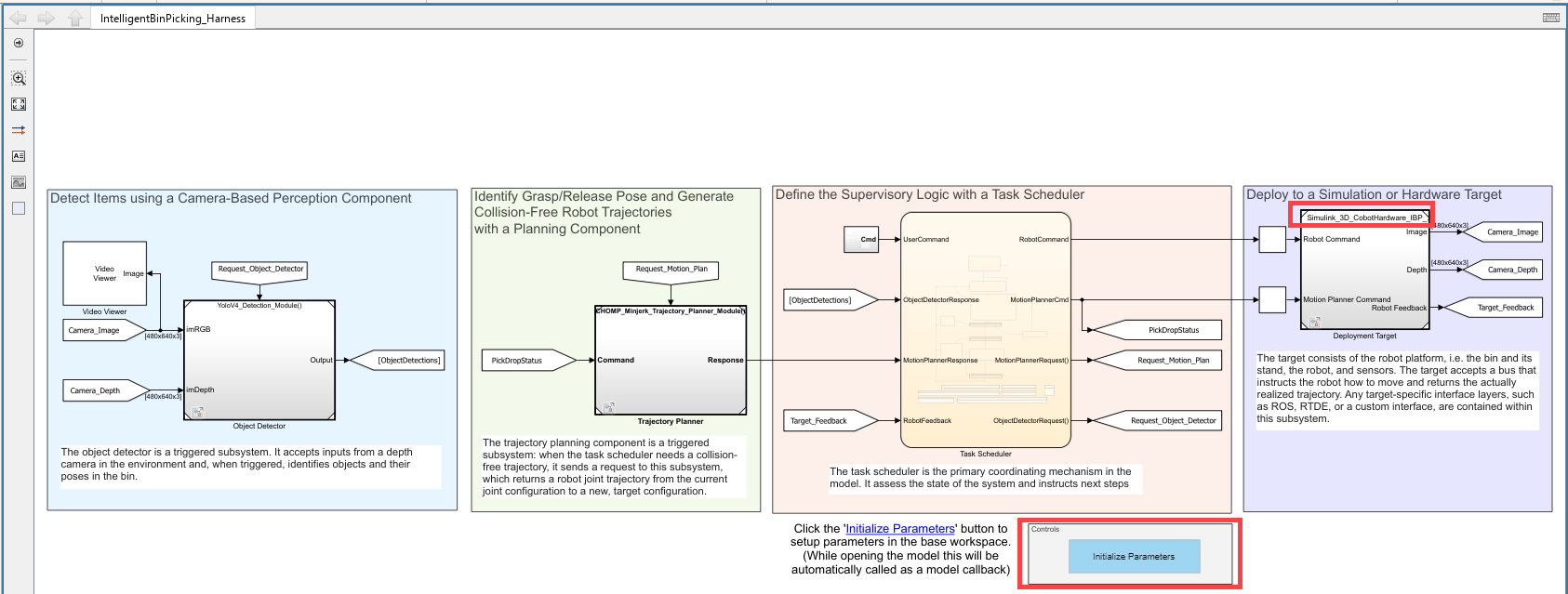
Open the IntelligentBinPicking_Harness.slx model that uses
the updated target environment (UR Series hardware). If the model is already
open (as part of Workflow 1 described in Intelligent Bin Picking System in Simulink example),
close and re-open the model again so that it uses the updated target
environment.
open_system("IntelligentBinPicking_Harness.slx")In the model, click Initialize Parameters to set up all required parameters for UR Series cobot. The updated model also displays the new target environment.
Plan Collision-Free Trajectories for UR Series Cobot
For interfacing with URSim or UR Series cobot, the motion planning routine in
the Trajectory Planner subsystem in the model uses two system
objects.
MotionPlannerCHOMP— This is a wrapper for amanipulatorCHOMPobject. The system object accepts the start and goal configuration and details of the obstacles. It also takes the robot and static environment details as parameters. Internally, the bulk of the computation is handled by the helper file,exampleHelperCHOMPMotionPlanner, which creates and executes the planner. For performance, this code is mexed and the mexed code is ultimately called in lieu of the original MATLAB in the system object. You can take a look at the system object or motion planner code with the following commands:
edit('MotionPlannerCHOMP.m'); % System object
edit('exampleHelperCHOMPMotionPlanner.m'); % Planner creation & execution within the system object
MinjerkpolytrajHelper— This is a system object wrapper for theminjerkpolytrajfunction. This function generates a minimum jerk polynomial trajectory that achieves a given set of input waypoints with their corresponding time points. The result is a time-optimal trajectory. You can inspect this code with this command.
edit('MinjerkpolytrajHelper.m')
These two blocks in sequence return a sampled collision-free trajectory that is time-optimal given kinematic constraints.
Simulate Intelligent Bin Picking in Unreal Engine for UR Series Cobot
After opening the IntelligentBinPicking_Harness model,
click Run to simulate intelligent bin picking in Unreal
Engine. This is achieved using these referenced models:
YoloV4_Detection_Module.slx— The perception component consists of an object detector that uses a yoloV4 network, which is a type of convolutional neural network (CNN) designed for 6-DoF pose estimation.Simulink_3D_CobotHardware_IBP_Target.slx— The simulation target is a semi-structured bin picking scene created using Simulink 3D Animation.CHOMP_Minjerk_Trajectory_Planner_Module.slx— The trajectory planner that uses an optimization-based planner,manipulatorCHOMP, coupled withminjerkpolytraj, to produce time-optimal trajectories.
Click Run or execute this code to start the simulation for UR Series cobot.
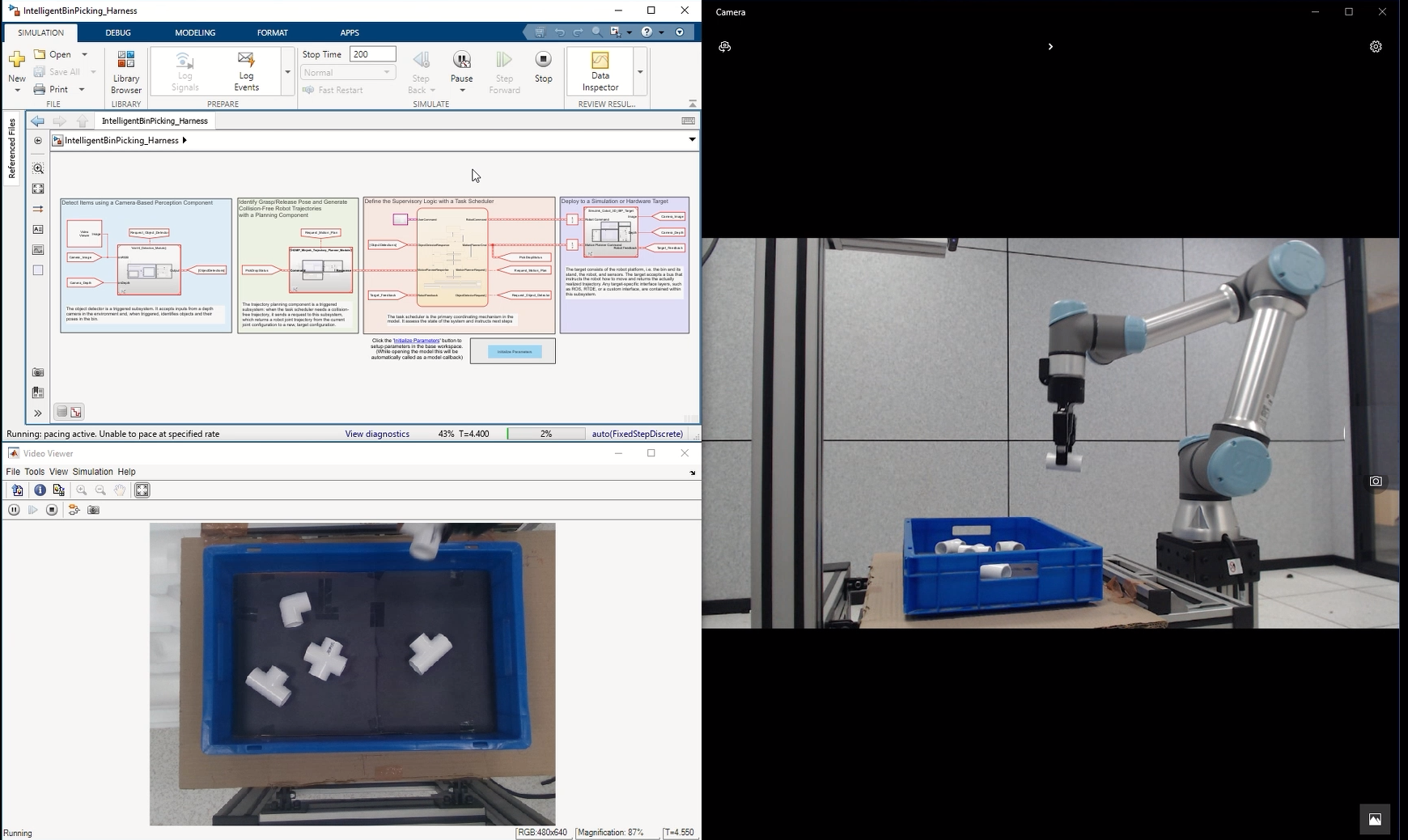
sim('IntelligentBinPicking_Harness.slx');This image shows the UR Series cobot in action, at a particular waypoint along
the trajectory, during simulation of
IntelligentBinPicking_Harness.slx.